Single point of control
Only one session operates the Robot at a time: one browser tab, a program using the HTTP API, or the PLC over Profinet. Every other session can watch, but cannot change anything or command the Robot.
Every browser tab counts as a session, including tabs on the same computer.
View-only mode
A session that does not hold control is in View-only mode. An amber frame runs around the whole window, and its top band reads "You are viewing RobFlow in View-only mode" and "Editing and robot commands are disabled." On a narrow window the second sentence is left out. The band carries the Take control button.
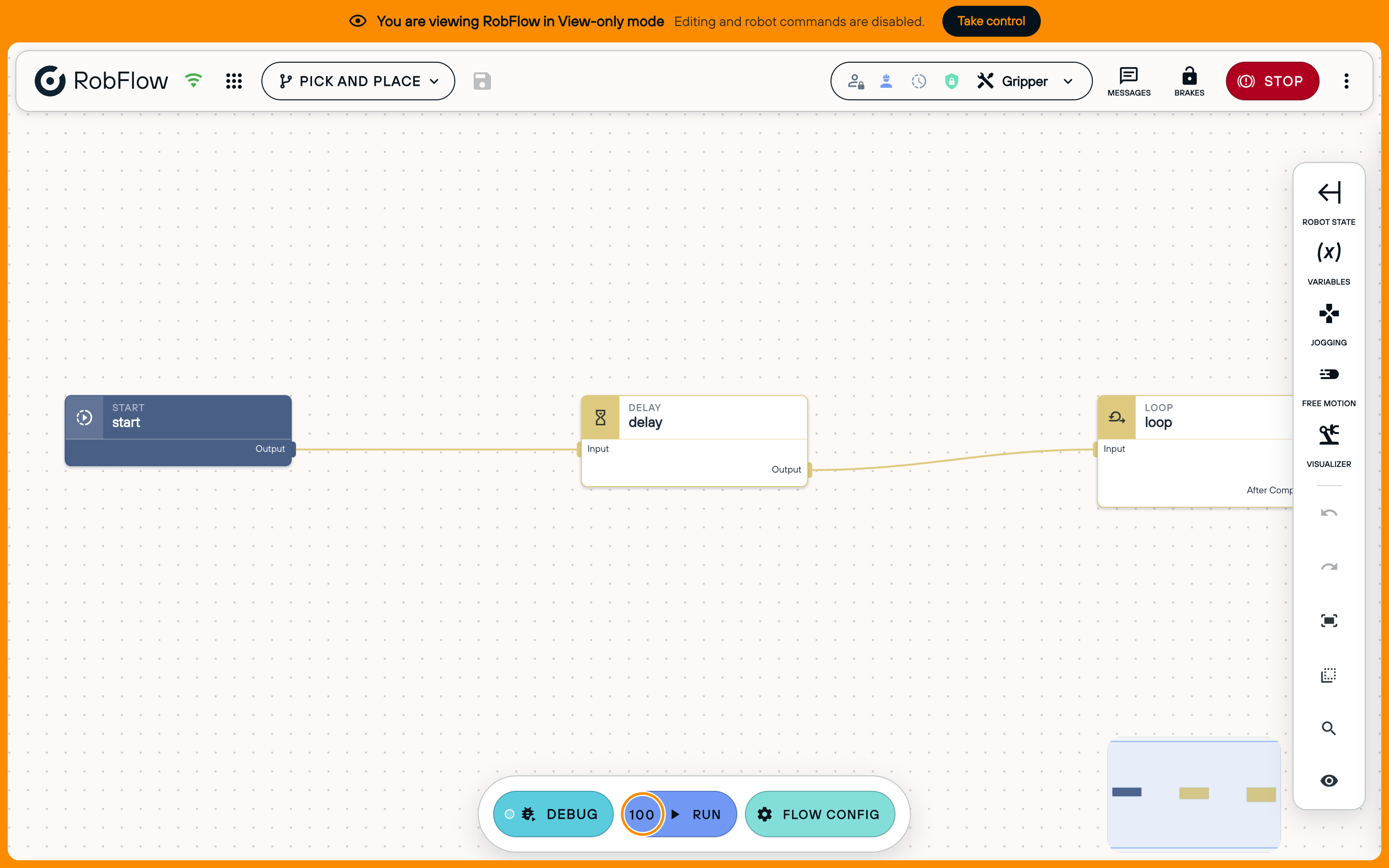
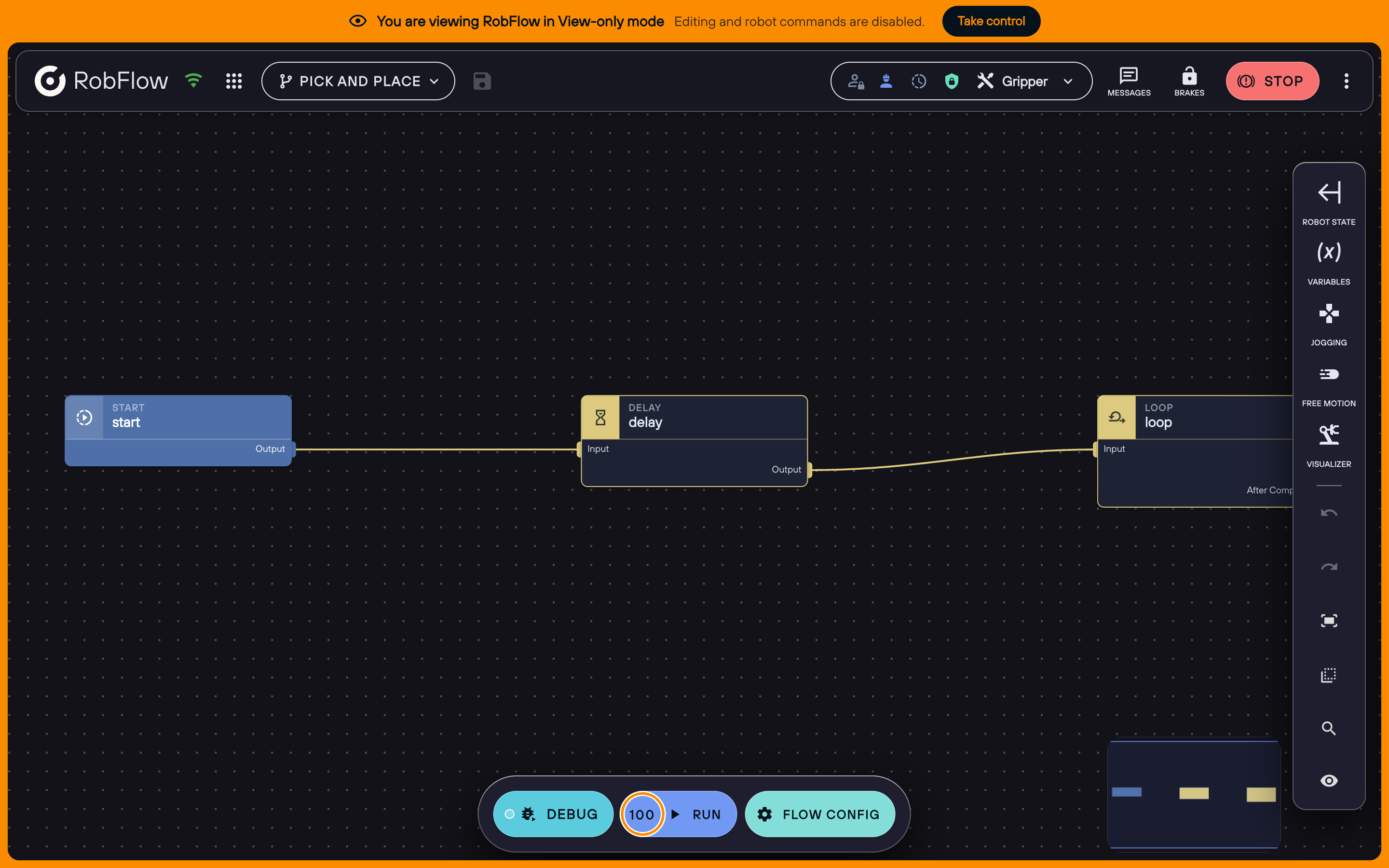
The app stays usable for looking:
- You can switch views, open Flows, Subflows and Dashboards, and pan and zoom the canvas.
- You cannot edit. A Node you move on the canvas snaps back, and the canvas offers no context menu.
- Anything that changes the Robot or what is stored on it is refused: jogging, running or pausing a Flow, setting outputs, writing Variables, and saving Flows, Subflows, Dashboards or the Robot Configuration. RobFlow opens the take-control dialog instead.
- STOP is a Robot command too. In View-only mode it opens the take-control dialog instead of stopping the Robot.
Every session starts in View-only mode, even when nobody else is connected. Press Take control to start working.
Taking control
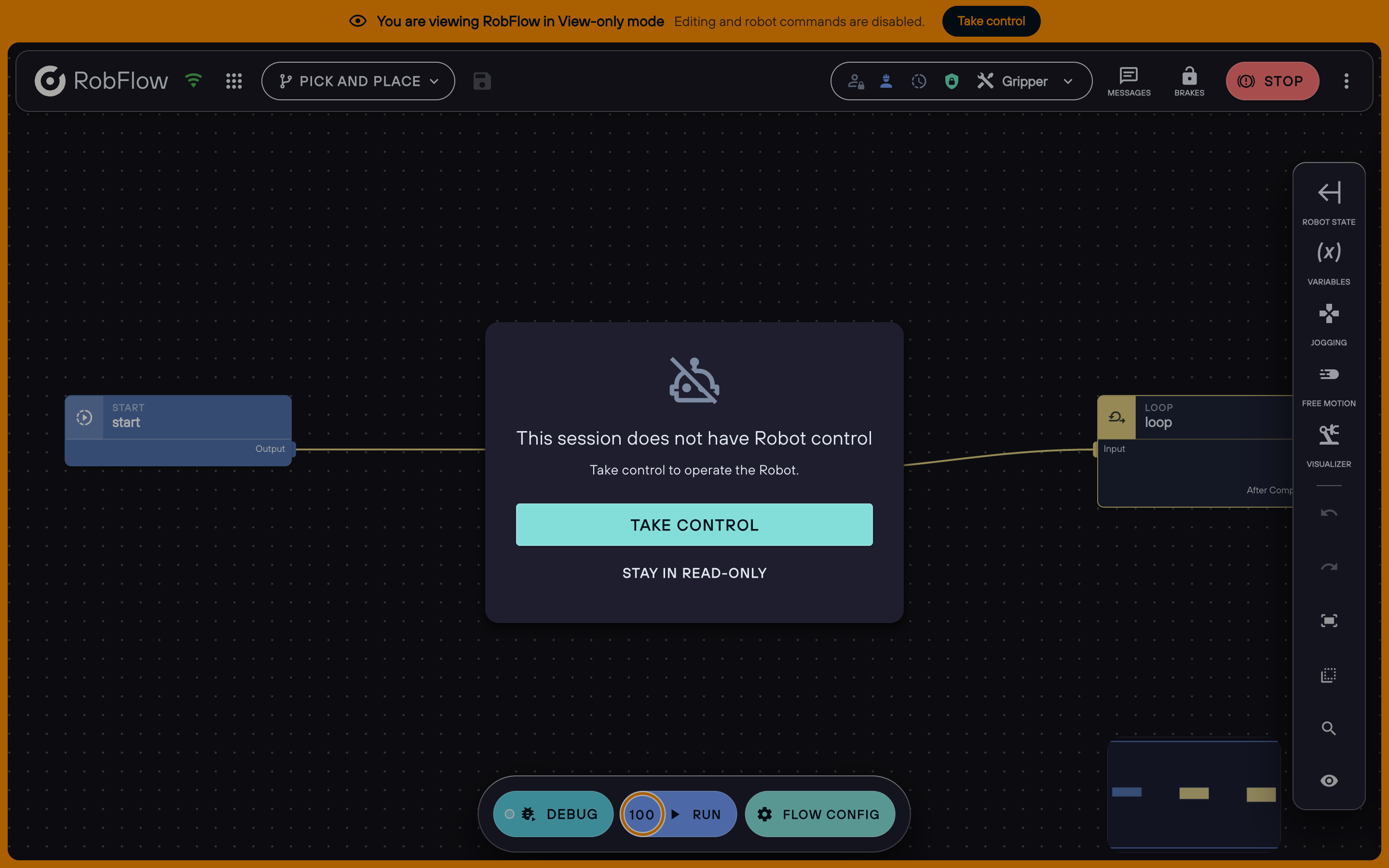
Take control opens a dialog:
- This session does not have Robot control and "Take control to operate the Robot." Press Take control.
- Stay in read-only closes the dialog and leaves the session in View-only mode.
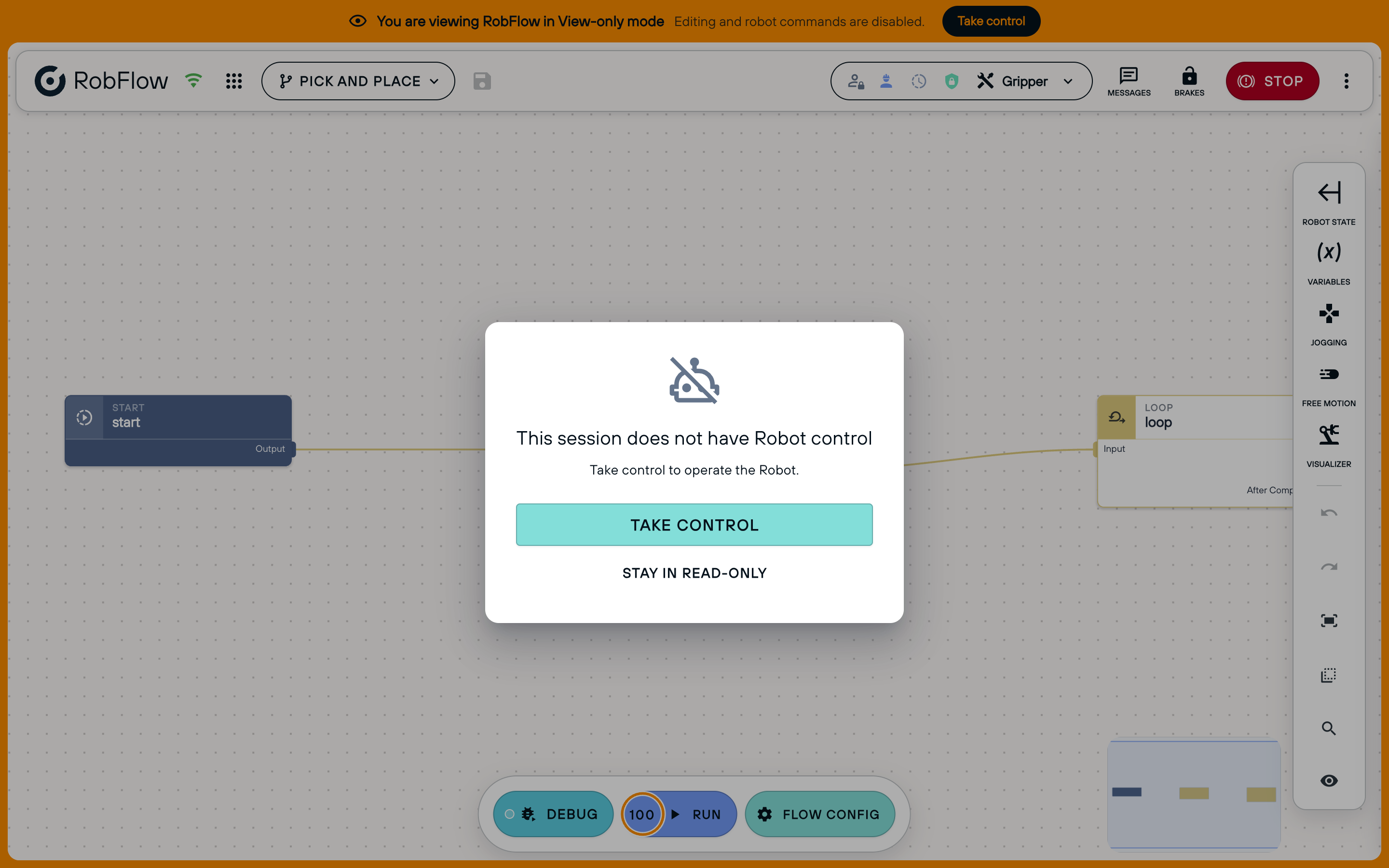
Taking control always succeeds unless the PLC holds it (see Profinet). If another session had control, it drops to View-only mode. A Flow that is running keeps running.
When this session gets control, the frame slides off the edges of the screen and the app grows back to the full window. With Reduce motion on, it disappears at once.
The same dialog opens by itself when this session tries something that needs control, for example when another session took control while you were working.
Seeing who has control
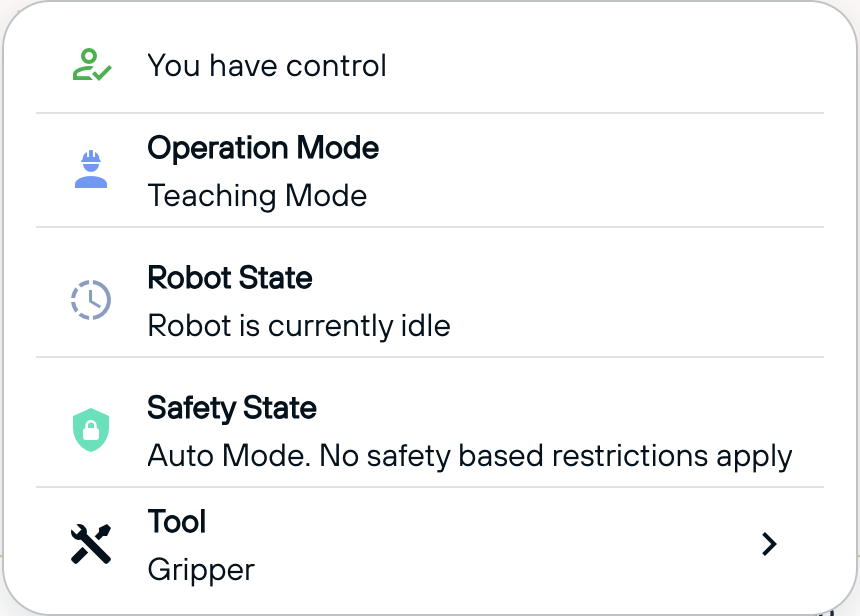
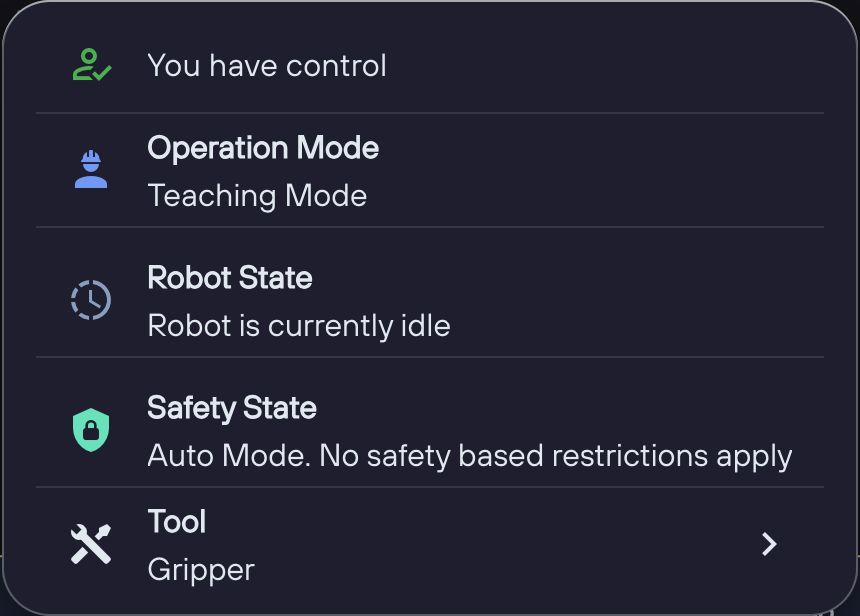
The robot-status pill in the app bar always shows an icon for who holds control. Click the pill to open its menu. The first row says who holds control:
| Row | Meaning |
|---|---|
| You have control | This session operates the Robot. |
| Another session in control | Another session holds control. |
| Profinet in control | The PLC holds control. |
| Control available | Nobody holds control. |
The pill only shows the status. Control is taken from the frame or the dialog.
When the last session closes
When the last browser session closes, control is freed. The Robot is not stopped, and a running Flow keeps running. The next session opens in View-only mode like any other.
Profinet
Control with Profinet in the three-dot menu hands control to the PLC. This stops the Robot. The PLC can also claim control itself with CLAIM_CONTROL.
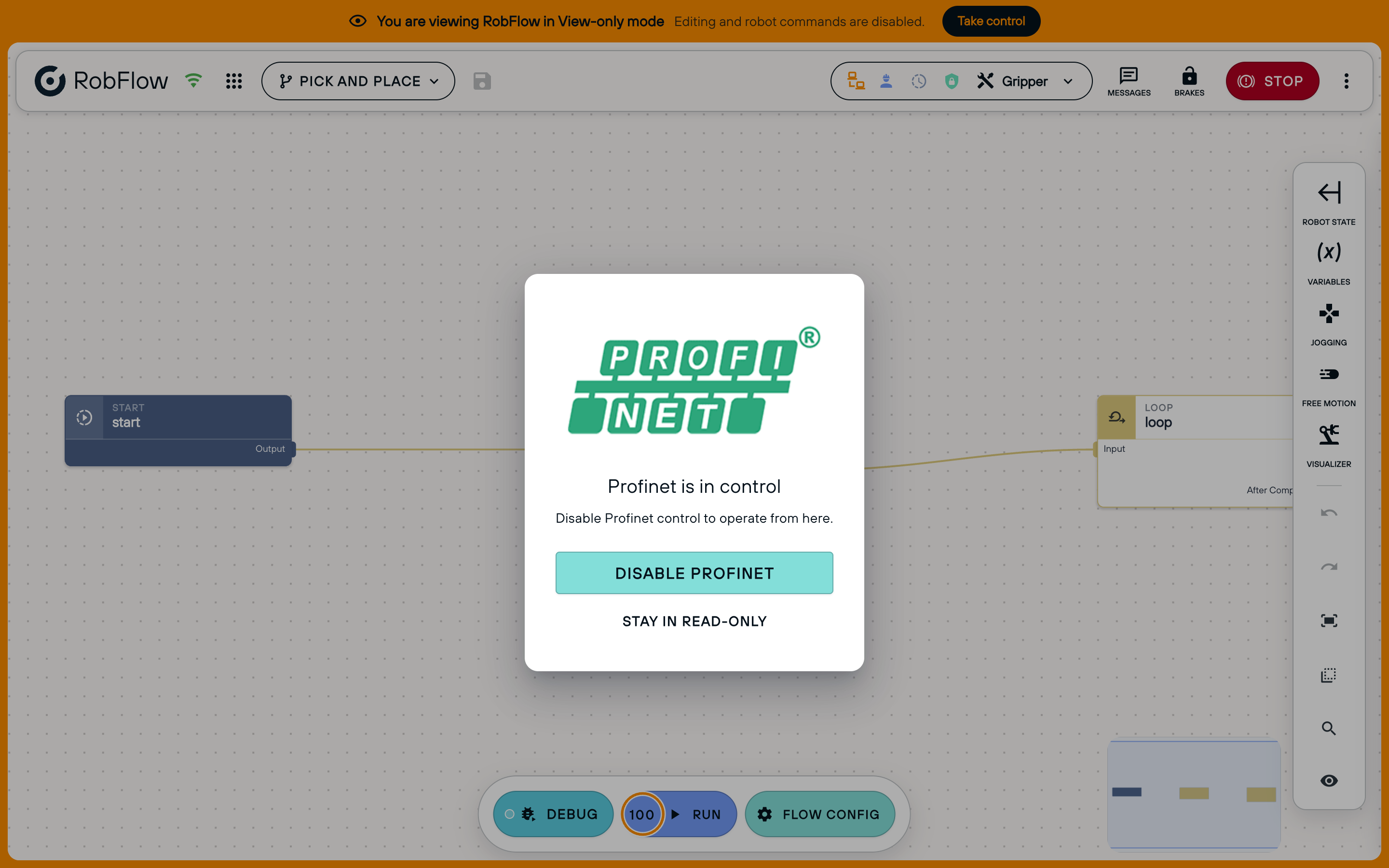
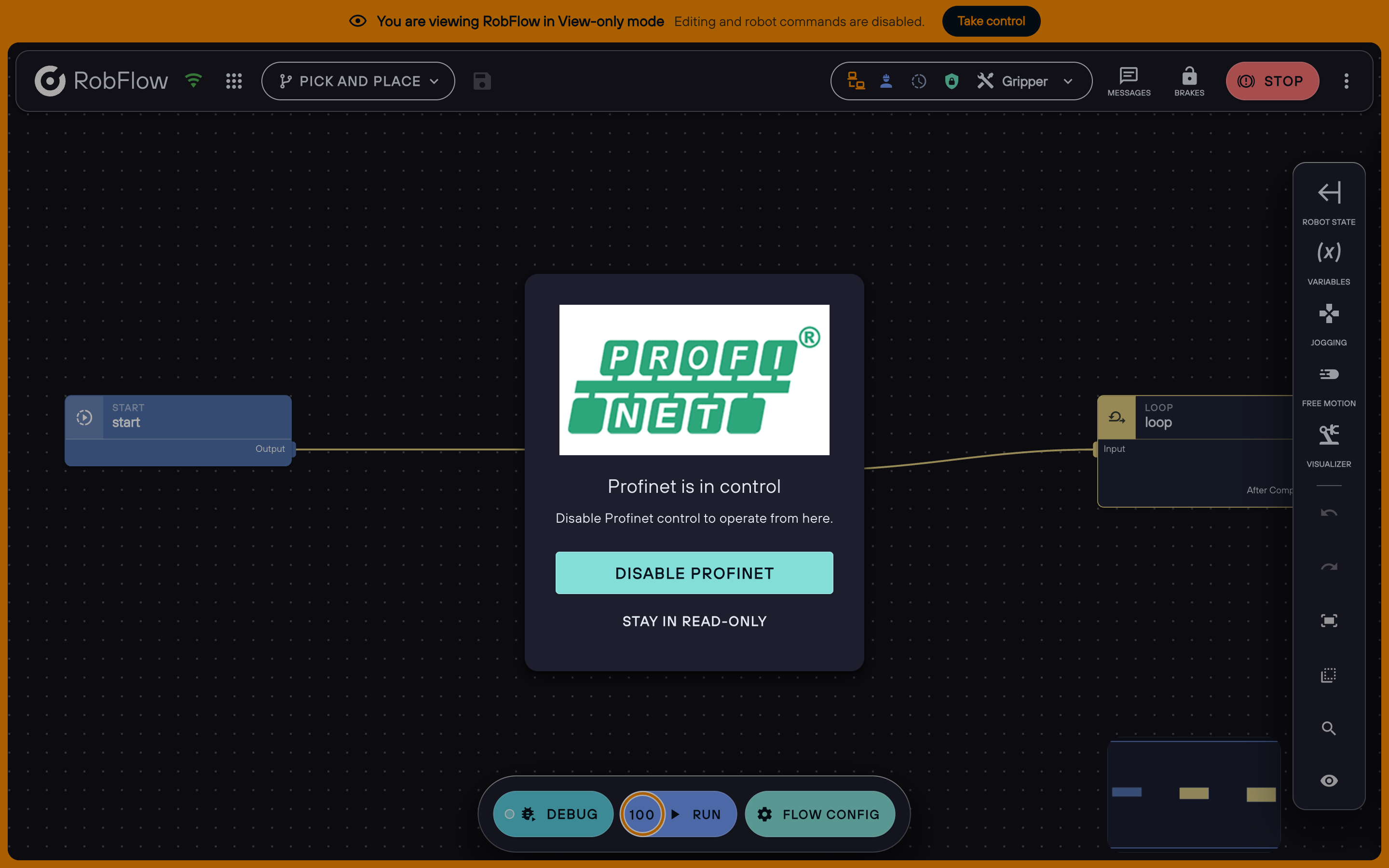
While the PLC has control, every session is in View-only mode. Take control then opens a dialog that reads Profinet is in control and "Disable Profinet control to operate from here." Pressing Disable Profinet stops the Robot and gives control to that session.
PLC control survives a restart of the Robot. Browser control does not.
For the PLC side, see Profinet: Single point of control.
Programs and scripts
Programs that use the HTTP API, for example Streaming, request control as well. While a program holds control, every browser session is in View-only mode. See Request control.
Dashboard buttons and the HTTP Request Node can send a control token with their request, so they can call the Robot's own API or another Robot's. See HTTP Call and HTTP Request: Control Token.
Things to know
- Changes to a Dashboard made while you had control are kept when you lose it. Take control again to save them.
- The Legacy editor follows the same rule.