The RobFlow window
This page describes the parts of the RobFlow window that stay the same in every view: the app bar along the top, the rail along the right edge, and the menus and windows they open. What the canvas itself offers is described under Working on the Canvas.
App bar


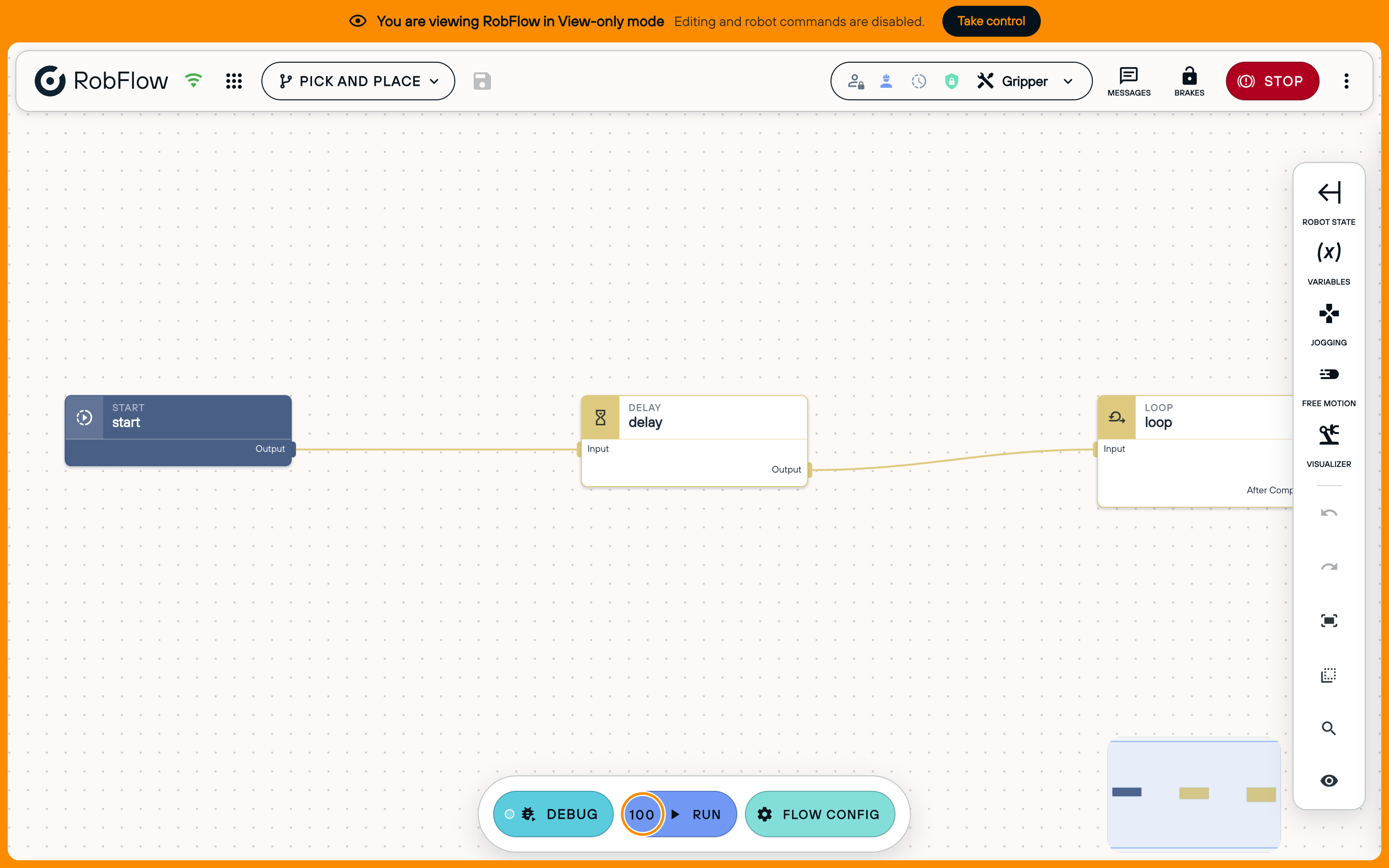
From left to right, the app bar holds:
- Logo and RobFlow. Click either to go to the start page.
- Internet indicator. Shows whether the Robot is connected to the Internet.
- View Selector (Alt + W). The grid button switches between the views: Flow Editor, Subflow Editor, Dashboard Editor, Dashboard Viewer, Robot Visualizer, RobVision and RobSafety. RobVision is listed only once a RobVision device is set up in Robot Configuration, and RobSafety only on the Beta update channel.
- The editor's selector and Save. In the Flow Editor this is the Flow selector (Alt + L). It lists your Flows and offers New Flow, Import Flow, Edit Flow name, Duplicate Flow, Export Flow, Delete Flow and Restore Flow Backup. The save button next to it saves the Flow (Ctrl + S).
- Robot status. A pill that shows who has control, the running Flow, the operation mode, the Robot status, the safety status and the active Tool (or No Tool). When the app bar runs out of room, the pill drops the Tool, the Flow's name, the operation mode and the safety status, one at a time. Click it for details. The first row says who has control: one of You have control, Another session in control, Profinet in control or Control available. See Single point of control. The last row, Tool, opens the Robot State drawer at the Tool panel.
- MESSAGES (Alt + M). Opens the Message Log. Mark all as read clears the unread count.
- BRAKES. Shows the state of the brakes, with the tooltip Engaged, click to release or Released, click to engage.
- STOP. Immediately stops whatever the Robot is doing. It always stays in the app bar. In View-only mode it opens the take-control dialog instead.
- Three-dot menu. See below.
Three-dot menu
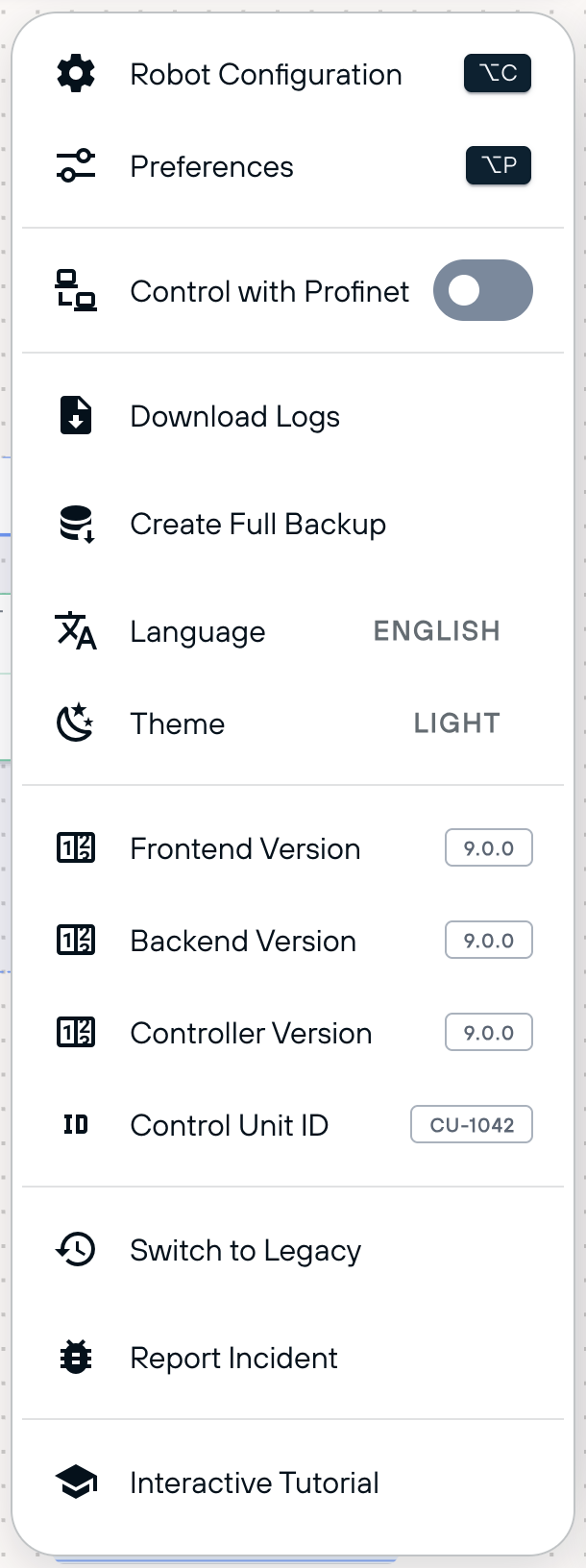
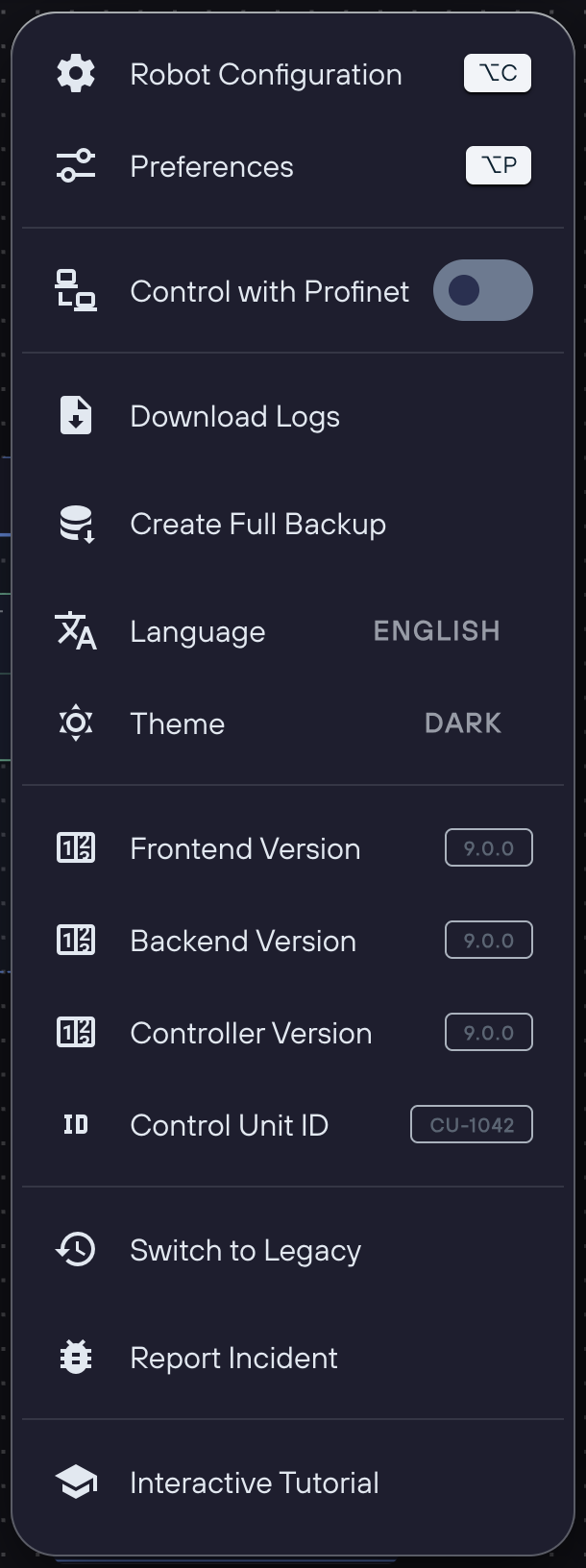
The three-dot menu at the right end of the app bar holds, from top to bottom:
- Robot Configuration (Alt + C). You must be logged in, and it is not available during Free Motion. See Robot Configuration.
- Preferences (Alt + P). See Preferences.
- Control with Profinet. A switch that hands control of the Robot to a Profinet PLC. See Single point of control.
- Download Logs and Create Full Backup. Both need you to be logged in. A full backup cannot be created while a Flow is running continuously.
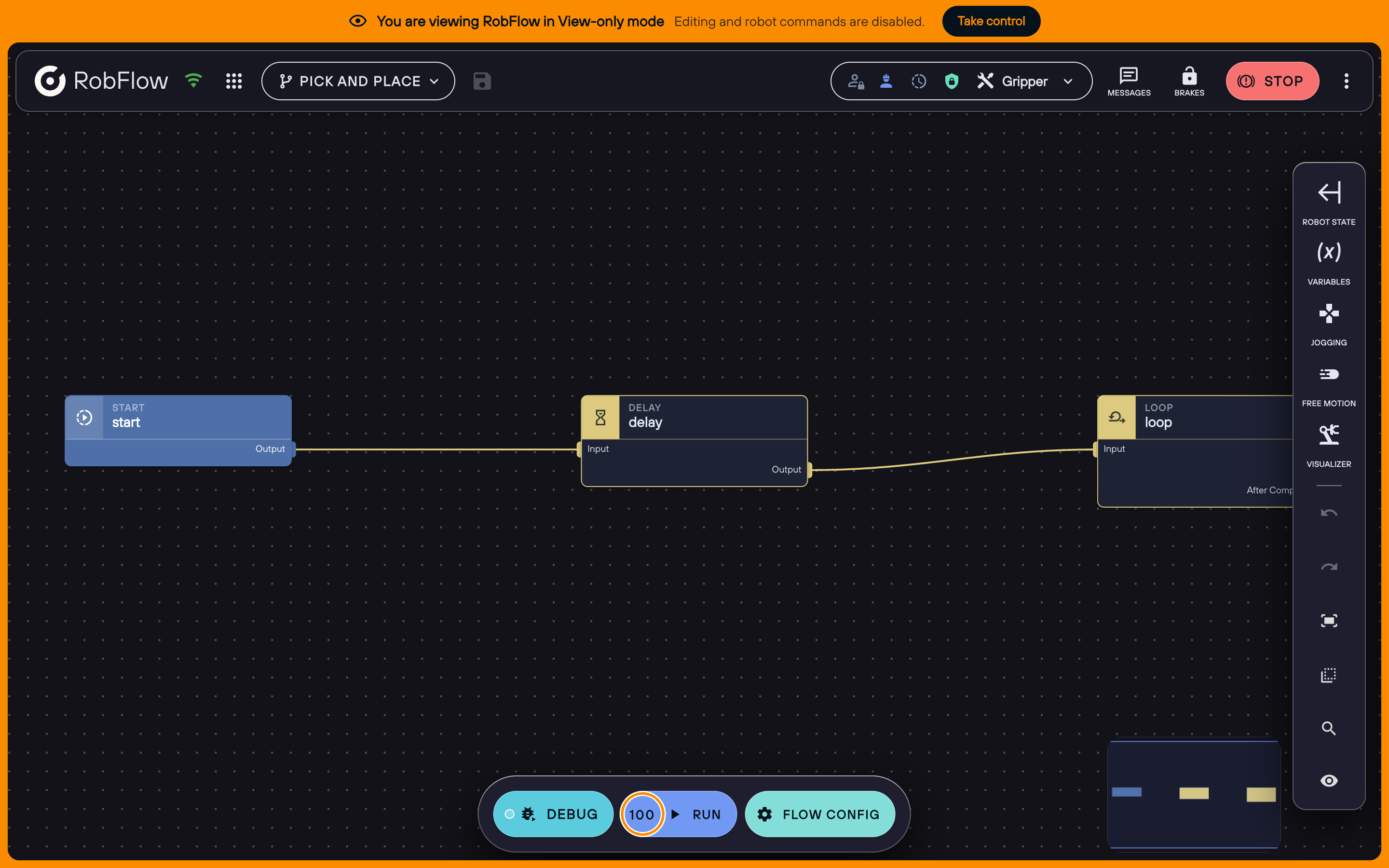
- Language and Theme (Light or Dark).
- Frontend Version, Backend Version, Controller Version and Control Unit ID. Click a row to copy the value.
- Switch to Legacy. Shown only on a Control Unit that carries the Legacy editor. It opens the same view in the Legacy editor. If the open Flow, Subflow or Dashboard has unsaved changes, RobFlow first says that they are not saved and are lost when Legacy opens. See The Legacy editor.
- Report Incident.
- Interactive Tutorial. Starts the guided tour in the Flow Editor.
- Release Notes.
- Documentation (Alt + H). See Getting help in the app.
- Keyboard Shortcuts (Alt + ?). See Keyboard Shortcuts.
- API Documentation.
- Login or Logout.
Rail
The rail is the strip along the right edge of the window. While you are logged in, it shows the Robot controls in every view except the Dashboard Editor and the Dashboard Viewer. VISUALIZER appears only while a Flow or Subflow is open. In the editors, the canvas tools follow below the Robot controls, with a More tools list for those that do not fit.


From top to bottom:
- ROBOT STATE (Alt + D) opens the Robot State drawer.
- VARIABLES (Alt + V) opens the Variables window. See The Variables menu.
- JOGGING (Alt + J) opens the Jogging window.
- FREE MOTION turns Free Motion on, so that you can move the Robot by hand.
- VISUALIZER (Alt + G switches between its two layouts) shows or hides the Robot Visualizer.
Robot State drawer
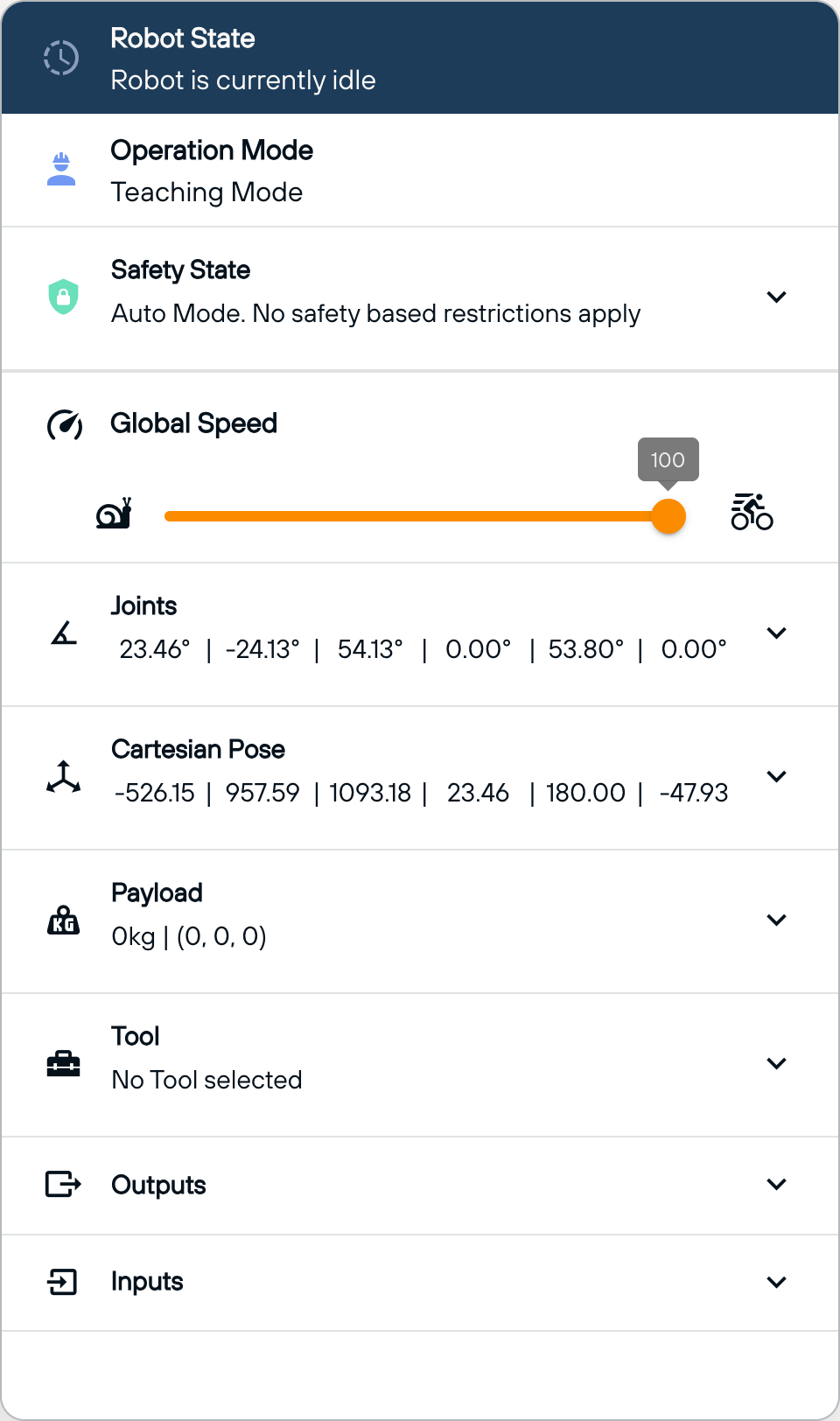
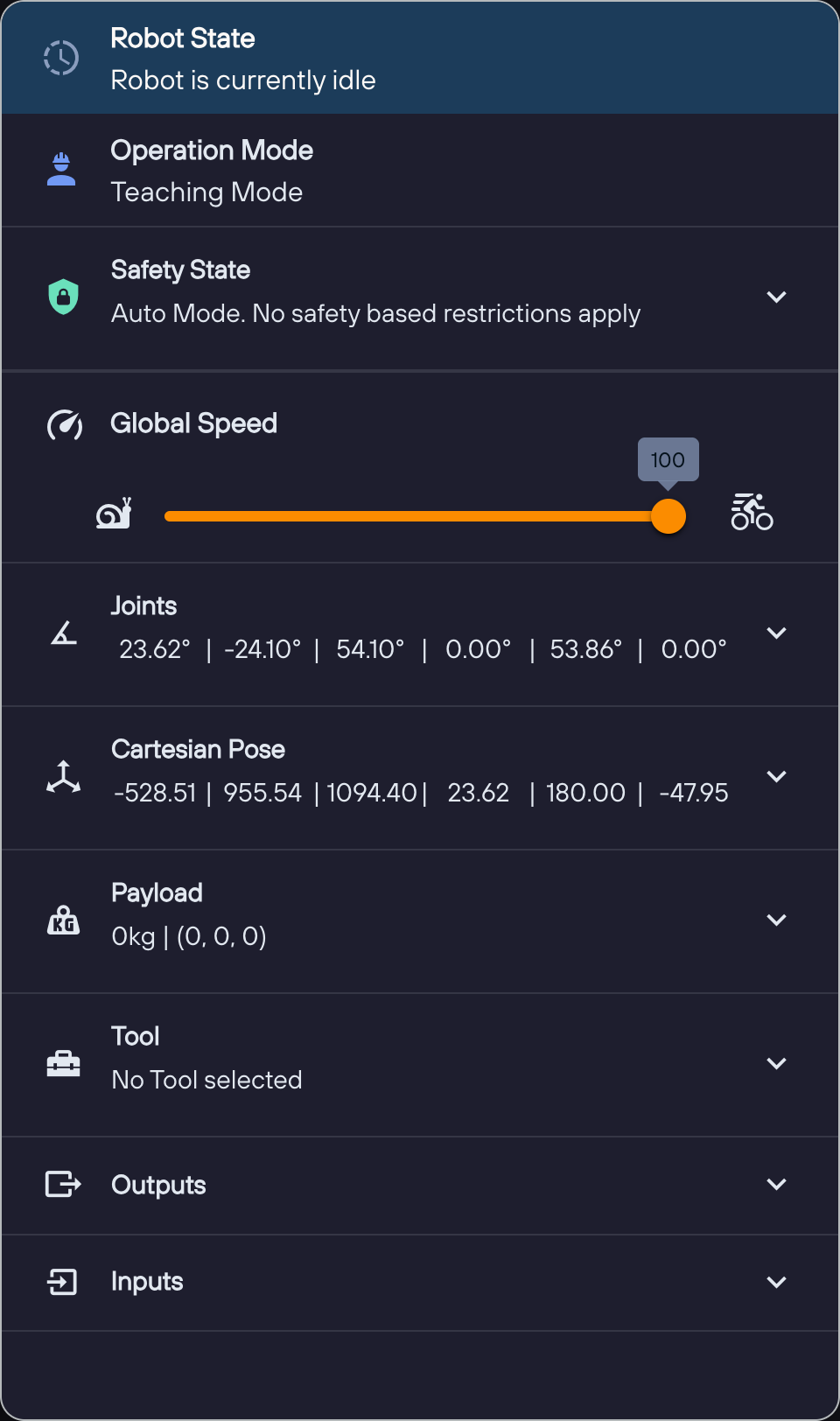
The drawer shows the Robot status and the operation mode, then these sections:
- Safety State
- Global Speed, a slider from slow to fast
- Joints, with an OVERLOAD chip when a Joint is overloaded
- Cartesian Pose
- Payload
- Collision Detection (Beta), shown only on the Beta update channel, when Collision Detection is available
- Tool
- Outputs
- Inputs
Jogging window
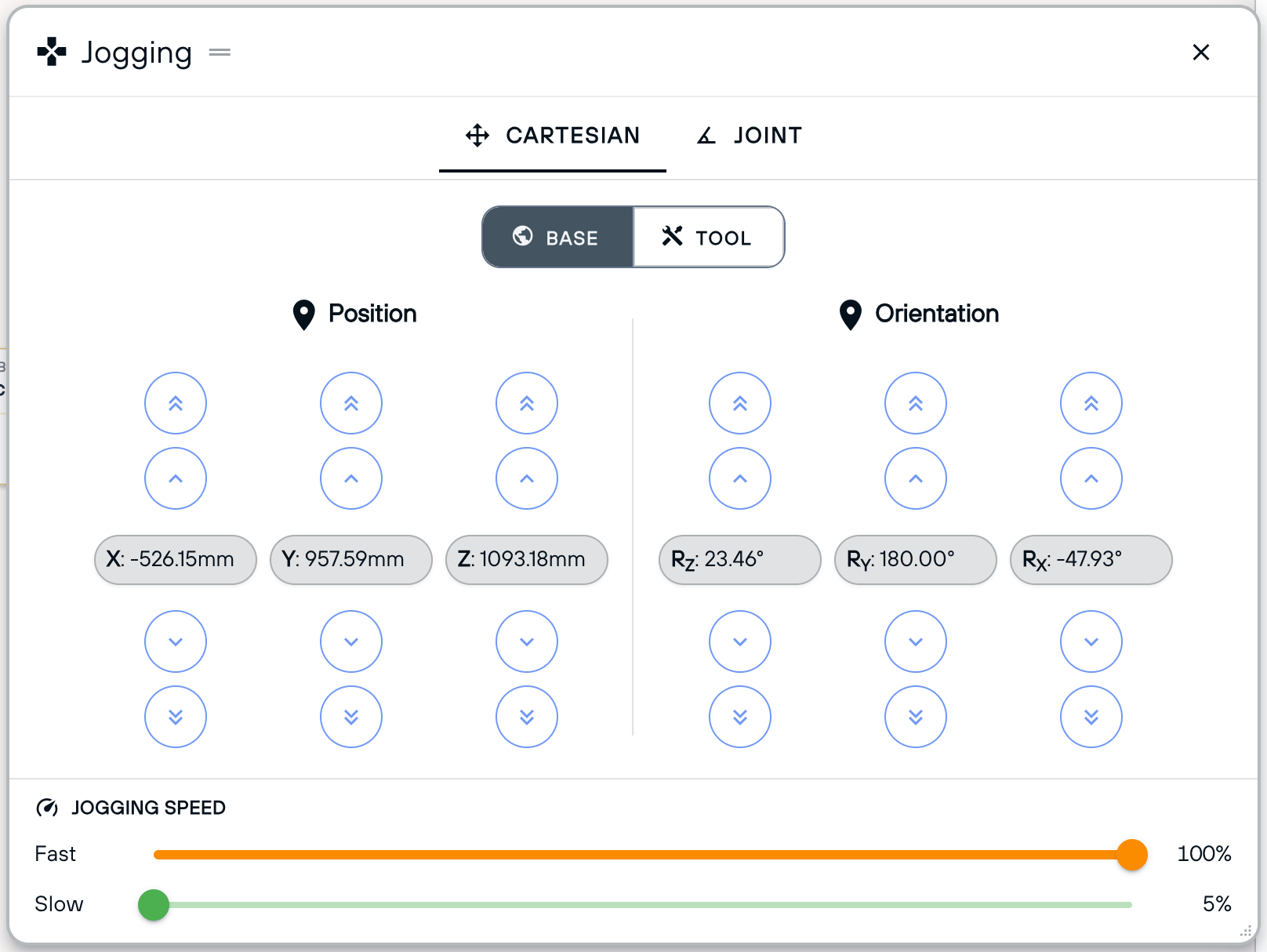
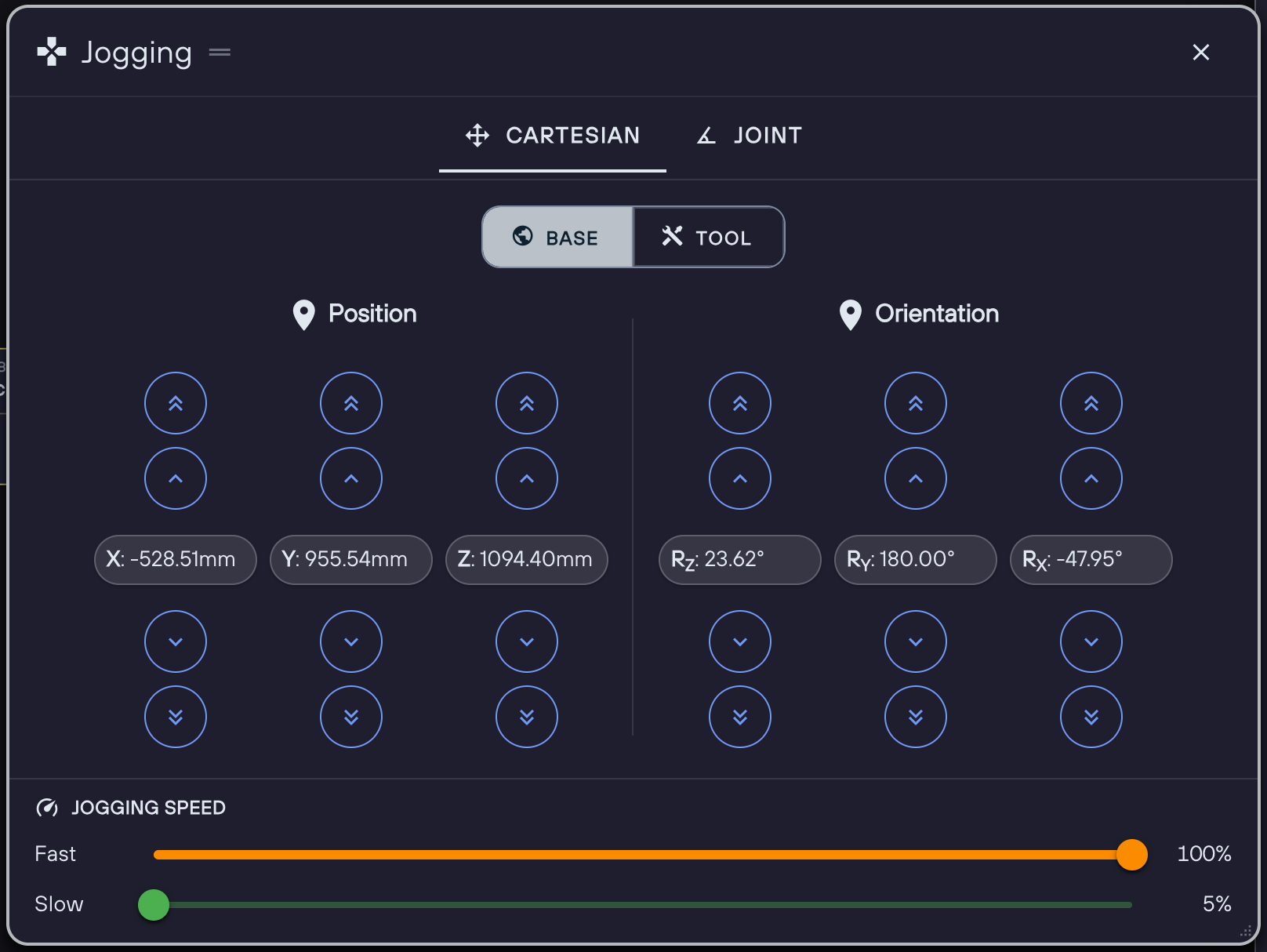
The Jogging window has a Cartesian tab and a Joint tab, and Jogging speed sliders from Fast to Slow. Hover over JOGGING while the brakes are engaged and the tooltip reads Release the brakes to jog; the window closes when the brakes engage.
Visualizer
The Robot Visualizer opens as a floating window the first time, and in the layout you last used after that. Drag the strip along its top edge to move it, and resize it from the bottom-right corner. Expand to split view docks it beside the canvas, Collapse to floating window undoes that, and in split view you can Drag to resize the seam between the two panels. See the Robot Visualizer.
Run bar
The run controls sit in a bar at the bottom of the canvas: Debug, Run and Flow Config. See The canvas at a glance and Watching a Run.
Preferences
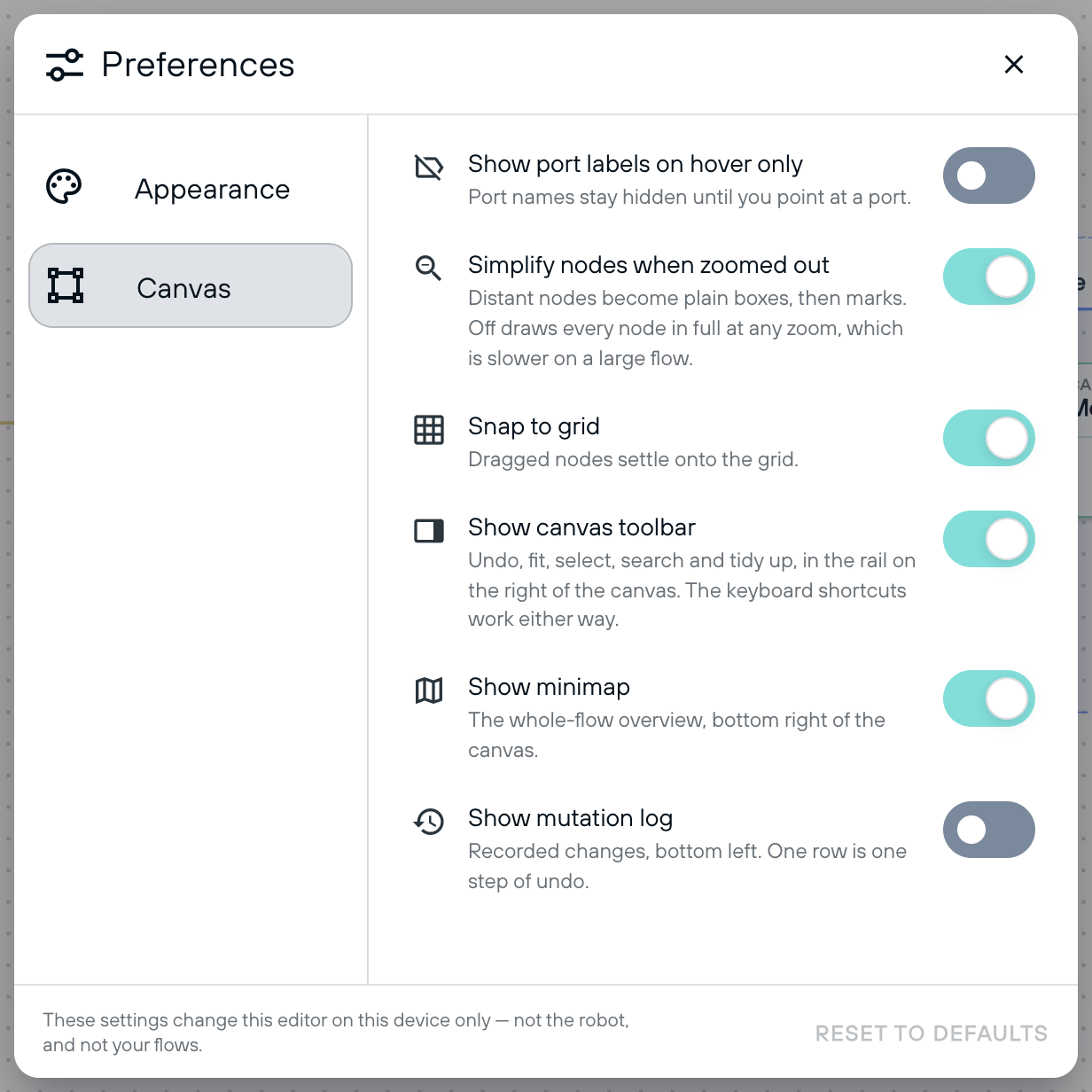
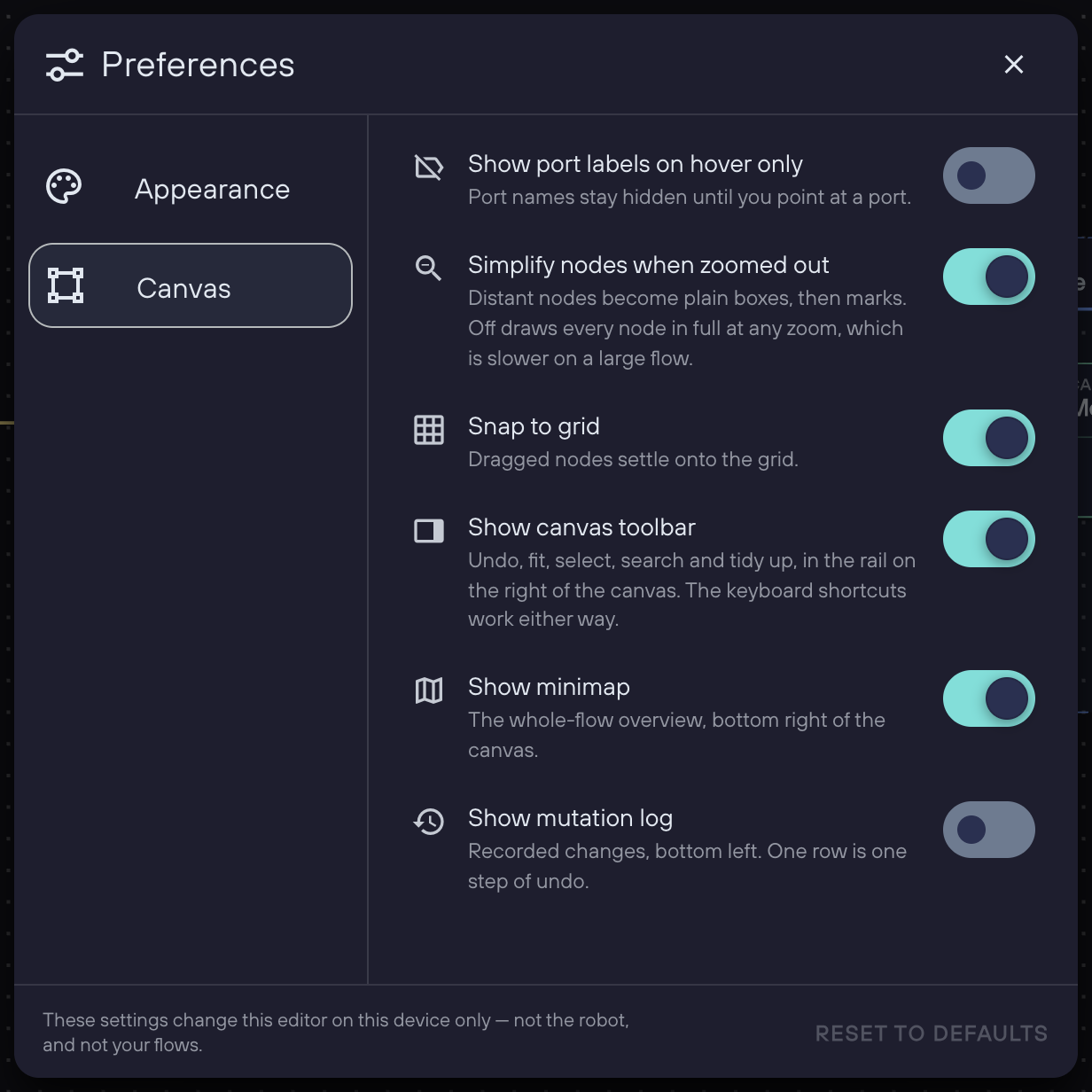
Preferences (Alt + P) change the editor on this device only, not the Robot and not your Flows.
- Appearance: Theme and Reduce motion.
- Canvas: six switches, listed in The canvas at a glance.
- Reset to defaults restores the editor settings.
Without Robot control
Only one session operates the Robot at a time. When this session does not hold control, it is in View-only mode: an amber frame runs around the window, and its top band reads "You are viewing RobFlow in View-only mode" with a Take control button. You can look at everything, but you cannot edit or command the Robot.
Take control opens a dialog:
- This session does not have Robot control with the line Take control to operate the Robot. Choose Take control to take control, or Stay in read-only.
- Profinet is in control with the line Disable Profinet control to operate from here. Choose Disable Profinet to take control back.
What control means, and how it moves between sessions, is explained in Single point of control.