Mapping a Variable to a fieldbus
A Variable can be exposed on a fieldbus so a PLC or another controller can read or write it. This is how a Flow exchanges data with the rest of the line without any of its logic changing: the Flow keeps reading and writing an ordinary Variable, and the mapping takes care of the wire.
Two protocols can be enabled per Variable, independently:
- Modbus/TCP — RobFlow acts as a client against a Modbus server you configure.
- Profinet — the Variable is published to the PLC (Use Profinet Output) or received from it (Use Profinet Input).
Both are switched on per Variable in the Variables window. A Variable can use Modbus/TCP and Profinet at the same time, but only one Profinet direction.
Modbus/TCP
Before you can map anything you need a Modbus/TCP connection — a host, port and unit ID — configured under Fieldbus and protocols.
For each Variable you then set:
| Setting | Meaning |
|---|---|
| Connection | Which configured Modbus/TCP connection to use |
| Data type | Which part of the Modbus address space the Variable lives in (below) |
| Register address / Bit address | Where in that space — a register address for register types, a bit address for bit types |
| Read-only (Modbus) | Skip all write operations for this Variable |
Address space
Modbus splits its address space four ways, and the choice determines both what the Variable can hold and whether RobFlow may write it:
| Data type | Holds | Writable |
|---|---|---|
| Coil | A single bit | Yes |
| Discrete input | A single bit | No — read-only by protocol |
| Holding register | A 16-bit word | Yes |
| Input register | A 16-bit word | No — read-only by protocol |
Coils and holding registers are the writable halves, so Read-only (Modbus) is only offered for those two. Discrete inputs and input registers are read-only in the protocol itself.
A Variable marked read-only skips all write operations — RobFlow will read its value from the server but never push a value back.
Refreshing values
Modbus values are polled. The Variables window has a Refresh all Modbus Variable values button to force a read of every mapped Variable at once, which is the quickest way to check wiring during commissioning.
Profinet
Profinet mapping places the Variable inside the data frame that the Control Unit and the PLC exchange. RobFlow works out the position in the frame itself. The offset and the byte length follow from the Variable's type and from the Variables already mapped, so there is nothing to enter and no way to make two Variables overlap.
Choose a direction
Each Variable has two switches in the editor. Only one of them can be on at a time; with both on, the editor says Profinet Input and Output cannot be enabled at the same time.
| Switch (tooltip) | Direction of data | Allowed types | In RobFlow |
|---|---|---|---|
| Use Profinet Output (Write to Profinet) | Robot → PLC | Every type: Integer, Float, Boolean, String, Cartesian Pose, Joint Pose, Input, Output | A normal Variable. The PLC reads it |
| Use Profinet Input (Read from Profinet) | PLC → Robot | Every type except Input and Output | Read-only: the PLC sets it. Flows, the Variable Node and the Set Variable Widget cannot write it, and it is not offered as their target |
Where the Variable goes
The editor shows a green box with the Module the Variable lives in, for example
Aux Variables Input Module (64B)_1, and its Offset within module.
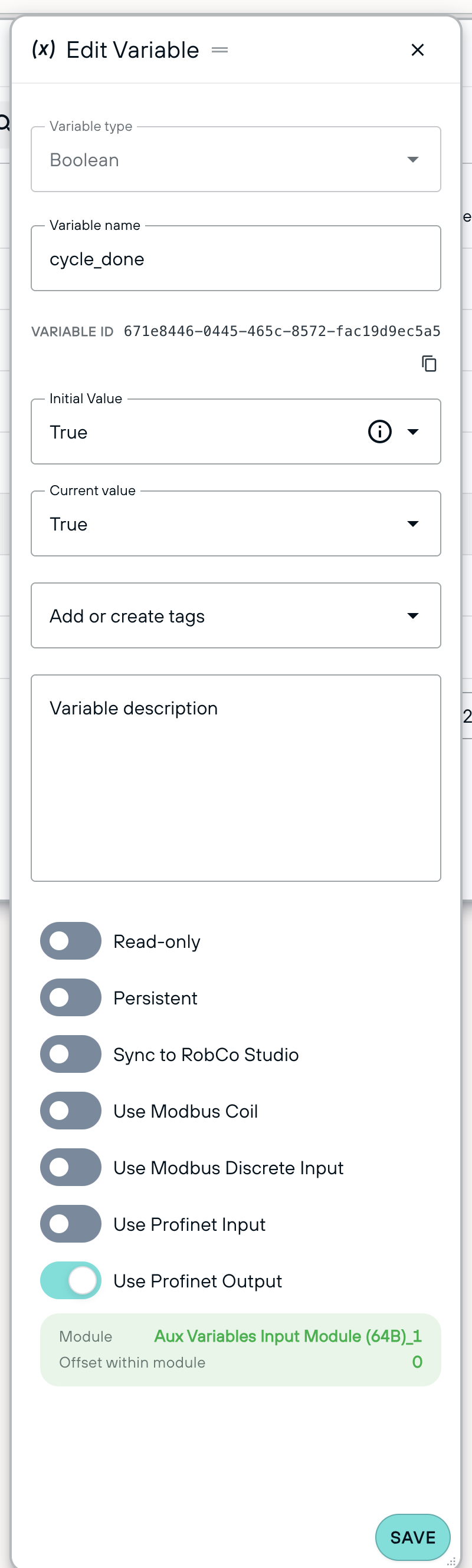
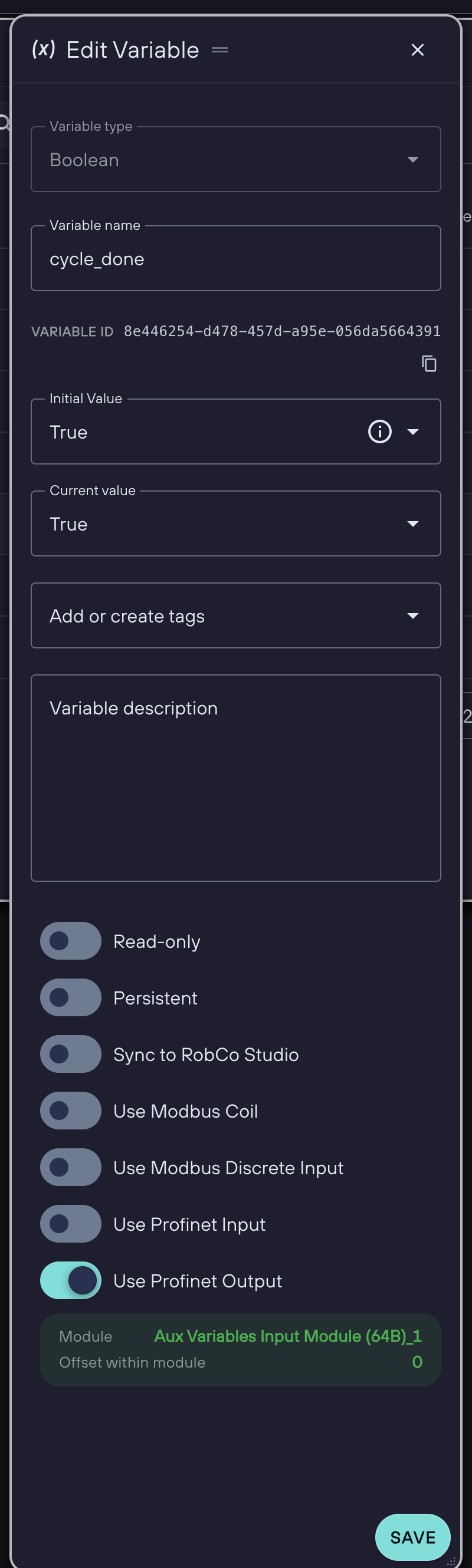
Modules are named from the PLC's point of view. A Profinet Input Variable, which the PLC writes, therefore lives in an Output module, and a Profinet Output Variable lives in an Input module.
The length per type is fixed:
| Type | Bytes |
|---|---|
| Integer | 4 |
| Float | 4 |
| Boolean | 2 |
| String | 36 (36 characters; longer text is cut) |
| Cartesian Pose | 24 |
| Joint Pose | 32 |
The same list is under AuxVariables.
When no free place is left, the editor says All Profinet Aux slots (shared between Input and Output) are in use. Remove a Profinet Variable to free a slot.
Checking against the PLC
While a PLC is connected, RobFlow knows which Aux modules are plugged in TIA Portal. If the Variable's module is missing, the editor shows a warning with what to change in the TIA device overview.
Export the UDT
Because the PLC side has to agree byte-for-byte with the Robot side, RobFlow can generate the PLC's type definition from the same assignment. Export Profinet UDT file in the Variables window downloads the typed overlay and lists the TIA modules with their Module and state (Used, Unused or Missing). While a PLC layout is known, the table also shows the Slot. After you import the UDT file in TIA Portal, assign each struct to the start of the I/O address range of the module with the same name. See Profinet: AuxVariables.
Value range
An Integer value must fit Int32 and a Float value must fit Float32. Otherwise RobFlow does not set the value and shows a message saying that it does not fit the Profinet field.
Profinet Variables are cyclic data, so they do not need Robot control. PLC commands do — see Single point of control.
After the update, every V1 Profinet Variable is a Profinet Input Variable (the PLC writes it) and is marked Persistent. On Input and Output Variables, Profinet is switched off. Switch the Variables that the Robot must publish to Use Profinet Output. The V2 data layout is described under AuxVariables.
Profinet integration has its own manual, including the TIA Portal setup, the command interface and the data field reference. See the Profinet documentation.
Which to use
- The PLC is the line master and already speaks Profinet to everything else → Profinet.
- You need to talk to a specific device (a gripper controller, a scanner, an HMI) that exposes Modbus registers → Modbus/TCP.
- A Flow needs to branch on a Modbus value directly → the Modbus/TCP Condition Node and Set Modbus/TCP Node work against a connection without going through a Variable at all.
Exporting a Variable set carries its Modbus connections with it, but the target Robot still needs those hosts to be reachable. After importing on another Control Unit, check the connections under Fieldbus and protocols before running a Flow.