Tools
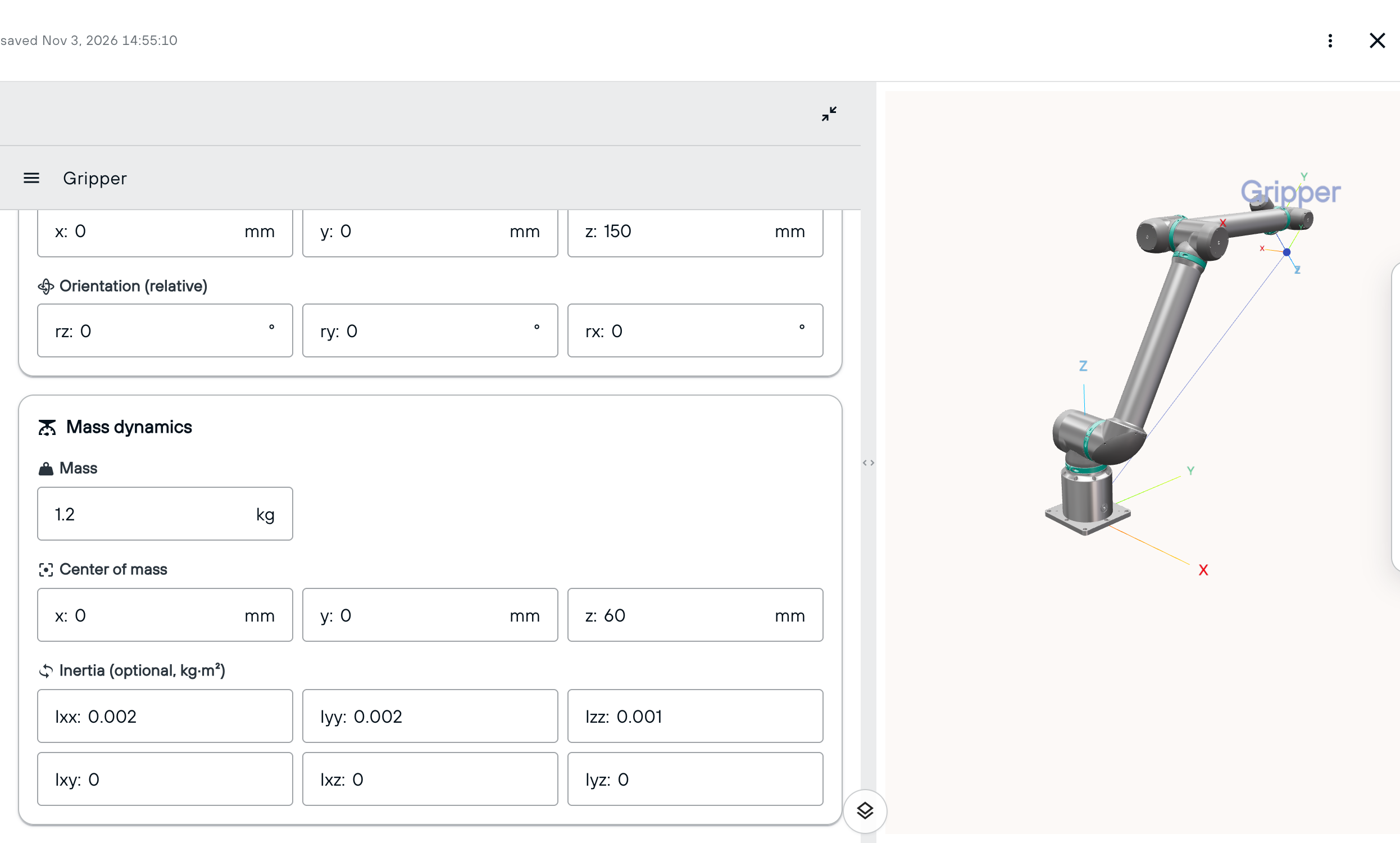
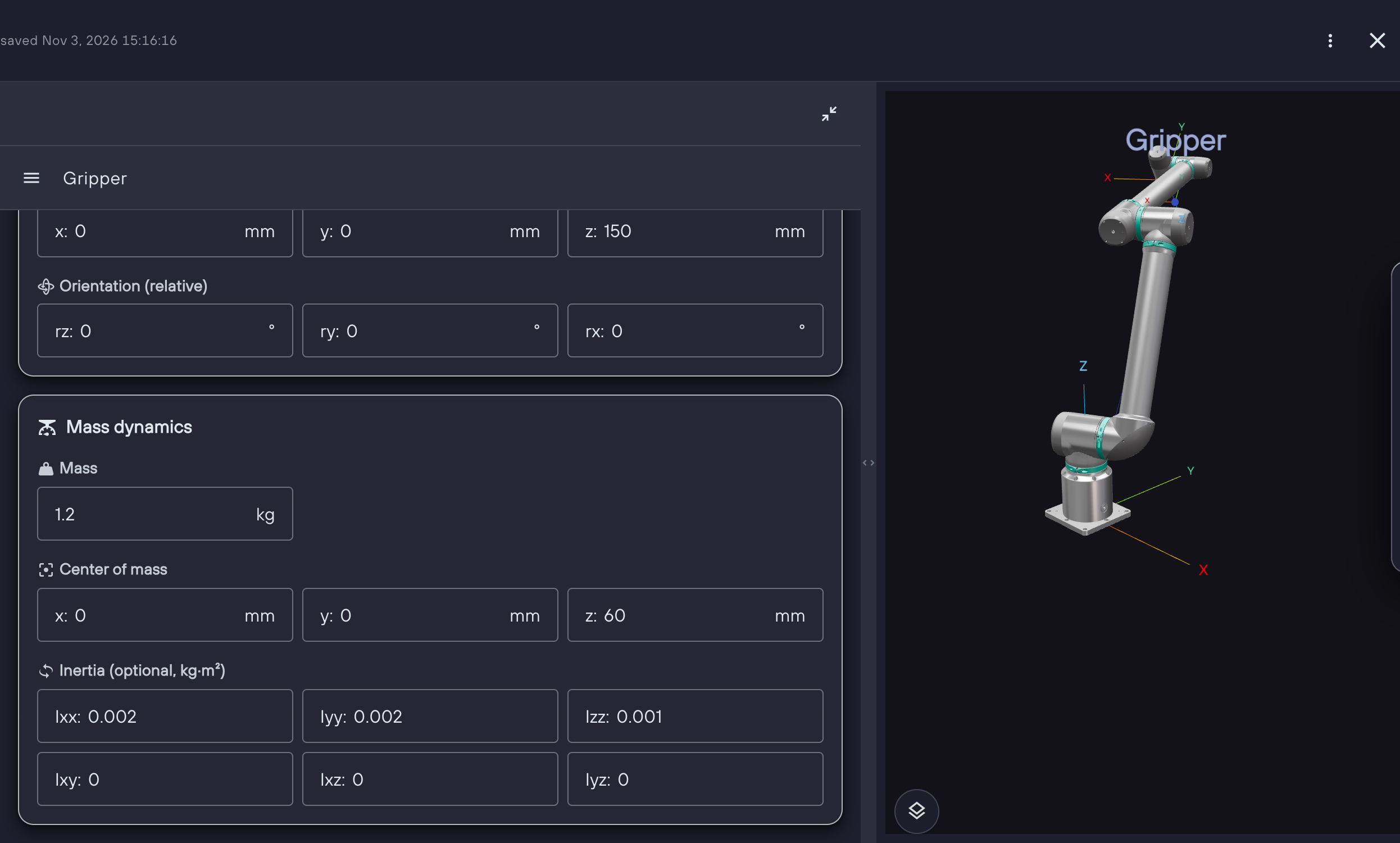
A Tool is whatever is attached to the last module of the Robot — a gripper, a screwdriver, a welding gun. The Tools section holds one entry per Tool the Robot can carry. Which one is fitted is the selected Tool, which you set in the Robot State drawer or from a Flow.
For what the values mean and how to measure them, see TCP. This page covers managing the entries.
What a Tool entry contains
| Group | Field | Meaning |
|---|---|---|
| Identity | Name | How the Tool is identified everywhere else in RobFlow. Required. The entry's UUID is shown below it, with a copy button. |
| Tool center point | Position (relative) | x, y, z in mm, relative to the last module's frame |
| Orientation (relative) | rz, ry, rx in degrees | |
| Mass dynamics | Mass | The Tool's total weight in kg, up to 50 kg |
| Center of mass | x, y, z in mm from the last module to the Tool's center of mass | |
| Inertia (optional, kg·m²) | The Tool's inertia tensor; see Inertia |
Inertia
The inertia tensor has six components, in kg·m²: Ixx, Iyy and Izz (the moments, each at least 0) and Ixy, Ixz and Iyz (the products, which can be negative).
The tensor is given in the flange (last module) frame, about the Tool's own center of mass. This differs from the Payload, whose tensor is in the TCP frame.
Leave all six at 0 and the Tool is treated as a point mass. The mass properties of the Tool's CAD model are a typical source for the values.
The form rejects values that cannot describe a real body: "These values do not describe a real body: the products of inertia are too large for the given moments." and "These values do not describe a real body: no principal moment can exceed the sum of the other two." It also rejects values that are far too large for the mass: "Inertia is given in kg·m², so a value taken in kg·mm² has to be divided by 1e6."
Managing Tools
Use Add Tool to create an entry. It starts as New tool configuration; rename it right away, since the name is what you select in a Flow. A Tool without a name is invalid and stops the configuration from saving. Drag entries to reorder them. Use an entry's ⋮ menu to Duplicate or Delete it. You cannot delete the selected Tool (Tool can't be deleted. Tool is currently in use.). Selecting an entry previews its TCP in 3D, on the live Robot.
Configure one entry per physical Tool, even if only one is ever fitted at a time. Switching Tools then becomes selecting a different entry rather than re-typing measurements.
The selected Tool
One Tool is the selected Tool: the one the Robot assumes is fitted. Its TCP determines where every Cartesian movement actually goes, and its mass and center of mass feed the controller.
A Flow changes the selected Tool with the Tool Node, which is how a Flow that swaps end effectors mid-run keeps the Robot's model correct.
Outside a Flow, select the Tool in the Robot State drawer (Alt + D) → Tool. Edit the selected Tool's TCP, mass, center of mass or inertia here, and RobFlow sends the new values to the Robot when the configuration saves. The Robot only accepts them while idle in Teach Mode. Otherwise the values stay saved and are sent with the next save.
A wrong selected Tool is one of the easier ways to get a Robot to move somewhere unexpected: every taught Cartesian pose is interpreted through the active TCP. After changing Tools by hand, confirm the selected Tool matches before running a Flow — a Robot configuration check can enforce this from inside the Flow.
Mass, center of mass and inertia are not paperwork. The controller uses them to distinguish the Tool's own weight from external force, so wrong values degrade motion quality and make torque overload detection unreliable.
Payload versus Tool mass
The Tool's mass is the end effector itself, and stays constant. The payload is what the Tool is currently holding, and changes as the Flow picks and places — set it with the Payload Node.
Keep them separate: putting a workpiece's weight into the Tool mass makes the Robot behave as if it is always carrying a part.