Robot Configuration
Robot Configuration is where the Robot itself and the devices attached to it are set up — as opposed to the Flows that run on it.
What you configure here determines which other views are available. The RobVision view and the RobVision Nodes only appear once at least one RobVision device is set up under Vision. Photoneo devices only appear on the Beta update channel, and OPC UA only when the Control Unit has OPC UA certificate management enabled.
Opening Robot Configuration
Open the app bar's ⋮ menu and choose Robot Configuration, or press Alt + C (⌥ C on a Mac).
The menu entry is unavailable while you are signed out and while the Robot is hand-guided. Signed out, Alt + C still opens Robot Configuration, read-only.
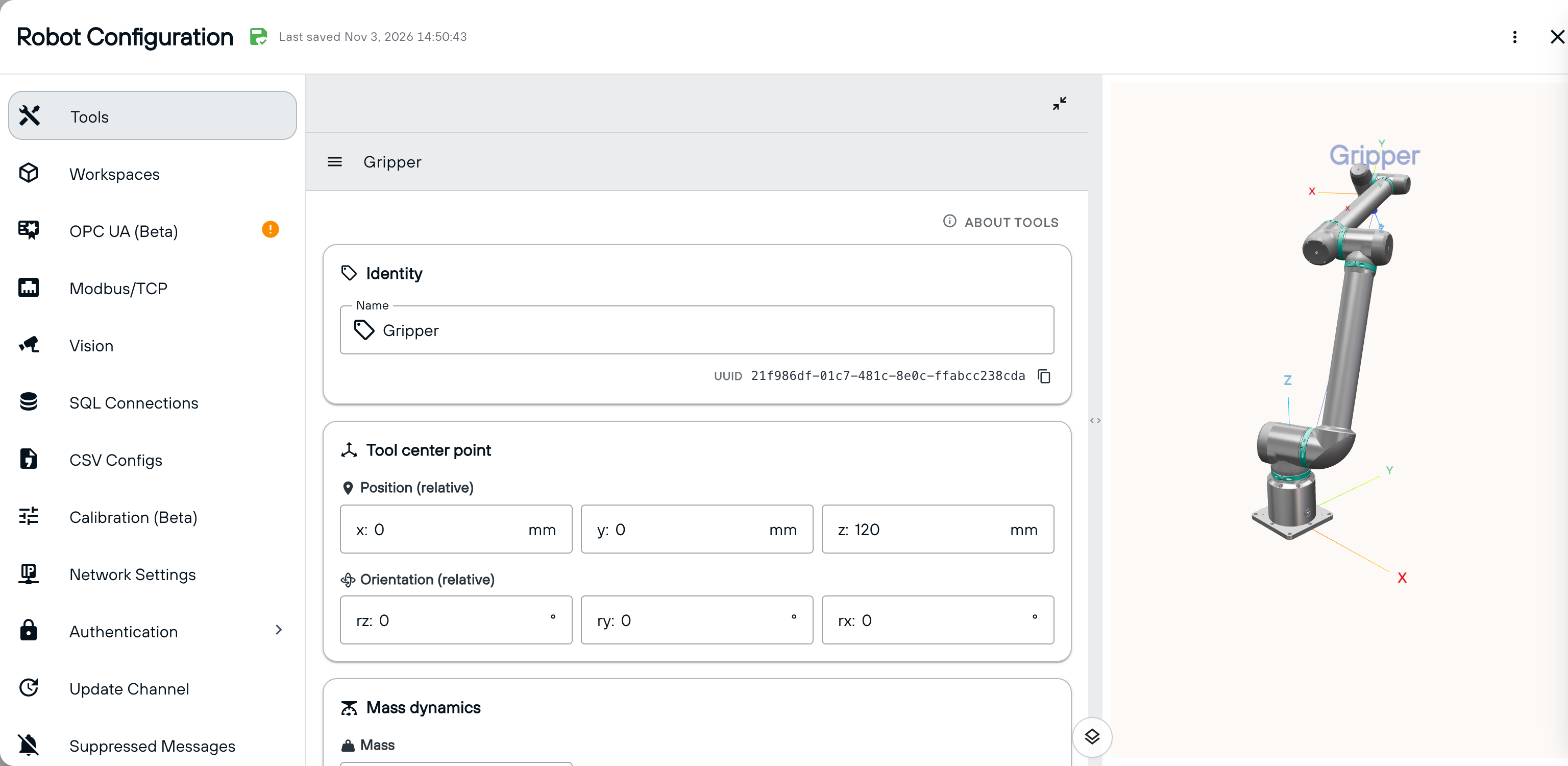
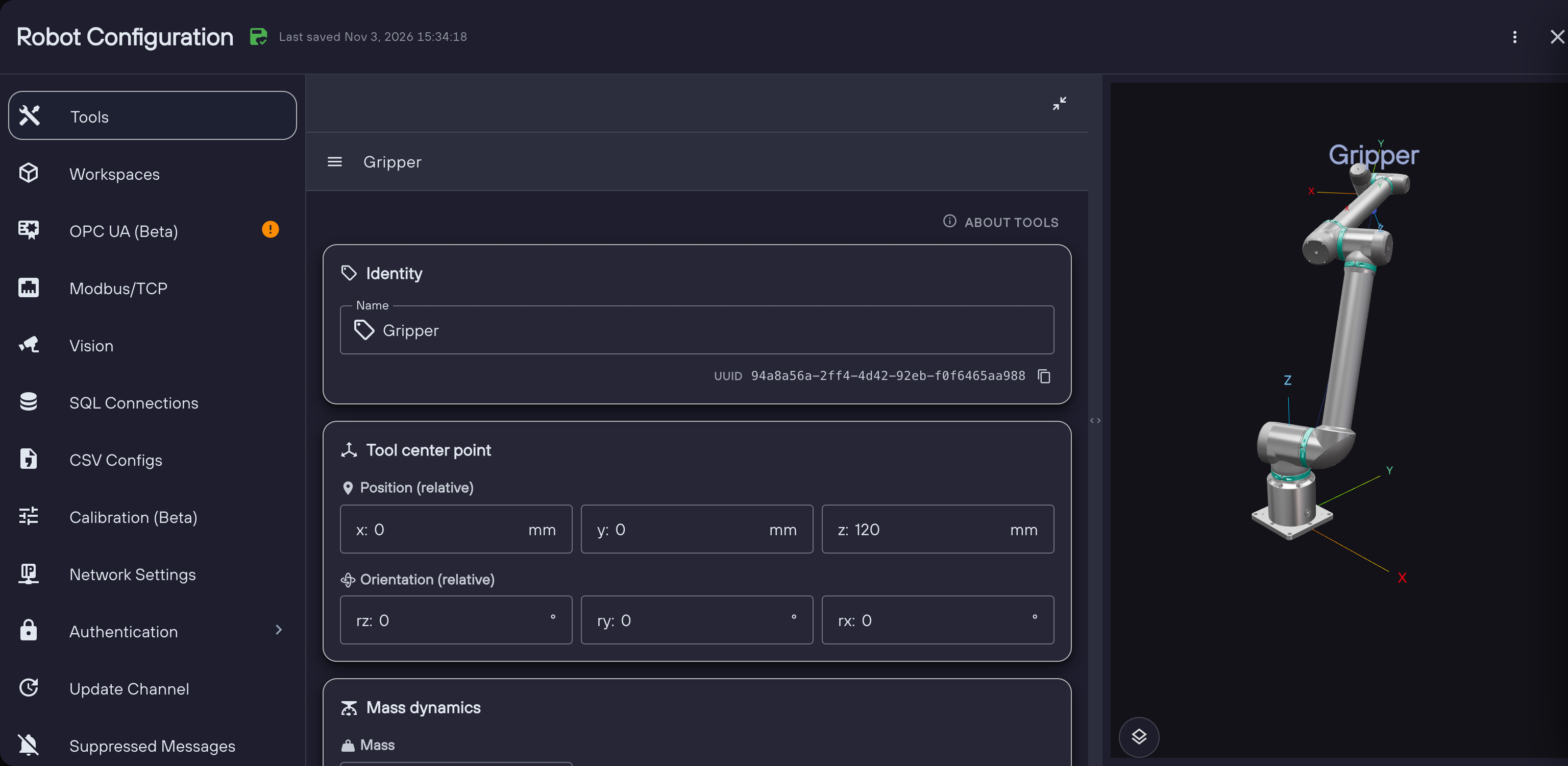
The list on the left holds the sections, in this order: Tools, Workspaces, OPC UA, Modbus/TCP, Vision, SQL Connections, CSV Configs, Calibration, Network Settings, Authentication, Update Channel and Suppressed Messages.
Each section has an About … link at the top right that opens its page in the Documentation drawer. Alt + H opens this page, or Robot Calibration from the Calibration section.
Close Robot Configuration with ✕ or Esc.
What's in this section
- Tools — the end effectors the Robot can carry, and which one is fitted.
- Workspaces — coordinate systems in the cell, and calibrating them.
- Fieldbus and protocols — Modbus/TCP connections, the OPC UA server's certificates, and how Profinet is set up.
- Data sources — SQL Connections and CSV Configs.
- Vision devices — the Vision section: RobVision devices and their cameras, and, on the Beta channel, Photoneo vision controllers. Setting up a Photoneo controller is covered in Photoneo Bin Picking (Beta).
- Network and access — the peripheral port, the RobFlow password and, on the Beta channel, the RobSafety password.
- System settings — update channel, suppressed messages, and importing or exporting the whole configuration.
- Robot Calibration — the Calibration section. Measures and corrects your Robot's true joint geometry so it reaches its maximum possible accuracy, using either a RobVision camera or a Laser Tracker.
| Section in the app | Page |
|---|---|
| Tools | Tools |
| Workspaces | Workspaces |
| OPC UA, Modbus/TCP | Fieldbus and protocols |
| Vision | Vision devices |
| SQL Connections, CSV Configs | Data sources |
| Calibration | Robot Calibration |
| Network Settings, Authentication | Network and access |
| Update Channel, Suppressed Messages | System settings |
Changing the configuration
- Sign in. Signed out, every section is read-only under the banner Viewing in read-only mode. Log in to unlock editing. with a Log in button. Export still works (see System settings).
- Hold control. Only the session that holds control of the Robot can work in RobFlow (Single Point of Control). Any other session is in View-only mode, with an amber frame around the window and a Take control button in its top band. Changes made there are not saved: RobFlow opens the take-control dialog instead. When the PLC holds control, that dialog reads Profinet is in control, with a Disable Profinet button.
- No Flow running. While a Flow runs, every section is locked under
Configuration is locked while a flow is running. Stop the flow to make changes., with a Go to Flow button, and the sections show a lock. Calibration stays usable only while the calibration Flow itself runs. - Saving is automatic. Edits save about half a second after you stop typing. A tick next to the title confirms the save, and Last saved shows its time. Nothing saves while any entry is invalid. Sections that hold an invalid entry show a warning badge, and the configuration saves again once you fix it.
Related sections
- Safety Functions and the conditions that activate them are configured under RobSafety.
- A calibration Flow collects samples with the Add Calibration Sample Node. The Node is only offered in the Calibration Editor.
- A Flow can verify the active configuration with a Robot configuration check.