Troubleshooting
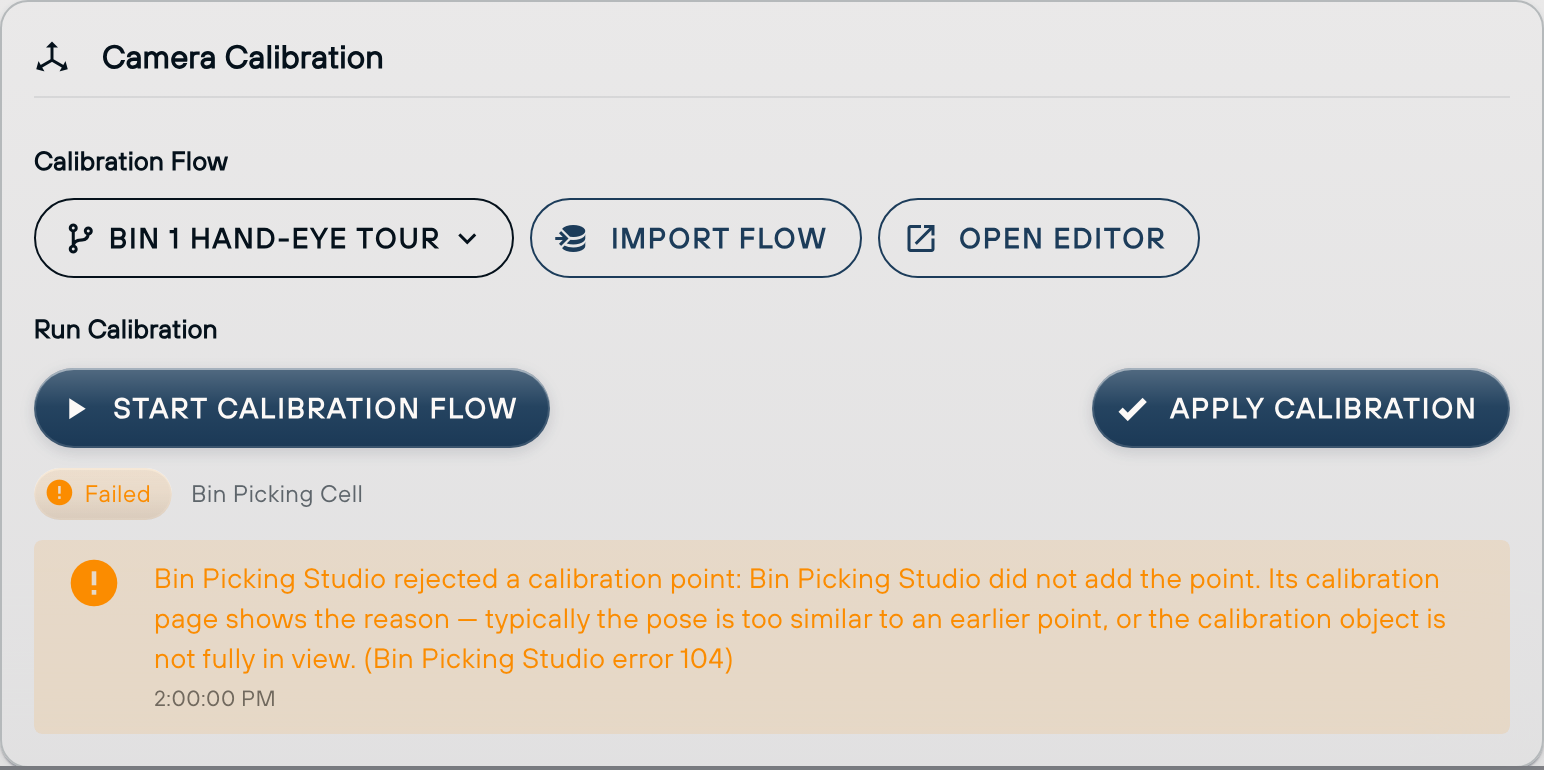
Problems with the vision controller show up in RobFlow's message log. During a calibration they are also shown in the Camera Calibration section. When Bin Picking Studio refused a request, the message ends with its error code, for example (Bin Picking Studio error 104).
Connection
The Robot port shows Not reachable. The Control Unit gets no answer on the Robot port IP. Check that the vision controller is switched on, that the cable runs from its Robot port to the Control Unit's peripheral port, and that the address matches the Robot interface on Bin Picking Studio's Network page.
The Robot port shows Unrecognized. Something answers on the Robot port IP, but it is not Bin Picking Studio, usually because the address belongs to another device. Correct the IP address.
The Robot port shows Connected, but Nodes report No response or Could not reach. The status checks Bin Picking Studio's web interface; requests go to the Action port. Check that it matches the ARS port in Bin Picking Studio.
Bin Picking Studio shows Robot State Server: DISCONNECTED. The vision controller cannot read the Robot's Pose. Check that the RSS port in Bin Picking Studio matches the Robot state port in RobFlow, and that the Robot controller address in Bin Picking Studio is the Control Unit's peripheral port address.
The Network port shows Not reachable from this computer. Your browser cannot reach the Network port IP, so the Bin Picking Studio button does not work from this computer. Connect the computer to the network the vision controller's Network port is on, or check the address. RobFlow itself does not use the Network port.
Calibration
Bin Picking Studio rejected a calibration point (error 104). Bin Picking Studio's Calibration page shows the reason. Usually the Pose is too similar to an earlier point, or the calibration object is not fully in view. Change or replace that Pose in the calibration Flow. A few rejected points are fine as long as at least 9 are accepted.
Automatic calibration is not enabled for this solution (error 465). Run the first calibration from the Camera Calibration Editor, then enable automatic calibration for the vision system in Bin Picking Studio. See The first calibration.
The solution has no vision system with this ID (error 460), or no solution with this ID (error 450). Correct the Solution ID or Vision system ID on the device in Robot Configuration.
A calibration point fails because the Robot's Pose is missing. The vision controller is not reading the Robot state. See Robot State Server: DISCONNECTED above.
The point cloud does not line up with the Robot model after calibrating. Run the calibration again with more varied Poses, and check that the calibration object cannot move during the run.
Picking
The vision controller is not ready (error 8). Open Bin Picking Studio and check that the solution can be deployed and the scanner is connected. Bin Picking Studio may need the solution to be deployed once from its web interface.
The solution cannot be deployed right now (error 452). The solution is open in a browser tab of the Bin Picking Studio web interface. Close it there and run the Flow again.
Bin Picking Studio found a part but could not plan a path to it (error 201). Photoneo Pick takes its Error output. Run a Photoneo Skip Part Node and pick again to try another part. If this happens often, check the gripper model, the grasping methods and the environment in Bin Picking Studio.
Photoneo Pick waits a long time, then takes its Error output. Bin Picking Studio did not deliver a plan within the Trajectory timeout. Check that a scan was triggered for the same vision system before the pick. If planning genuinely takes long, raise the timeout in the Node's Motion settings.
Bin Picking Studio answered with something RobFlow can't use. The plan does not fit this Robot, for example because the solution is set up for a Robot model with a different number of joints. Check the Robot model in the solution.
The Node refers to a Photoneo device that is no longer configured. The device was deleted from Robot Configuration. Select a device on the Node.