Building a bin picking Flow
A bin picking Flow needs two Photoneo Nodes:
- Photoneo Scan scans the bin. Bin Picking Studio then localizes the parts and plans a pick in the background, and the Flow carries on right away.
- Photoneo Pick waits for that plan and moves the Robot along it. Where the plan needs the gripper to close or open, it runs its Attach or Detach output, and the Nodes you connected there operate the gripper.
After each part, Photoneo Pick runs its Process Item output, where your Flow places the part. One scan usually finds several parts: with Batch Mode on, Photoneo Pick picks all of them, one after the other, and runs After Completion once the scan has nothing left. Without Batch Mode it picks one part per run, and your Flow decides when to run it again or to scan again.
The pick cycle
Step through the figure to see what happens in the cell and which output of Photoneo Pick runs at each point.
Step through the cycle, or press play. The toggles change the Photoneo Pick Node’s settings.
Photoneo Scan triggers a scan. Bin Picking Studio localizes the parts and plans the first pick in the background, while the Flow moves on at once.
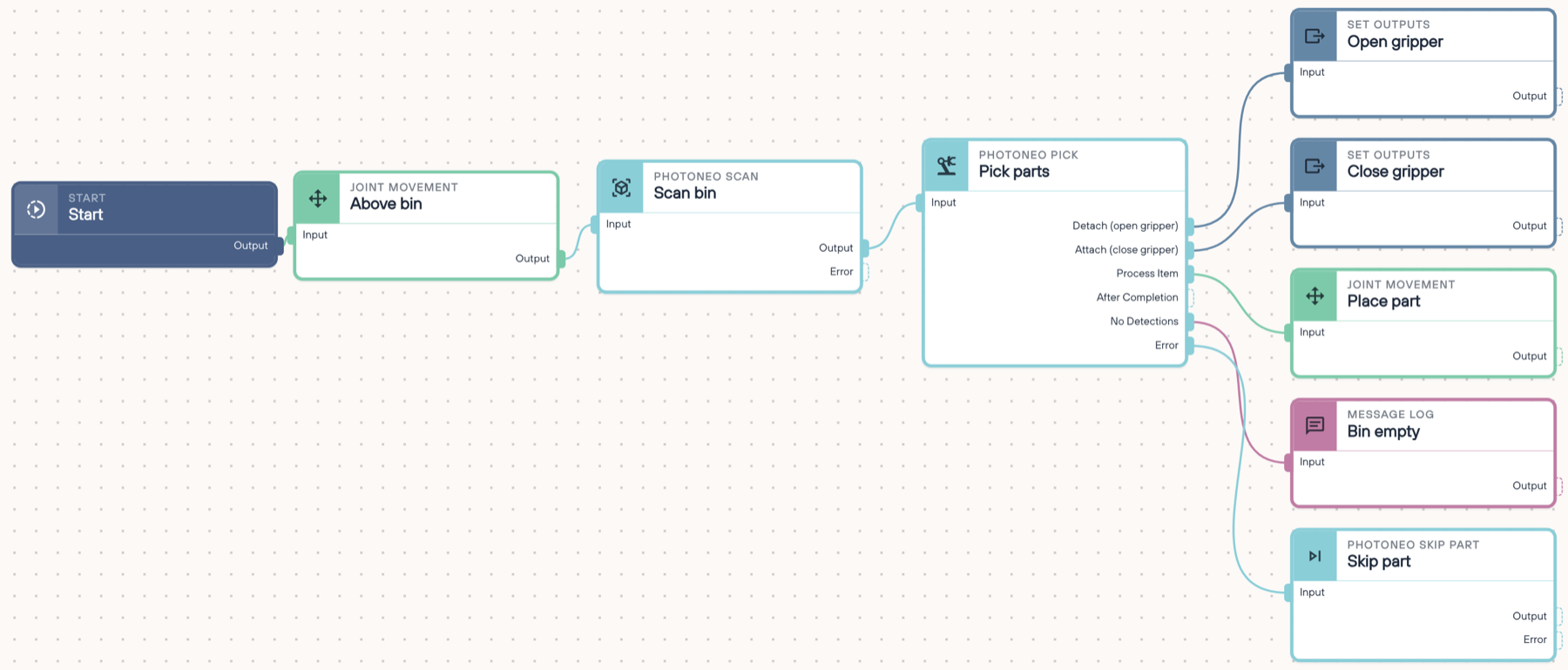
An example Flow
-
Joint Movement — Above bin. For a scanner fixed above the bin, move the Robot out of the scanner's view before scanning. For a scanner on the Robot, move to the Pose the bin is scanned from.
-
Photoneo Scan — Scan bin. Select the device, the Solution ID and the Vision System ID. New Nodes take both IDs from the device.
-
Photoneo Pick — Pick part. Select the same device and vision system, switch on Batch Mode to pick every part of the scan, then connect its outputs:
Output Connect it to Detach (open gripper) The Nodes that open the gripper, for example a Set Outputs Node. Attach (close gripper) The Nodes that close the gripper. Process Item What happens to each part — move it to the place position and release it. Photoneo Pick continues with the next part once these Nodes have finished. After Completion Back to Above bin and Photoneo Scan, to scan the bin again once every part of the scan is picked. This connection is left out of the picture to keep it readable. No Detections Whatever should happen when the scan found nothing to pick, for example asking for a new bin. Error Your error handling, such as a Message Log, or a Photoneo Skip Part Node followed by another pick.
Photoneo Pick waits for the Nodes on Attach, Detach and Process Item to finish before it moves on, so a gripper that needs time to close can use a Delay or an I/O Condition there.
Making the cycle faster
- Scan early. The scan, localization and planning run in the background. If parts shift enough during a pick that you scan before every pick, place the Photoneo Scan Node right after the Robot has left the bin (with a fixed scanner), so Bin Picking Studio plans while the Robot places the part.
- Set a faster retract. In Photoneo Pick's configuration, Different speed on the way out sets a separate speed for the move after the gripper has closed. The approach to the part can stay slow and careful while the move out runs faster.
- Blend the waypoints. A Blending Radius lets the Robot pass through the waypoints of the plan without stopping. It still stops wherever Bin Picking Studio asks it to and wherever the gripper acts.
- Expect the first scan to take longer. If the solution is not running yet, Photoneo Scan starts it in Bin Picking Studio first.
When a pick fails
- Bin Picking Studio found a part but could not plan a path to it. Photoneo Pick takes its Error output. Run a Photoneo Skip Part Node, then Photoneo Pick again: Bin Picking Studio offers another part from the same scan.
- The gripper missed the part or dropped it. Your Flow decides that, for example from a vacuum sensor. Use Photoneo Skip Part the same way, so Bin Picking Studio does not offer the same part again.
- The vision controller cannot be reached, or refuses a request. The Node takes its Error output and the reason is in the message log. The Flow does not pause, so handle the Error output if the cell has to keep running.
A Node pauses the Flow instead if one of its settings cannot be used, for example a Solution ID Expression that does not evaluate to a whole number.
Counting parts
Photoneo Pick can write the number of parts the scan found, and how many of them are pickable, into Variables when it finishes. To read the counts without holding up the first pick, use a separate Photoneo Count Node after Photoneo Scan. The counts are useful on a Dashboard, or to call for a new bin before the current one is empty.
Testing a Flow
- Run from here skips the Photoneo Nodes before the Node you start from. They send nothing to the vision controller and write no Variables, and the Flow continues at their normal output.
- Detection only, on Photoneo Pick, writes the planned pick into Variables without moving the Robot. Use it to check the results of a new solution before the Robot moves at all.