Photoneo Scan
This Node is in Beta and may change. It appears in the Add Item menu only when the Robot's update channel is set to Beta and a Photoneo device is configured in Robot Configuration → Vision. See Photoneo Bin Picking.
The Photoneo Scan Node triggers a scan of the bin. Bin Picking Studio then localizes the parts and plans the first pick in the background, while the Flow continues right away. The result is collected by a Photoneo Pick Node.
If the solution is not running in Bin Picking Studio yet, the Node starts it first, so the first scan after a change of solution takes longer.
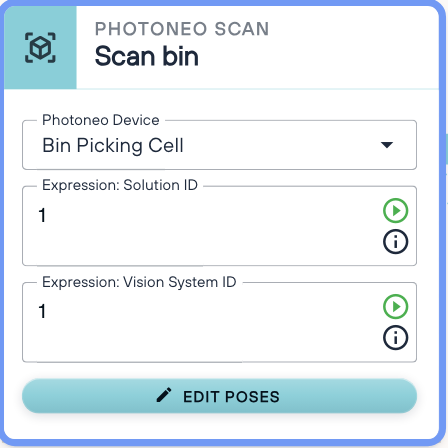
Settings
| Setting | Meaning |
|---|---|
| Photoneo Device | The vision controller to scan with. |
| Solution ID | The Bin Picking Studio solution to scan with, as listed in the ID column of its Solutions page. |
| Vision System ID | The vision system within that solution. |
| Edit Poses | Optional Start and End Poses for the picks planned from this scan — see below. |
Solution ID and Vision System ID are Expressions, so a Flow can switch between products or bins with a Variable. A new Node takes both from the selected device. When you select another device, the IDs follow it as long as you have not changed them.
Start and End Pose
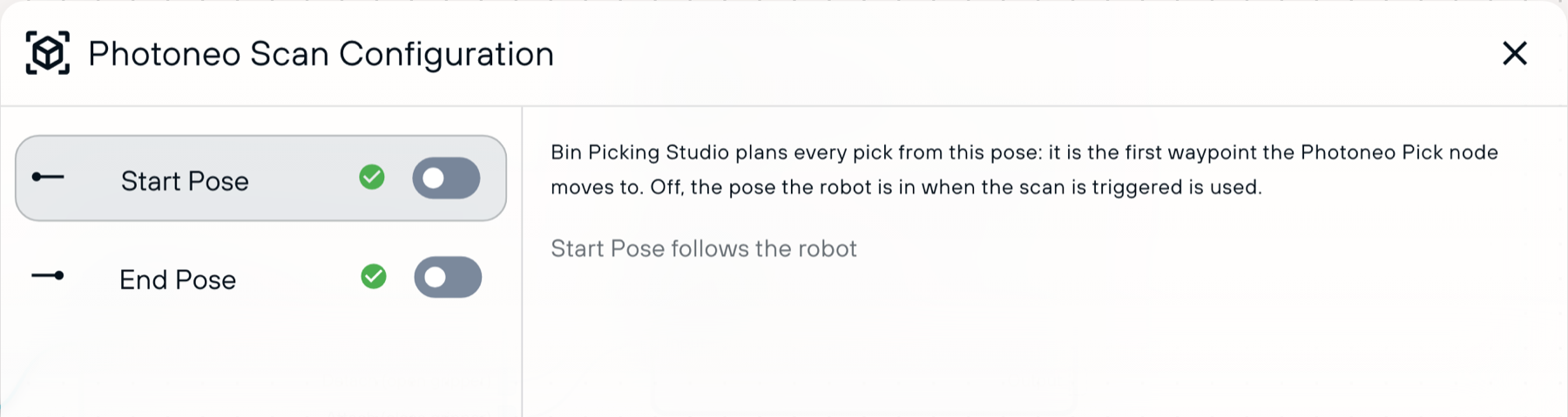
Every pick Bin Picking Studio plans from this scan runs between two Poses:
- Start Pose — where every pick starts: the first waypoint Photoneo Pick moves to.
- End Pose — where every pick ends: the last waypoint, after the part is grasped.
Switch a Pose on to set it, either by entering joint angles, by using a Pose Variable, or with Apply current Pose. A Pose that is off follows the Robot: the Robot's joint Pose at the moment the scan is triggered is used.
Choose Poses outside the bin that the Robot can reach from the bin without collisions, for example above the bin for the Start Pose and on the way to the place position for the End Pose.
Outputs
| Output | Runs when |
|---|---|
| Output | The scan was triggered. |
| Error | The vision controller could not be reached or refused the request. The reason is in the message log. |
A Solution ID or Vision System ID that does not evaluate to a whole number, or a Pose that does not fit this Robot, pauses the Flow instead.