Photoneo Pick
This Node is in Beta and may change. It appears in the Add Item menu only when the Robot's update channel is set to Beta and a Photoneo device is configured in Robot Configuration → Vision. See Photoneo Bin Picking.
The Photoneo Pick Node executes a pick planned by Bin Picking Studio from the last Photoneo Scan. It waits for the plan, then moves the Robot along it: from the Start Pose to the part, and from there to the End Pose. Where the plan needs the gripper to act, the Node runs its Attach or Detach output and continues once the Nodes connected there have finished.
When a part has been picked and the Robot has reached the End Pose, the Node runs its Process Item output, where the Flow places the part. With Batch Mode on, it then picks the next part of the same scan, until none is left. After Completion runs once at the end. If the scan has no part to pick when the Node starts, it takes its No Detections output without moving.
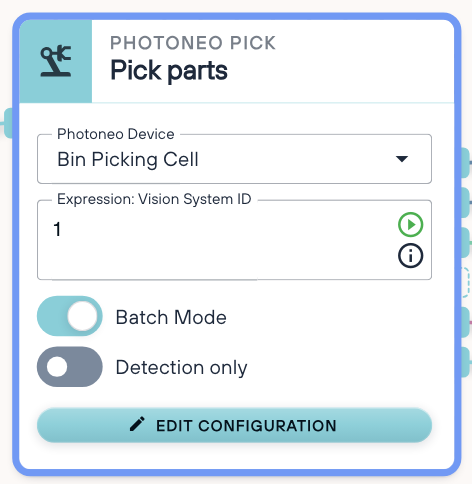
Settings
| Setting | Meaning |
|---|---|
| Photoneo Device | The vision controller to ask for the pick. |
| Vision System ID | The vision system whose scan to pick from. Must be the one the Photoneo Scan Node scanned with. |
| Batch Mode | Off: one part per run. On: the Node picks every part of the scan, running Process Item for each, then takes After Completion. |
| Detection only | The Robot does not move. The Node only writes the planned pick into the Variables below and runs Process Item. The Attach and Detach outputs are removed. |
| Edit Configuration | Speeds, motion settings and result Variables — see below. |
Configuration
Velocity & Acceleration
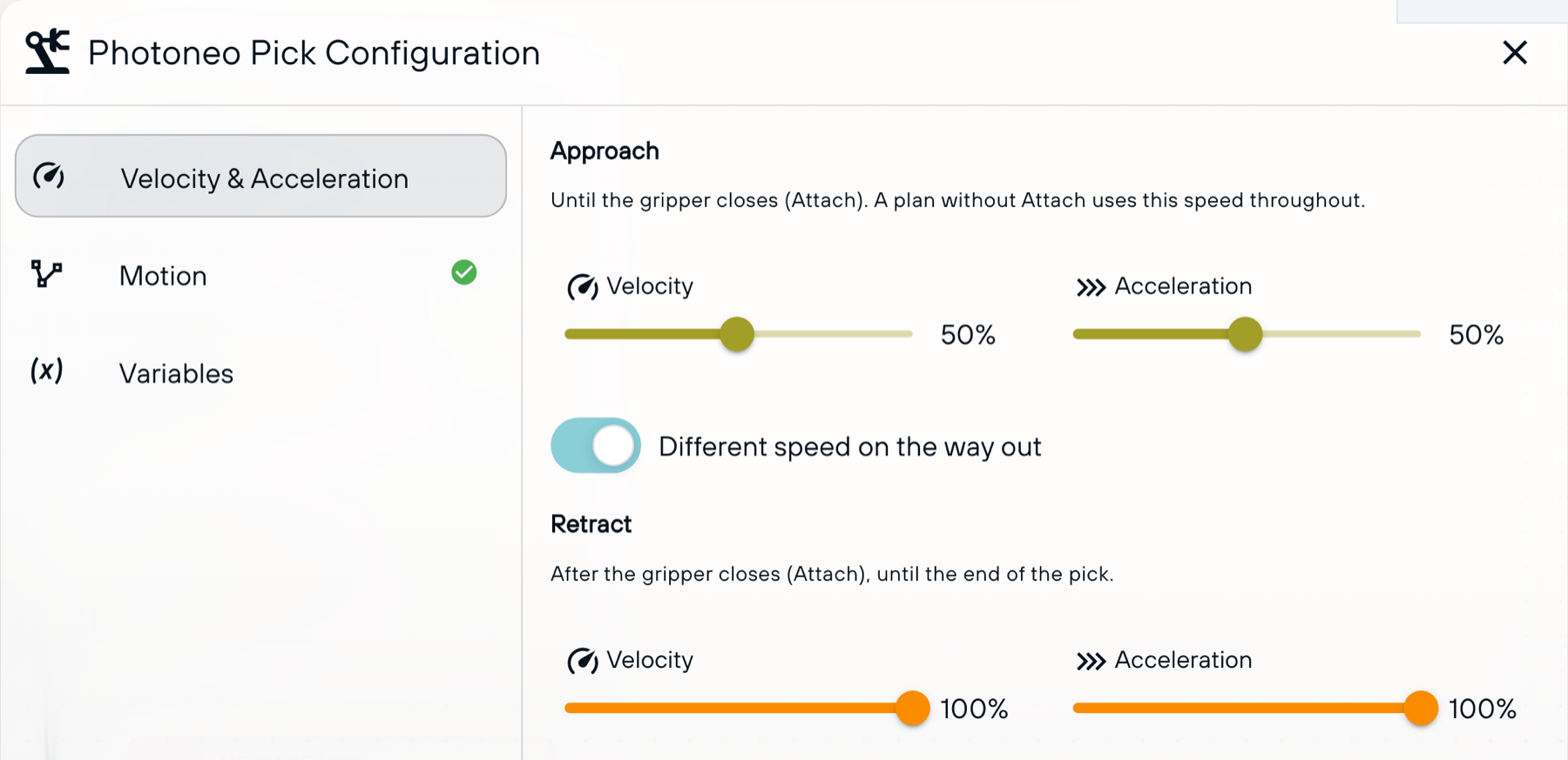
- Approach — the speed up to the moment the gripper closes (Attach). A plan without an Attach uses this speed throughout.
- Different speed on the way out — switch on to set a separate Retract speed, used from the moment the gripper closes until the end of the pick. A typical setup approaches the part slowly and retracts faster.
Motion
| Setting | Meaning |
|---|---|
| Blending Radius (mm) | Blending between the waypoints of the plan. The Robot still stops wherever Bin Picking Studio asks it to and wherever the gripper acts. |
| Trajectory timeout (s) | How long to wait for Bin Picking Studio to plan each pick before taking the Error output. Default: 60 s. |
Variables
Each result is written to a Variable when one is selected. All are optional.
| Variable | Type | Contains |
|---|---|---|
| Pick Pose (joints) | Joint Pose | The Pose at which the gripper closes on the part. |
| Gripping Point ID | Integer | The gripping point Bin Picking Studio chose. |
| Gripping Point Invariance ID | Integer | Which symmetric variant of the gripping point was used. |
| Tool Point Invariance ID | Integer | Which symmetric variant of the tool point was used. |
| Number of Detections | Integer | How many parts the scan localized. |
| Number of Pickable Parts | Integer | How many of them Bin Picking Studio can pick. |
The two counts are read once, as the Node finishes, and only if one of them is selected. To read them without delaying the pick, use a Photoneo Count Node instead.
Outputs
| Output | Runs when |
|---|---|
| Detach (open gripper) | The plan opens the gripper. Connect the Nodes that do it. |
| Attach (close gripper) | The plan closes the gripper. Connect the Nodes that do it. |
| Process Item | A part was picked and the Robot is at the End Pose: place the part here. In Batch Mode, runs once per part. |
| After Completion | The Node is done: after the part, or in Batch Mode after the last part of the scan. |
| No Detections | The scan had no part to pick when the Node started, so nothing was picked. |
| Error | No plan arrived in time, Bin Picking Studio refused the request, found a part but could not plan a path to it, or the vision controller could not be reached. The reason is in the message log. |
See it in motion
Building a bin picking Flow has an interactive figure of the pick cycle and an example Flow.