Relative Movement
In this Node, you define one or more Relative Movements that the Robot does one after the other. Each one is an offset: the first from the Pose the Robot is at when the Node starts, each next one from the target of the one before.
Set up the Movements
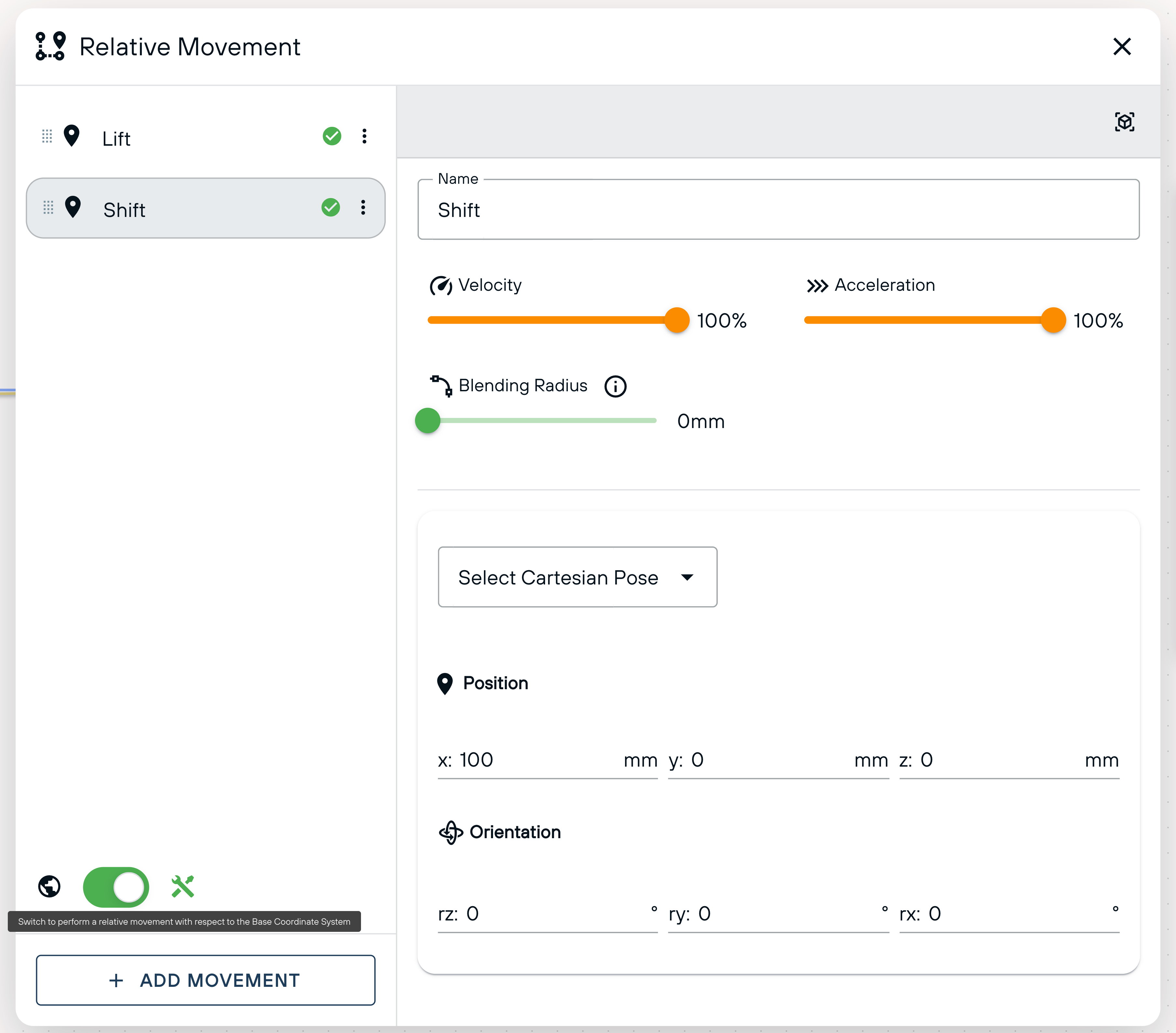
Select the Node and click an entry to open the Relative Movement panel beside the Node. On an empty Node, click +. The panel works as on Cartesian Movement, with a 3D preview of the offsets from the Robot's current Pose.
| Field | Description |
|---|---|
| Name | Optional. |
| Velocity and Acceleration | 1–100 %, default 100 %. |
| Blending Radius | 0–300 mm, default 0 mm. See Blending Radius. |
| Position | Offset x, y, z in mm. |
| Orientation | Offset rz, ry, rx in °. |
A new entry starts at all zeros. There is no Apply current Pose, Move to Target or Save as Variable on a Relative Movement. The errors are the same as on Cartesian Movement. A Reference Group does not change a Relative Movement.
Coordinate system
Below the entry list in the panel, a switch between a globe icon and a tool icon sets the frame for all Movements of the Node. Off (globe) is the Base Coordinate System, the default. On (tool) is the Tool Coordinate System, the TCP frame. The switch's tooltip names the frame you switch to: Switch to perform a relative movement with respect to the Tool Coordinate System or Switch to perform a relative movement with respect to the Base Coordinate System.
While the Flow runs
The Node shows the running entry as "n / total" and a list of its Movements with the running one in bold. See Watching a run.