Path Movement
In this Node, you can define a path by chaining Linear Paths and Circular Arcs. Circular Arcs can be defined as 3-Point Arcs, Tangent Arcs or Full Circles. Path movements have a constant Velocity with respect to the TCP which is desired in applications such as dispensing.
Set up the Path
The Node's config holds three settings for the whole path, then the list of segments:
- Velocity — TCP speed along the path, 10–1000 mm/s, default 50 mm/s.
- Acceleration — 1–100 %, default 100 %.
- Blending Radius — 1–300 mm, default 1 mm. See Blending Radius.
- Movements — the segments in order. Click one to open the Path Movement panel beside the Node. On an empty Node, click +.
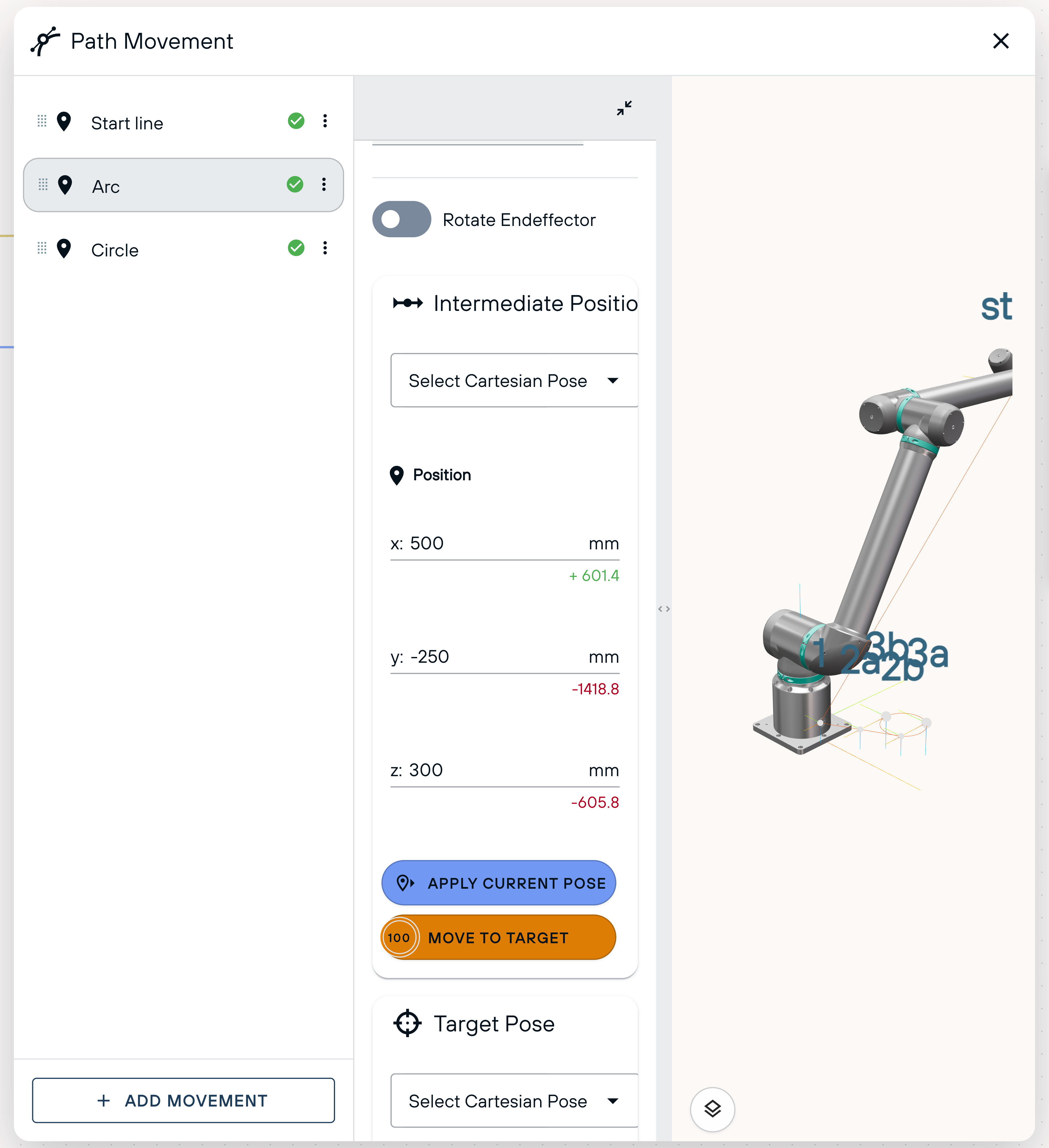
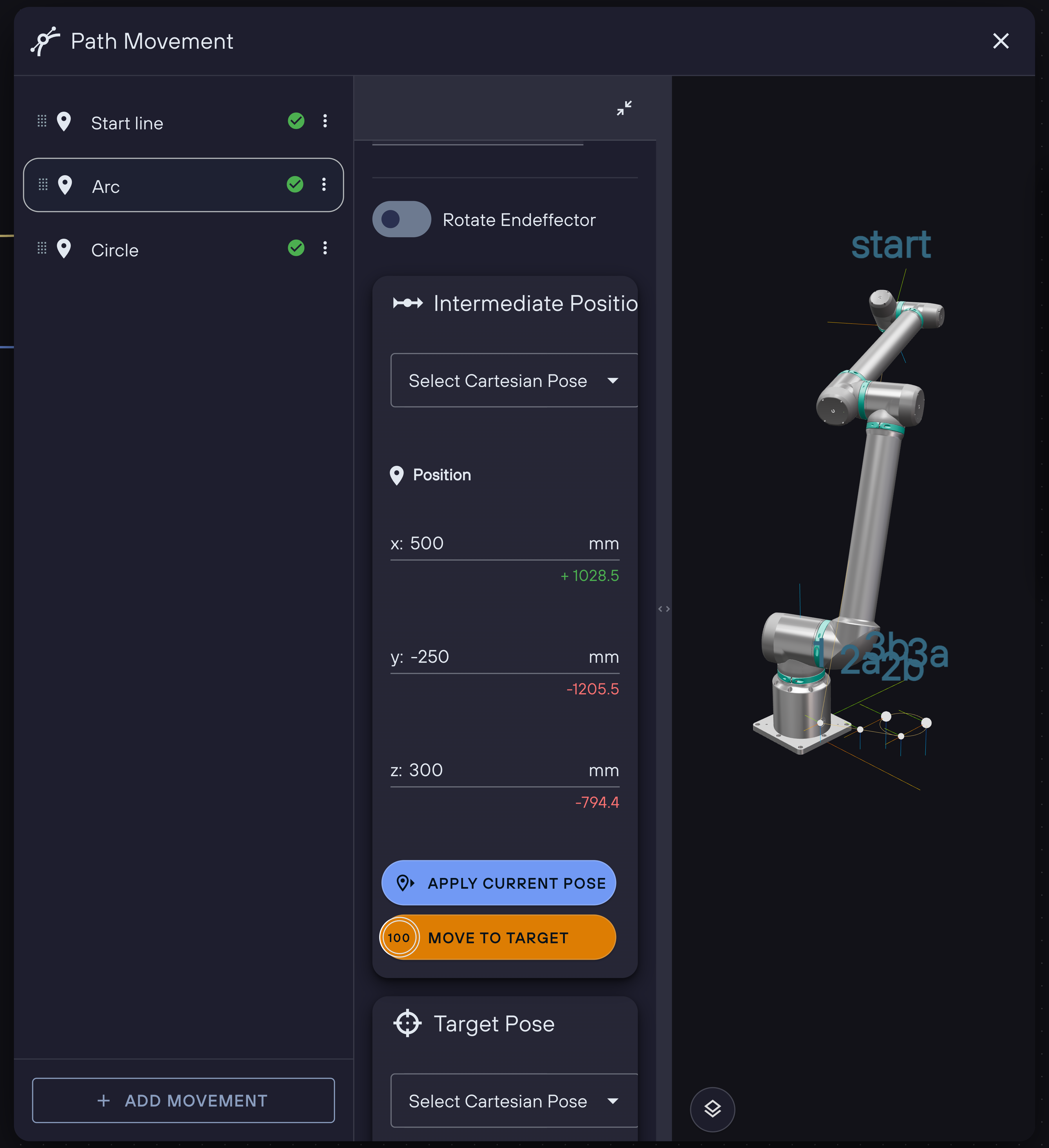
The panel has the entries, Duplicate / Delete, Add Movement and a 3D preview of the TCP path. Per segment it has Name and Path Movement Type (the ⓘ button opens this page), then the Poses the type needs (see the next section). Each Pose has Select Cartesian Pose, Apply current Pose, Move to Target (press and hold) and, except on the Intermediate Position of a 3-Point Arc, Save as Variable.
A new segment is a Linear Path to the Robot's current TCP Pose. Changing a segment's type fills the new Poses from the Robot's current Pose. Switching a Linear Path or Tangent Arc to a 3-Point Arc or Full Circle keeps its old Pose as the first intermediate position.
Position x, y, z are in mm and Orientation rz, ry, rx in °, with the same limits and decimals as on Cartesian Movement. The errors are At least one path segment is required, Pose has missing or invalid values and Pose %{n} has missing or invalid values.
Inside a Reference Group the Pose fields show the Pose in the Group's Workspace frame, and Select Cartesian Pose is unavailable.
Path Movement Types
Pick a segment's type in Path Movement Type: Linear Path, 3-Point Arc, Tangent Arc or Full Circle. A Tangent Arc continues the segment before it, so it is not offered for the first segment.
In the diagrams below, the green dots are the Poses you set and the blue line is the resulting movement.
Linear Path
A Linear Path is a movement on a straight line, the shortest connection between the current Pose and the Target Pose.

1 current Pose · 2 Target Pose
3-Point Arc
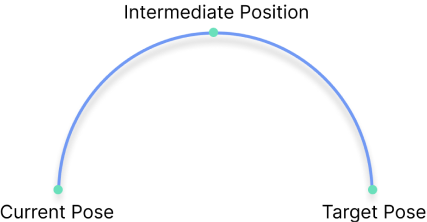
A 3-Point Arc is a smooth curve movement that joins the current Pose and the Target Pose going through an intermediate position. The orientation of the intermediate position is interpolated between the orientation of the current Pose and the Target Pose. Set its Intermediate Position (x, y, z only) and its Target Pose. The segment also has a Rotate Endeffector switch.
Tangent Arc
A Tangent Arc only defines the End Pose of the Arc, the Arc itself is then interpolated between the current Pose (the Start Pose of the Arc) and the End Pose of the Arc. You set only this End Pose.

1 current Pose, where the preceding movement (dashed) ends · 2 End Pose of the Arc
The Arc leaves the current Pose along the direction the Robot was already traveling — that tangent is what removes the need for an intermediate position.
Full Circle
A Full Circle is defined by the current position, which is both the start and the end of the circle, and two positions it passes through: Intermediate Position 1 and Intermediate Position 2 (x, y, z only). You can optionally turn on Rotate Endeffector to rotate the end effector while the circle runs.

1 current Pose — both start and end of the circle · 2, 3 the two intermediate positions
Blending Radius
On a Path Movement the Blending Radius behaves differently to the one on a Joint or Cartesian Movement. Path Movements are inherently smooth and aim to maintain a constant velocity. However, if the path includes sharp transitions between individual segments, the Robot may not be able to execute the trajectory.
The Blending Radius in the Path Movement Node applies a global smoothing to all transitions between segments. If your Robot is unable to follow the path, try reducing the velocity and increasing the Blending Radius. It is set once for the whole Node, from 1 to 300 mm (default 1 mm); unlike on a Joint or Cartesian Movement it cannot be 0.
While the Flow runs
The Node shows the running entry as "n / total" and a list of its Movements with the running one in bold. See Watching a run.