Cartesian Movement
In this Node, you define one or more Cartesian Poses that the Robot moves to one after the other, each on a straight line. Instead of typing a Pose, you can link a Cartesian Pose Variable in Select Cartesian Pose: once the Flow reaches this Node, the Robot moves to the Variable's current value. To store a Pose you set as a new Pose Variable, press Save as Variable; on a Pose linked to a Variable the button reads Edit Variable. You can also create and edit Pose Variables in the Variables menu, opened with the VARIABLES button on the right-hand rail.
Set up the Movements
Select the Node and click an entry in its numbered list to open the Cartesian Movement panel beside the Node. On an empty Node, click +, then Add Movement. The panel works as on Joint Movement: entries, Duplicate and Delete, Add Movement. The 3D preview shows each entry's TCP frame and the path between them, without the arm.
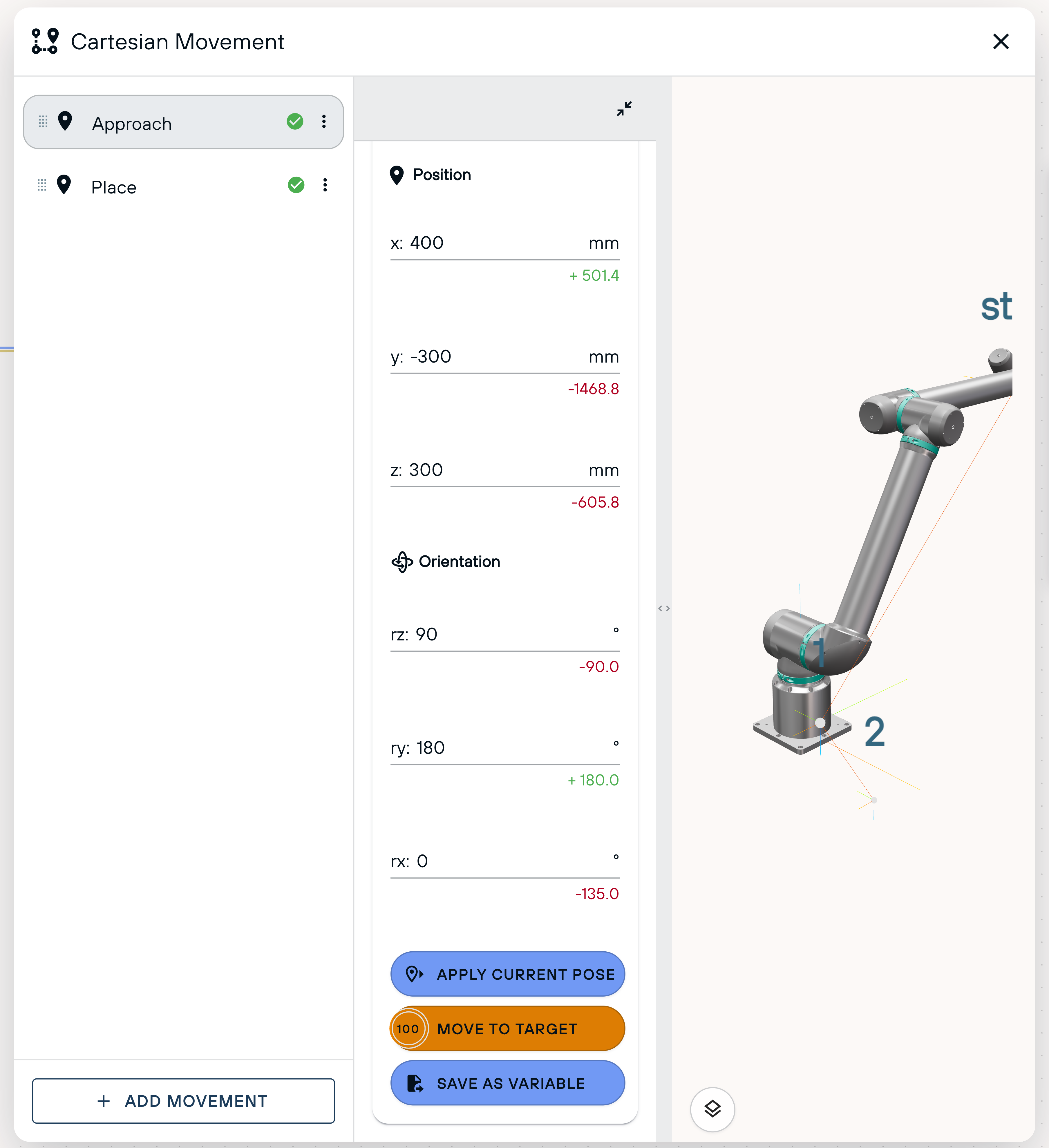
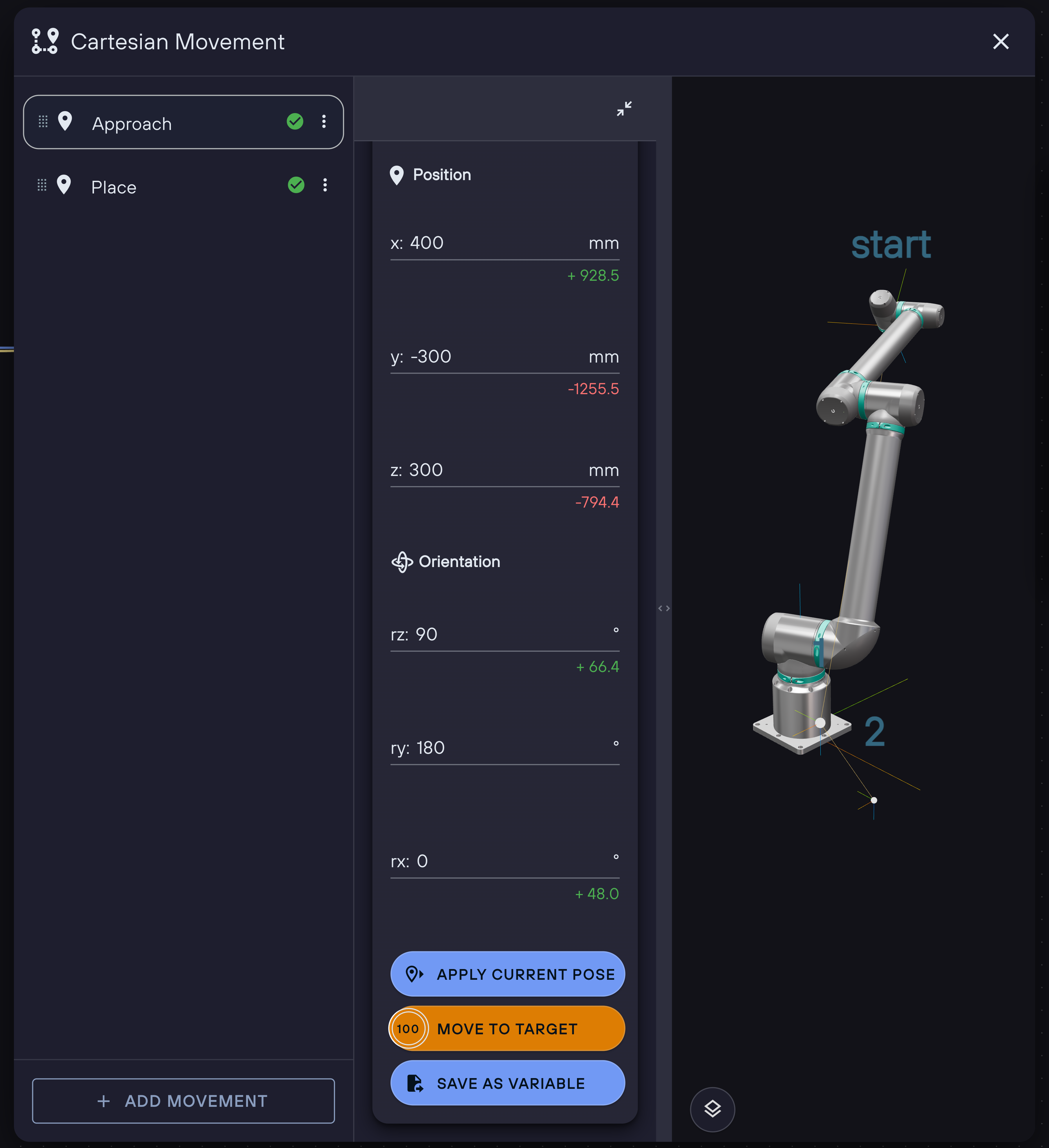
A new Node and each new entry start at the Robot's current TCP Pose, 100 % / 100 % and 0 mm.
| Field | Description |
|---|---|
| Name | Optional. |
| Velocity and Acceleration | 1–100 %, default 100 %. |
| Blending Radius | 0–300 mm, default 0 mm. The ⓘ button opens Blending Radius. |
| Select Cartesian Pose | Links a Cartesian Pose Variable. |
| Position | x, y, z in mm, at most ±9999.9, up to two decimals. |
| Orientation | rz, ry, rx in °, at most ±180, up to two decimals. |
The figure under each field is the difference to the Robot's current Pose.
The buttons Apply current Pose, Move to Target (press and hold; always a straight line) and Save as Variable / Edit Variable work as on Joint Movement.
The errors are At least one movement is required, Pose has missing or invalid values, and on a field Field is required, Limit exceeded or Enter a number with up to 2 decimal places. An entry with an error gets a red mark in the list and the Node reads Not configured.
Inside a Reference Group the Pose fields show the Pose in the Group's Workspace frame, and Select Cartesian Pose is unavailable.
Blending Radius
The Blending Radius defines how smoothly the Robot transitions between two Poses. Instead of stopping at each point, the Robot follows a continuous path by rounding off the corners within the specified radius.
It is important to note that the Robot could run into acceleration limits, in which case the blending radii will be ignored. To compensate for this and to facilitate blending between points you should reduce the acceleration and velocity of your movements.
While the Flow runs
The Node shows the running entry as "n / total" and a list of its Movements with the running one in bold. See Watching a run.