Variable
With a Variable Node, you can set one or more Variables, one after the other. Each value is evaluated when its entry runs, so an entry can use a value that an earlier entry has just set. Boolean and Output Variables can also be set with a switch, and Pose Variables can copy another Pose Variable.
This Node is not only useful for evaluating Expression and save its value, but also to interact with the periphery as Variables can be bound to it (e.g. to I/Os or Modbus/TCP). See Binding a Variable to I/O and Mapping a Variable to a fieldbus.
Setting Variables
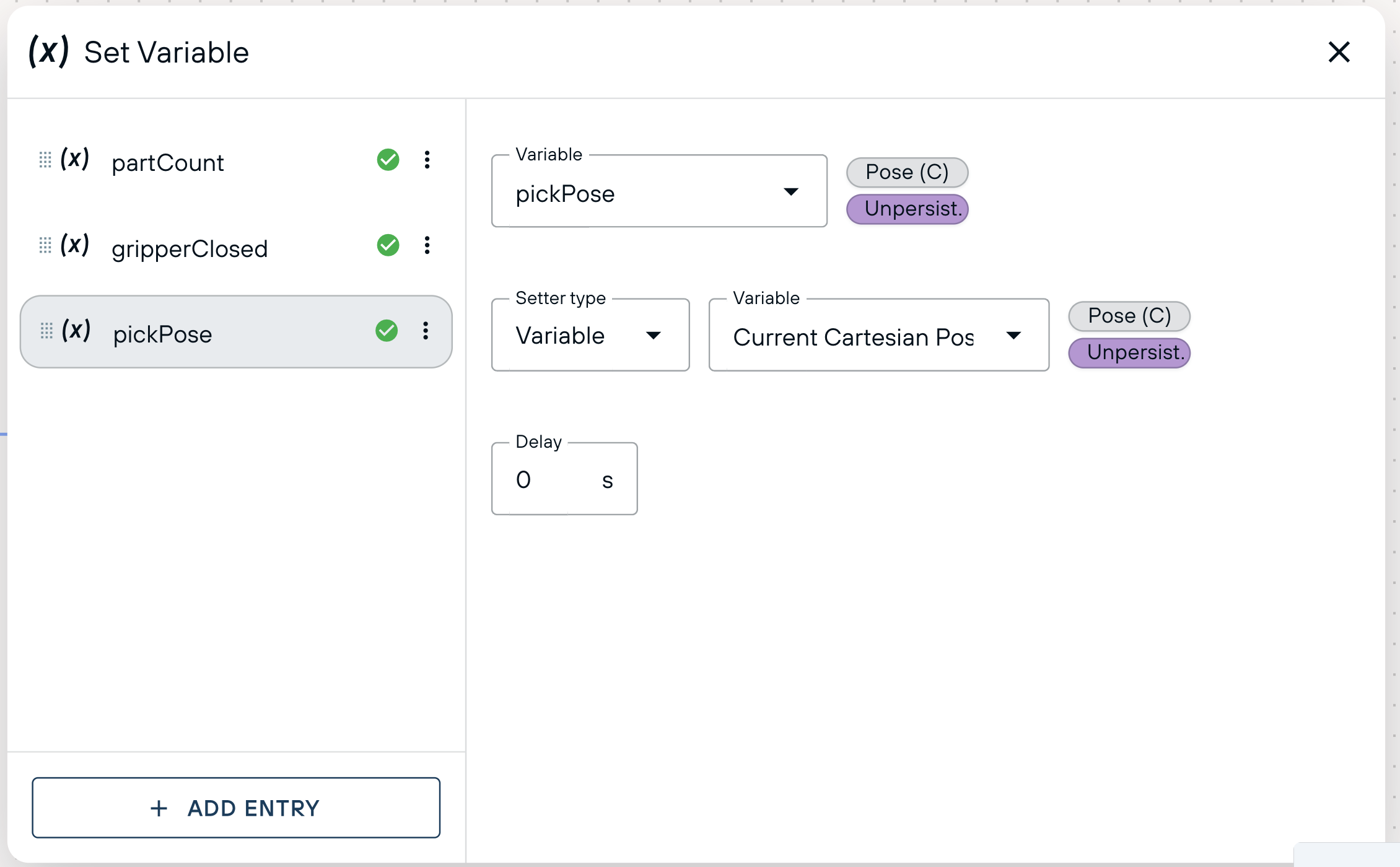
Select the Node. The open Node lists its entries as name = value; + adds the first one. Clicking an entry opens the Set Variable panel. In the panel, Add Entry adds another entry, the ⋮ menu offers Duplicate and Delete, and you can drag entries to reorder them. An entry without a Variable is titled "Entry 1", "Entry 2" and so on; otherwise it carries the Variable's name.
Variable
Variable picks the Variable to set.
- Only existing Variables that can be written are offered. Read-only Variables, Inputs, Profinet inputs and Variables mapped to a read-only Modbus register, input register or discrete input are left out.
- Variables cannot be created from the Node. Create them in the Variables window. With none defined, the list reads "No Variables are defined yet".
- Two chips beside the field show the type (for example "Integer", "Pose (C)" or "Pose (J)") and Persist. or Unpersist.
- Hovering the selected name shows Edit Variable (only in Teach mode or while a Flow is paused) and Copy Variable ID.
Setter type
The choice in Setter type depends on the Variable's type:
| Variable type | Setter type |
|---|---|
| Integer, Float, String | none: always an Expression |
| Boolean, Output | Expression or Switch |
| Cartesian Pose, Joint Pose | Expression or Variable |
Expression
The default setter, in the field Expression.
- It is disabled until a Variable is picked.
- For a Pose Variable, clicking the field opens the Pose Expression Configurator instead of taking typed text.
- The play button evaluates the Expression; the info button opens Expression Field.
Switch
On sets True, off sets False. Switching from Expression evaluates the current Expression to preset the switch.
Variable: copy another Pose
A second Variable picker selects the source.
- Only Variables of the same pose type are offered, including read-only ones and the built-in Current Cartesian Pose and Current Joint Pose.
- When the entry runs, the target takes the source's x, y, z, rz, ry, rx (Cartesian) or j1 to jn (Joint) values at that moment.
- The source is stored by its ID, so renaming it, or importing the Flow, does not break the copy.
- Typical use: capture where the Robot is right now. See Built-in Variables.
Delay
Delay is in seconds, default 0, and must be 0 or more. It is the time to wait after this entry is set before the next entry, or the next Node, runs. This is useful e.g. if you want to trigger a vacuum gripper and you'll have wait until the vacuum is properly created.
When the Node runs
- Entries run top to bottom.
- An Output Variable waits up to 2 s for the controller to confirm the new state. If it is not confirmed, the Flow pauses.
- If a Variable no longer exists, or an Expression cannot be evaluated, the Flow pauses and that entry is retried when you resume.
- While running, the Node shows a chip "current / total" and a panel listing the entries, with the current one in bold (see Watching a run).
Validation
The Node shows Not configured until these are fixed:
- "At least one entry is required".
- "Variable must be selected".
- "Expression is required".
- "Source Variable must be selected".
- Delay: "Value must be positive" or "Field is required".
- Pose: "Invalid Pose".
- A deleted Variable: 'Variable "name" does not exist'.