Selecting
Select a Node
Click a Node to select it. A click replaces whatever was selected before. A selected Node opens its settings on the Node itself, so you configure it where it sits on the canvas. Some Nodes have a larger configuration, such as the pallet setup of the Advanced Palletizing Node; it opens in a panel anchored beside the Node.
When the settings open, the view zooms and pans so they fill the part of the canvas that the app bar, the rail and the run bar leave free; closing them returns the view to where it was. The other Nodes are dimmed while one is selected. While a Node runs, it shows its progress instead of its settings (Watching a Run).
Click a connection to select it, for example to delete it.
Click an empty part of the canvas to clear the selection.
Select several Nodes
- Shift-click or Ctrl-click (⌘-click on a Mac) a Node to add it to the selection, or to take it out again.
- Box select: hold Shift and drag across an empty part of the canvas, or drag with the middle mouse button anywhere. Every Node the box touches is selected.
- Select all: press Ctrl + A (⌘ A on a Mac).
Multi-select mode
On a touchscreen there is no Shift key to hold, so the canvas tools offer Multi-select — "tap to add, drag to sweep". While it is on:
- a tap or click on a Node adds it to the selection, or takes it out;
- a drag across an empty part of the canvas box-selects, and adds to what is already selected.
Turn it on and off with the Multi-select button or Shift + M. It stays on until you turn it off.
The selection action menu
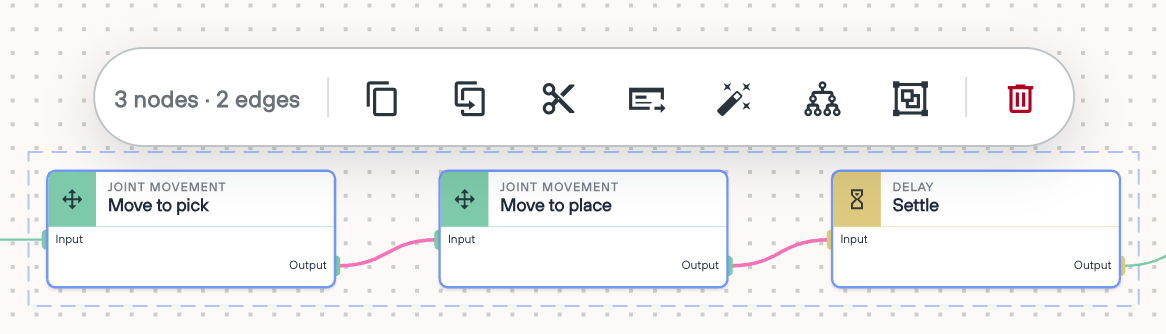
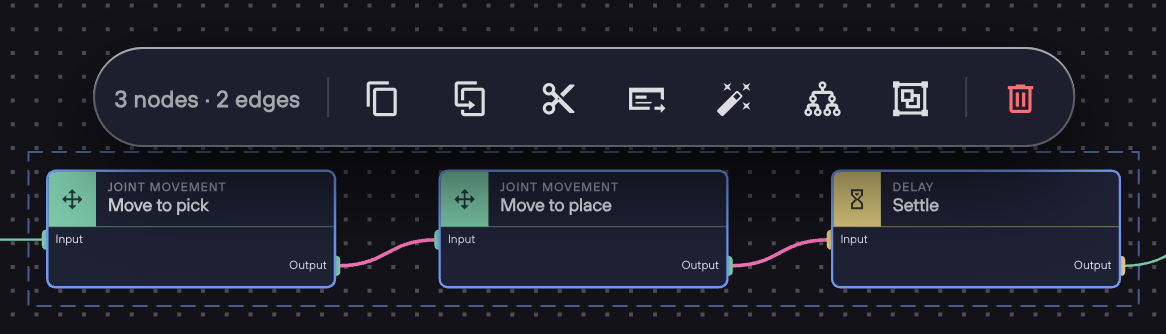
As soon as something is selected, a small menu of actions appears above the selection. It follows the selection as you drag, pan and zoom, and gives way while a Node's configuration panel is open. When several items are selected, the menu starts with a count, such as "3 nodes · 2 edges".
Every action is an icon; point at it to see its name and shortcut. The menu shows these actions in this order:
| Action | Shortcut | What it does |
|---|---|---|
| Run single Node | Runs only the selected Node. Offered for one runnable Node (not a Group or Comment) while no Flow is running or paused. | |
| Run Flow and skip movements until this Node is executed | Runs the Flow from the start but skips the movements until the selected Node is reached. Offered with Run single Node. | |
| Copy | Ctrl + C | Copies the selected Nodes and the connections between them. The selection is cleared, so you can choose where to paste. There is one clipboard for the whole app, so you can paste into another editor, such as the Subflow Editor. |
| Duplicate | Ctrl + D | Places a copy of the selection next to it. |
| Cut | Ctrl + X | Copies the selection and removes it. |
| Paste | Ctrl + V | Only in the menu that opens beside a right-click, and only when something is copied. The paste lands where you right-clicked and stays selected. With the shortcut, the paste lands at the pointer. |
| Move or copy to Subflow | Flow Editor only. Opens two choices: Move to Subflow ("Replaces the selection with a Subflow Node") and Copy to Subflow ("Leaves the Flow as it is"). See below. | |
| Tidy up the selection | Shift + T | Two or more Nodes. See Tidy up and Re-arrange. |
| Re-arrange the selection | Shift + A | Two or more Nodes. See Tidy up and Re-arrange. |
| Move to a new Group | Two or more Nodes. Choose Reference or Documentation, and the Group is drawn around the selection, in one undo step. When the selection holds a Group or a Node that is already in one, the menu says A Group cannot go inside another Group or Some of these Nodes are already in a Group instead. | |
| Unpack this Subflow into the Flow | Flow Editor only. Replaces the selected Subflow Node with the Nodes of its Subflow. Offered only for a Subflow used in exactly one place. | |
| What this Node does | Opens the selected Node's page of this documentation in the Documentation drawer; for a Group, the Group's page. | |
| Copy node ID | One Node. Puts its ID on the clipboard. Messages and logs name Nodes by ID; paste one into Search to find the Node. | |
| Group Color | Documentation Groups only. Sets the Group's color. | |
| Delete | Del / Backspace | Removes the selection. |
On a Mac, press ⌘ instead of Ctrl, and ⌫ to delete.
Move or copy to Subflow
Either choice opens the Subflow Editor over the Flow on a new Subflow named New Subflow. It has a Subflow Start Node, one Subflow Output Node per connection that leaves the selection, and Outputs set to match. Nothing changes in the Flow until you save the Subflow: then Move to Subflow puts a Subflow Node where the selection was (one undo brings the selection back), and Copy to Subflow leaves the Flow as it is. A message confirms it, with Open to reopen the new Subflow. Close the Subflow Editor without saving and nothing happens.
Some Node types are not allowed in a Subflow. Moving or copying a selection that contains them leaves them out of the new Subflow and tells you so; pasting them into a Subflow names the types that were not pasted.
Right-click an empty part of the canvas
Right-click an empty part of the canvas (or long-press on a touchscreen) to open the Add Item menu at the pointer. When something is copied, the action menu opens beside it, on the other side, and offers Paste there: what you copied lands where you right-clicked.