Search
On a large Flow, searching is quicker than scrolling. Search is available in the Flow Editor and the Subflow Editor.
Search for Nodes
Press Ctrl + K (⌘ K on a Mac), or Search in the canvas tools, to open the search palette. The shortcut works even while the cursor is in a text field.
Type what you are looking for. The search is forgiving about typos and gaps, and it looks at more than a Node's name:
- the Node's type, such as Joint Movement;
- the name you gave the Node;
- the text in its configuration, such as Expressions;
- the names of the Variables it uses;
- a Node's ID — paste one, for example from Copy node ID or from a message, and that Node comes first, marked Node ID;
- a Variable's ID — the Nodes that use that Variable follow, marked Uses variable.
Finding a Group also highlights the Nodes inside it.
Each result shows why it matched, with the matching characters highlighted.
- Move through the results with the arrow keys, and press Enter — or click a result — to go to that Node.
- Press Esc to close the palette. If there are results, it shrinks into the find bar rather than closing.
The find bar
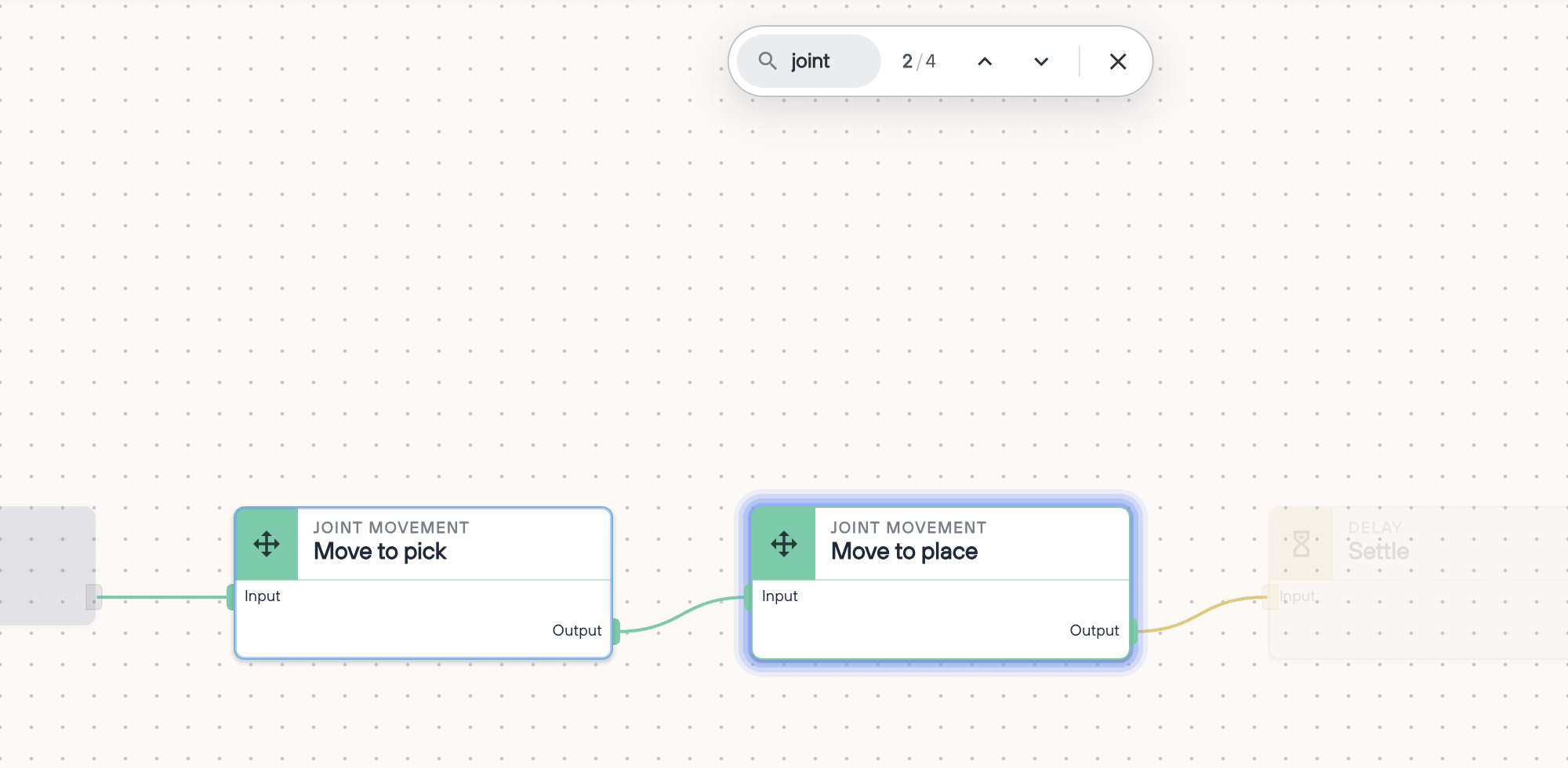
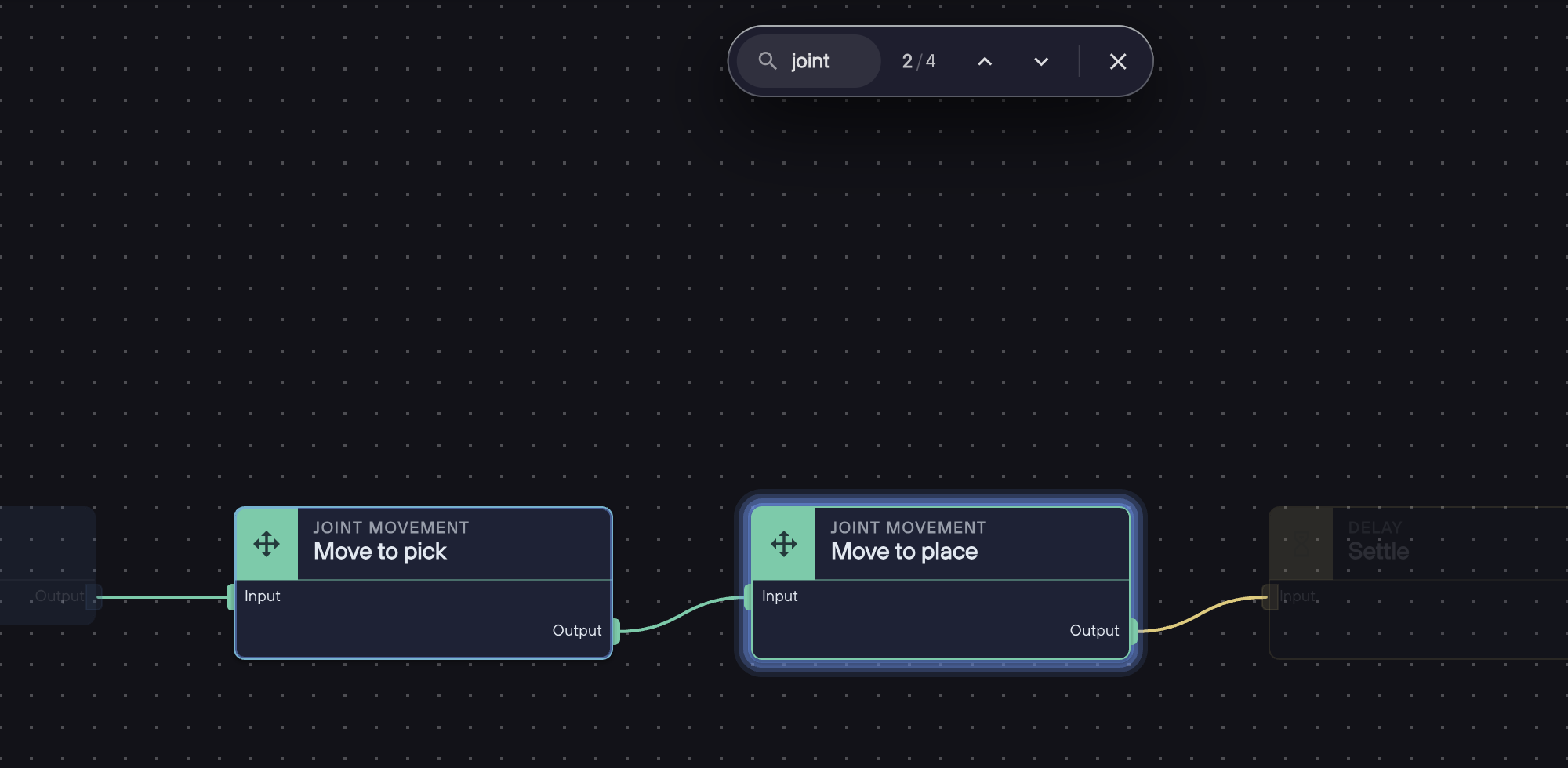
Once you pick a result, the palette gives way to the find bar. It keeps your query and shows which match you are on out of how many, while every match stays highlighted on the canvas.
| Action | Keys | Button |
|---|---|---|
| Next match | Enter | Next match |
| Previous match | Shift + Enter | Previous match |
| Change the query | Edit search — reopens the palette | |
| Close | Esc | Close search |
The canvas pans to each match as you step through them. The matches stay current while you work: delete a matching Node and it leaves the list, and the find bar stays on the match you were looking at. No matches means the query found nothing.
The Issues panel
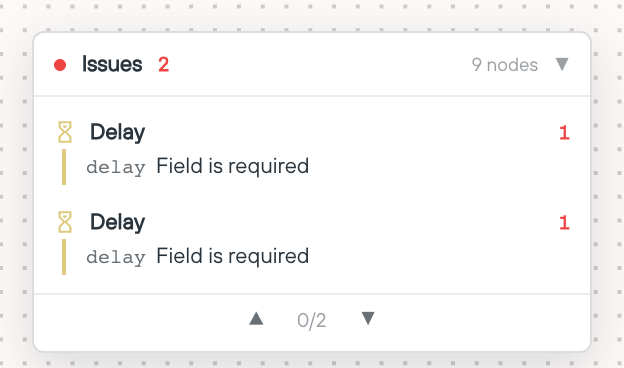
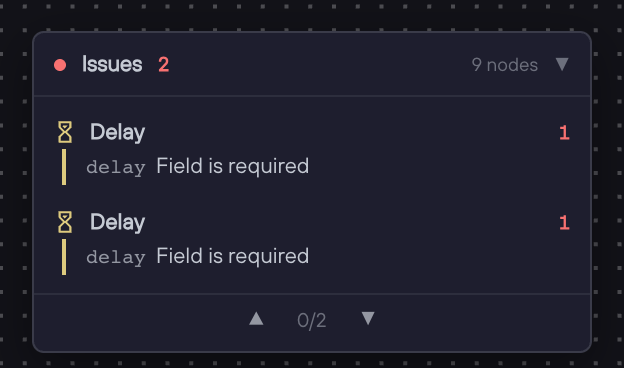
When Nodes in the Flow are invalid — a required setting is missing, or a value is out of range — the Issues panel appears in the bottom-left corner of the canvas. Its title shows the number of issues and the number of Nodes on the canvas.
The panel lists each invalid Node with its name, icon and number of problems, and one line per problem, naming the field where there is one. Click a Node in the list to go to it. With more than one invalid Node, the arrows step to the previous and next one.
Stepping through issues uses the find bar, so Enter, Shift + Enter and Esc work there too. Click the panel's title to fold it away.
A Flow with issues can be neither saved nor run: Save, Run and Debug stay disabled, and their tooltips say why. See Flow Config for the settings that belong to the Flow itself.