Watching a run
When you run a Flow with Run or Debug, the canvas shows you where it is. Run and Debug run the Flow as it is in the editor, unsaved changes included. Hold Debug to run in debug mode: the Flow runs while you hold the button and pauses when you let go. You can keep panning, zooming, searching and selecting while it runs. Changing the Flow is not possible during a run: editing shortcuts are refused with the message The Robot cannot perform this action in its current state.
Highlight options
Open Highlight (the eye) in the canvas tools, or press Shift + H, to choose
what the canvas marks; the popover is headed Execution Highlights. Each option also has its own shortcut, so you can toggle it without opening the menu.
| Option | Shortcut | What it shows |
|---|---|---|
| Executed nodes | Shift + E | Tints every Node that has finished in this run. |
| Running nodes | Shift + R | Tints the Nodes that are running right now. |
| Follow running node | Shift + F | Moves the view to each Node as it starts. See Follow mode. |
| Reset highlights | Shift + X | Clears the marks gathered so far. |
All three options are off when you open the editor. The marks are cleared when the run ends, however it ends.
Whatever the options, the connections leading into a running Node are animated with moving dashes, so you can see which path the Flow took to get there. The connections leaving it are the branches it has not taken yet.
What a running Node shows
Many Nodes show their progress while they run:
- Status chips float above the Node: the iteration of a Loop, the seconds waited out of the total of a Delay, the inputs that have arrived at a Join, Waiting for trigger or Executing on an event Node, Waiting for confirmation on a User Confirmation Node, and Running skill... on a Skill Execution Node.
- Movements, the Variable Node and the pattern Nodes (Stack / Row, Grid, Palletizing, Advanced Palletizing) grow a panel over their face, showing the movement, the row, item or layer in progress.
- A Subflow Node shows a live, read-only preview of the Subflow it runs; see Subflows during a run.
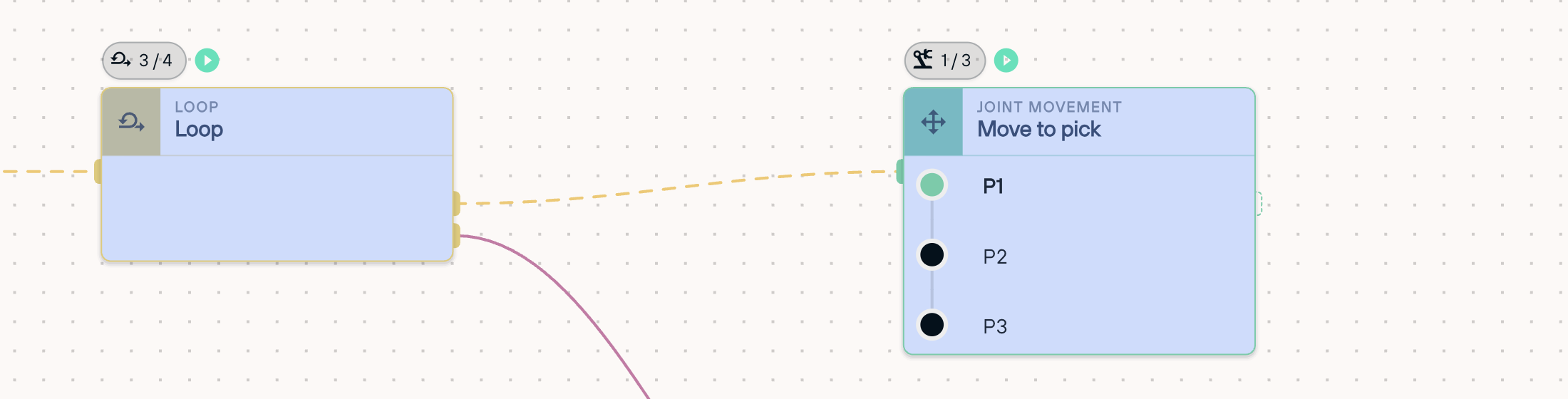
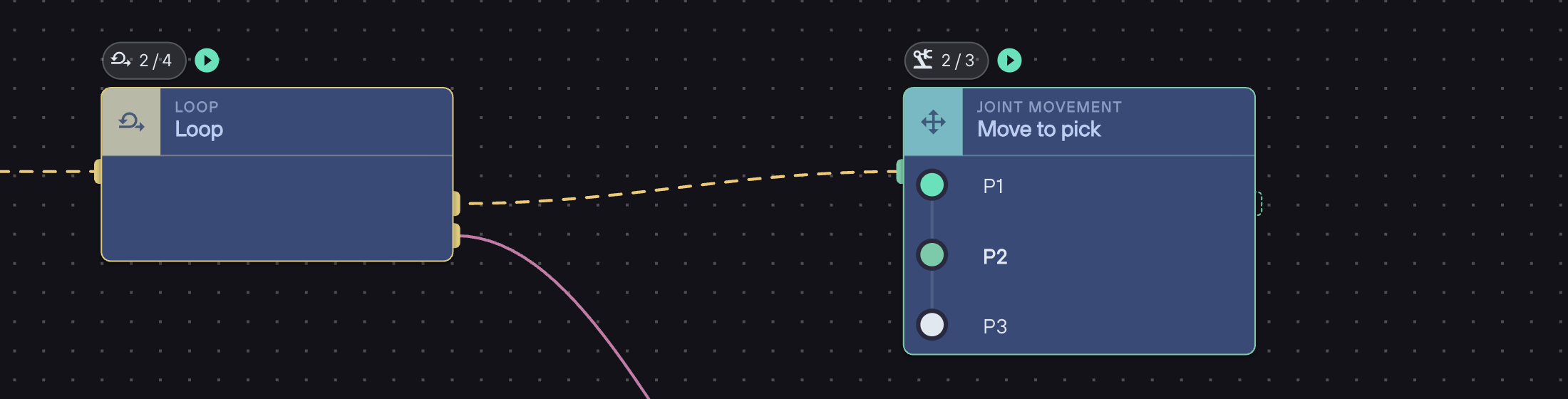
Other Nodes show only the tint. If a Node's configuration is open when the Node starts, the configuration closes so the Node can show its progress. You can still select a running Node.
Follow mode
With Follow running node on, the view pans to each Node as it starts, and re-centers when the Node's running panel changes size. Turn it off to look around freely while the Flow runs.
The running-node locator
With follow mode off, the running Node can be off screen. An arrow then appears at the edge of the canvas, pointing toward it. Click the arrow — Go to the running Node — to pan there. When several branches run at once, the arrow points at the Node that started last.
Subflows during a run
In the Flow Editor
A running Subflow Node grows a preview of its Subflow, with the same highlights and status chips on the Nodes inside. While follow mode is on, the preview follows the Node running inside the Subflow; with follow mode off it stays where you put it, so it does not move under you. The preview shows the run only: you cannot edit in it. When the Subflow Node chooses its Subflow through a Variable, the preview keeps showing the Subflow that is running, even if the Variable changes during the run.
In the Subflow Editor
The Subflow Editor has its own run bar over the canvas: an Outputs selector that sets how many outputs the Subflow Node gets, Debug and Run. The same run bar appears when the Subflow Editor opens over the Flow Editor. They run the Subflow that is open, as it is in the editor — you do not have to save it first. Hold Debug to run in debug mode: the Subflow runs while you hold the button and pauses when you let go.
- Run and Debug are available only while the Subflow is valid.
- While another Flow is running, Run is disabled with the note Another flow is currently running, so it cannot pause a run it did not start.
While the Subflow runs from its editor, the canvas shows the same highlights, status chips, follow mode and locator as the Flow Editor.