Undo, redo and history
Every change you make on the canvas can be undone: adding, moving, connecting and deleting Nodes, Tidy up and Re-arrange, and every change inside a Node's configuration.
| Action | Mac | Other platforms |
|---|---|---|
| Undo | ⌘ Z | Ctrl + Z |
| Redo | ⇧ ⌘ Z or ⌘ Y | Ctrl + Shift + Z or Ctrl + Y |
The Undo and Redo buttons in the canvas tools do the same.
How undo steps work
- Undo walks back in time. Each press takes back one step, in the order you made them, whether the step happened on the canvas or inside a Node's configuration.
- Undo shows you what it changes. When the step was made inside a Node's configuration, the same press selects the Node, opens that configuration and points at the field that changes. When a step touched Nodes that are off screen, the canvas brings them into view first; a Node that an undo removes fades out where it stood.
- Typing is one step. Edits to a field that follow each other quickly are folded into one step, so you do not undo a name letter by letter.
- One gesture is one step. Changes that belong together undo together: a Node added from a connection and that connection, a re-wired output and the connection it replaced, a selection moved into a Subflow or into a new Group, a Tidy up or Re-arrange, a run of arrow-key nudges, and a Node moved into or out of a Reference Group together with its converted Poses.
- Fields keep their own undo while no configuration is open: with the cursor in a text field, Ctrl/⌘ + Z undoes your typing in that field. While a Node's configuration is open, the shortcut steps through the history instead.
Each editor keeps its own history: the Flow Editor, the Subflow Editor (also when it opens over a Flow), the calibration Flow editor and the Dashboard Editor do not share undo steps. A redo that would bring back a Variable you have since deleted is dropped.
Undo, redo and every other edit need the Robot in a mode that allows editing, such as teach mode. While a Flow is running, an editing shortcut is refused with the message The Robot cannot perform this action in its current state.
Saving
The Save button (Ctrl + S, or ⌘ S on a Mac) marks the current point in the history as saved. If you undo back to exactly that point, the Flow counts as unchanged again.
The Save button is disabled while the Flow has no Event Trigger Node, contains invalid Nodes or has no unsaved changes; its tooltip says why. If you leave the editor with unsaved changes — another view, another Flow, closing the Subflow Editor, Switch to Legacy — RobFlow asks first: Leave discards the changes, Stay keeps you in the editor, Save and Leave saves first. The undo history starts afresh each time you open an editor.
The History panel
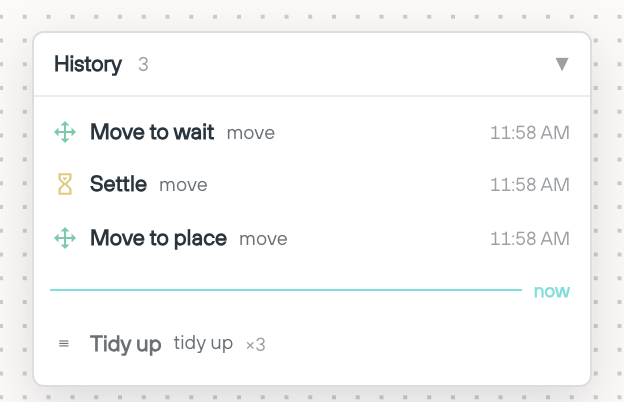
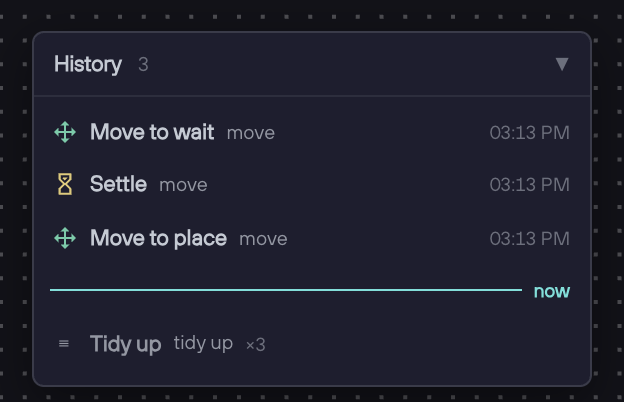
The History panel lists the steps you can undo and redo. Turn it on with Show mutation log in Preferences; it then appears in the bottom-left corner of the canvas as soon as there is something to show. Click its title to fold it away, and again to open it. The number next to the title is the count of undo steps.
How to read it:
- Each section is one run of changes to one Node, headed by the Node's name and icon in its category color, and the time of the change. Its rows are the fields that changed, with the old and new value where they fit. A ×3 means three undo steps were folded into that row.
- A section that is itself the event, rather than an edit to a Node, carries a mark: + added, − removed, → connected, ✕ disconnected, ⇵ moved, • updated and ≡ Tidy up or Re-arrange.
- The now line marks where you are. Steps above it are applied, the most recent right above the line. Steps below it are undone and drawn faded; the next redo is right below the line. The list scrolls to keep the line in view as you undo and redo.