Working on the Canvas
The canvas is where you build a Flow: the large area of the Flow Editor that holds your Nodes and the connections between them. The Subflow Editor uses the same canvas, so everything in this section applies there too, unless a page says otherwise.
| Page | What it covers |
|---|---|
| Navigating | Pan, zoom, fit, Tidy up and Re-arrange, the minimap, and how Nodes simplify when you zoom out. |
| Selecting | Clicking, box select, multi-select, and the selection action menu. |
| Adding Nodes | The Add Item menu, dragging a Node onto the canvas, and adding one from a connection. |
| Connecting Nodes | Drawing connections, re-wiring an output, and removing a connection. |
| Groups | Putting Nodes into Reference and Documentation Groups. |
| Undo, Redo and History | Stepping back and forward, and the History panel. |
| Search | Finding Nodes, the find bar, and the Issues panel. |
| Watching a Run | Running and executed Nodes, follow mode, and the running-node locator. |
| Keyboard Shortcuts | Every shortcut, for Mac and for other platforms. |
The canvas at a glance
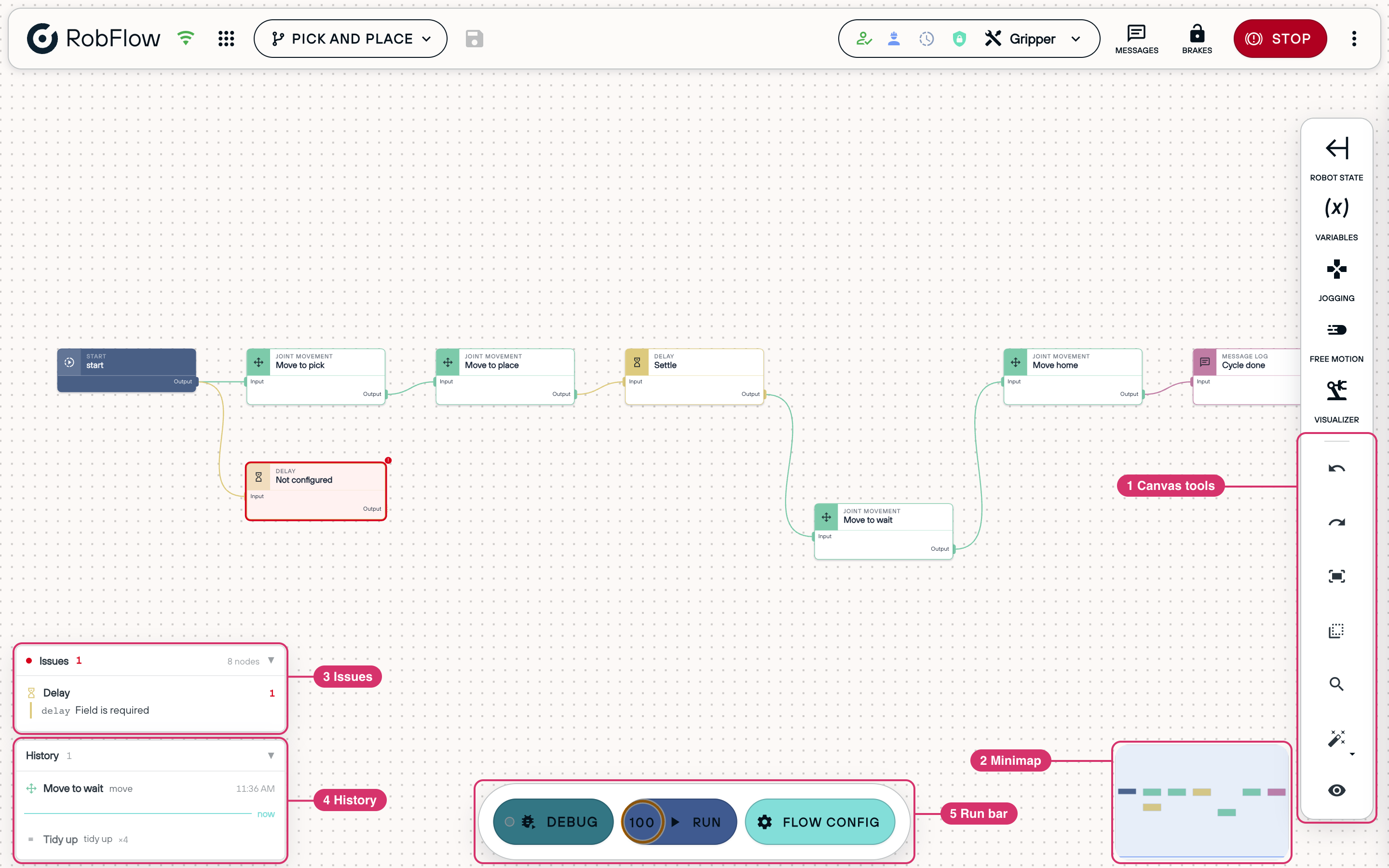
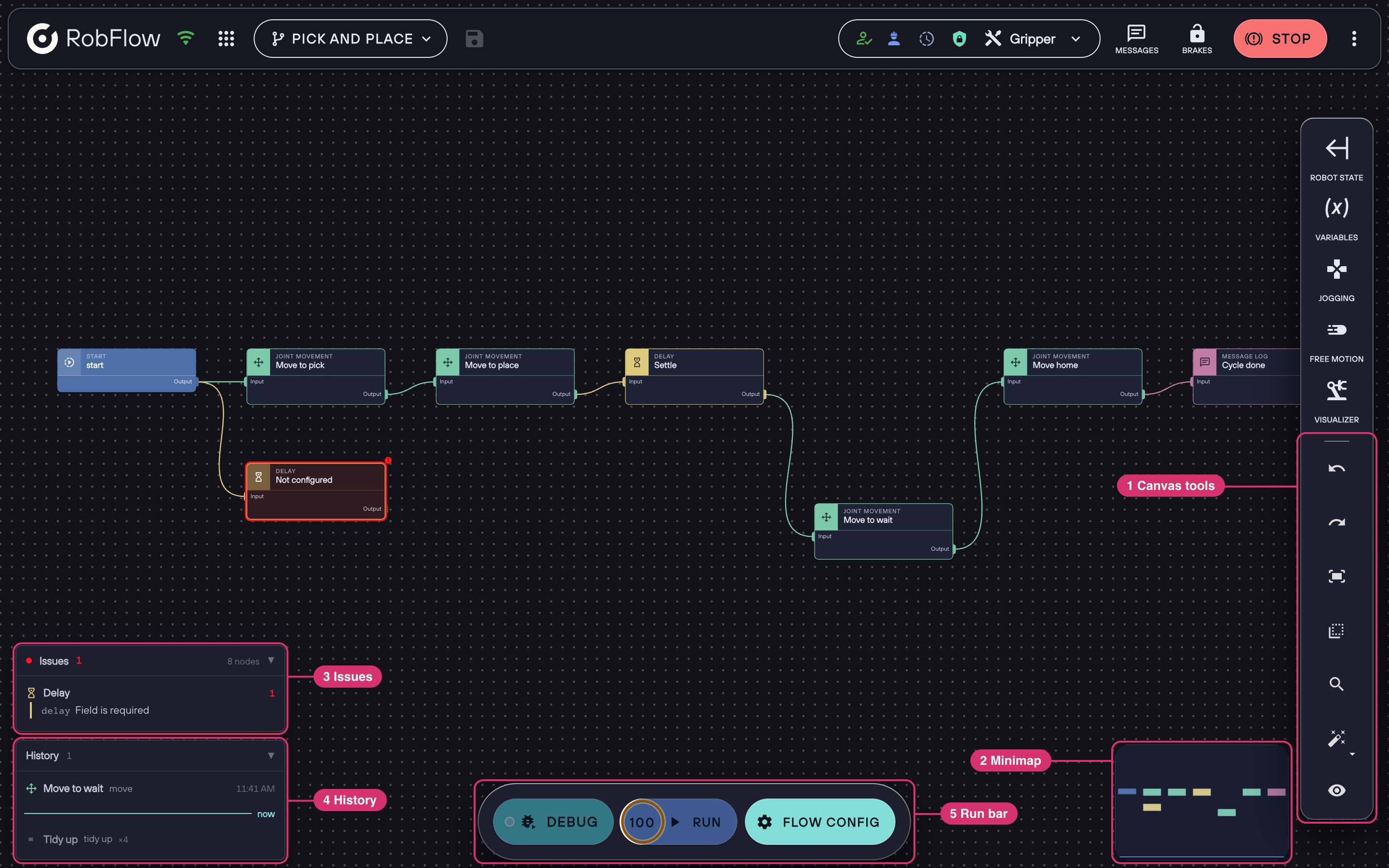
- The canvas tools sit in the rail along the right edge of the canvas, below the Robot controls (ROBOT STATE, VARIABLES, JOGGING, FREE MOTION, VISUALIZER): Undo, Redo, Fit, Multi-select, Search, Tidy up — its small arrow also offers Re-arrange — and Highlight. When the window is too short, the lowest tools move into the More tools menu at the bottom of the rail. In a window narrower than 600 px, every tool except Undo and Redo is in More tools. The tools step aside while you pan or zoom.
- The minimap sits in the bottom-right corner and shows the whole Flow.
- The Issues and History panels sit in the bottom-left corner. Each appears only when it has something to show.
- The run bar at the bottom centre of the canvas holds Debug, Run — with a gauge showing the global speed — and Flow Config. When the Robot is not at the Flow's Home Position, Move to Home takes the place of Debug and Run; during a run, Pause replaces Run. In the Subflow Editor the bar holds Outputs, Debug and Run; see Watching a Run.
Several of these are optional. Open Preferences (Alt + P, or ⌥ P on a Mac) and look under Canvas:
| Preference | Default | What it does |
|---|---|---|
| Show port labels on hover only | off | Port names stay hidden until you point at a port. |
| Simplify nodes when zoomed out | on | Distant Nodes become plain boxes, then marks. See Level of detail. |
| Snap to grid | on | Dragged Nodes settle onto the grid. |
| Show canvas toolbar | on | Shows the canvas tools in the rail. The keyboard shortcuts work either way. |
| Show minimap | on | Shows the whole-Flow overview, bottom right of the canvas. |
| Show mutation log | off | Shows the History panel, bottom left. |
Reset to defaults at the bottom of the dialog puts these back. Preferences are stored in this browser on this device — they don't change the Robot or your Flows.
Under Appearance, Theme picks Light, Dark, Glass light or Glass dark (the three-dot menu's Theme entry switches between light and dark), and Reduce motion stops panels sliding, the canvas gliding and Nodes stepping aside. Run highlights are unaffected.