Generic Button
The most configurable Widget: a button you define completely — what it looks like, when it is enabled, and what it does.
What it does
One of nine actions:
| Action | Effect |
|---|---|
| Run Flow | Starts a Flow you select |
| Stop Flow | Stops the running Flow |
| Pause Flow | Pauses the running Flow |
| Resume Flow | Resumes a paused Flow |
| Resume Flow: Move back to trajectory | Returns the Robot to the path first, then resumes |
| Resume Flow: Not on trajectory | Resumes from where the Robot is |
| Set Variable | Writes a Variable, by Expression or switch |
| HTTP Call | Sends an HTTP request |
| Change Dashboard | Navigates to another Dashboard |
Change Dashboard is how you build a multi-screen operator panel — a menu Dashboard whose buttons lead to one Dashboard per station.
If the first action of the shown state is Run Flow and the Robot is not at that Flow's home position, the button reads "(Move to Home)": press and hold it to move the Robot to the home position, release to stop. Once the Robot is home, the button runs the actions as usual.
When it is enabled
Activation conditions gray the button out unless the Robot is in a state you allow. This is what stops an operator starting a Flow at the wrong moment. Conditions match on:
| Condition type | Values |
|---|---|
| Robot State | Idle, Paused on trajectory, Paused not on trajectory, Jogging, Free Motion, Moving, Error, Critical |
| Operation Mode | Teach, Flow running, Flow paused on trajectory, Flow paused not on trajectory, Error, Critical |
| Safety State | Manual, Auto, Safe Stop, Error |
| Variable | Compares a Variable with a value. Boolean, Input, Output and String Variables offer equal and not equal; other Variables also offer less than, less than or equal, greater than and greater than or equal |
Safe Stop also matches the safety state Invalid (304), which the Robot reports for an invalid operation-mode selection.
A Run Flow button, for instance, is usually restricted to Idle — so it cannot be pressed while a Flow is already running.
Button states
A Generic Button holds one or more Button States. Each state carries its own appearance, its own activation conditions and its own actions, so one Widget can be several buttons in one. The switch above the state list decides how the state on screen is chosen:
- Use Activation Conditions (the default) — the states are checked from top to bottom and the first one whose conditions all match is shown. Order is priority: reordering the list changes which state wins when several would match. If no state matches, the Widget falls back to a built-in Inactive state — labelled Inactive, and pressing it does nothing.
- Use Manual Selection — the activation conditions are ignored and the operator picks the state from a dropdown on the Widget itself. The dropdown only appears when the Widget has more than one state; with a single state that state is simply shown. Entries are listed by state name, falling back to the state's label.
Either way, pressing the button runs the actions of the state currently shown.
Manual Selection is what makes a Generic Button an operator's selector rather than a status display — for example choosing which Subflow a Flow should call, by writing the choice into a Variable with a Set Variable action per state.
How it looks
Name, Label, Icon, and Label and icon size (Small, Medium, Large, Extra Large). The button can also define distinct states, so it reads differently depending on what the Robot is doing.
HTTP Call
The HTTP Call action carries the same options as the HTTP Request Node: method, URL, headers, body and content type, authentication, control token, timeout, retries, redirect following, and optionally storing the response in a Variable.
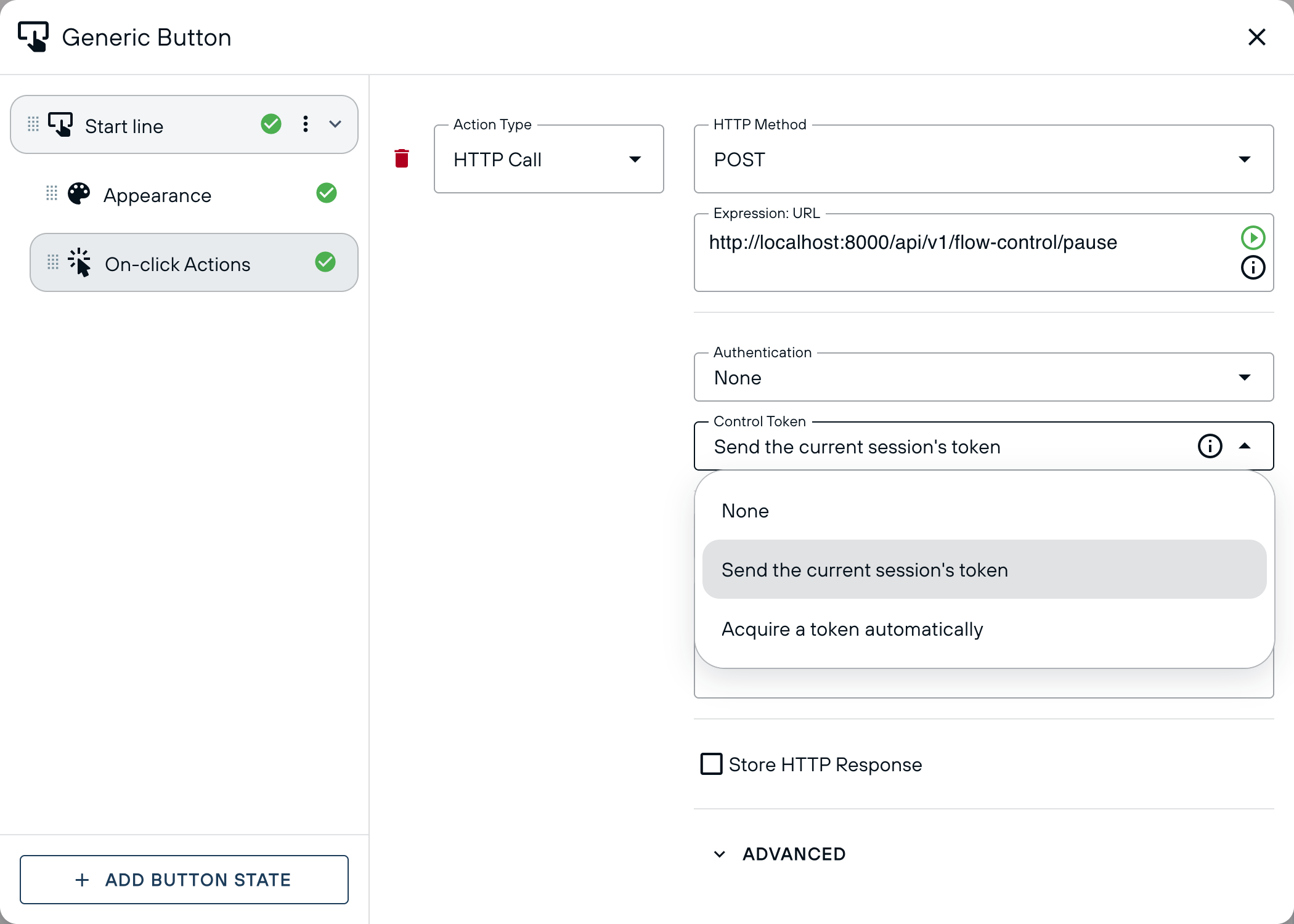
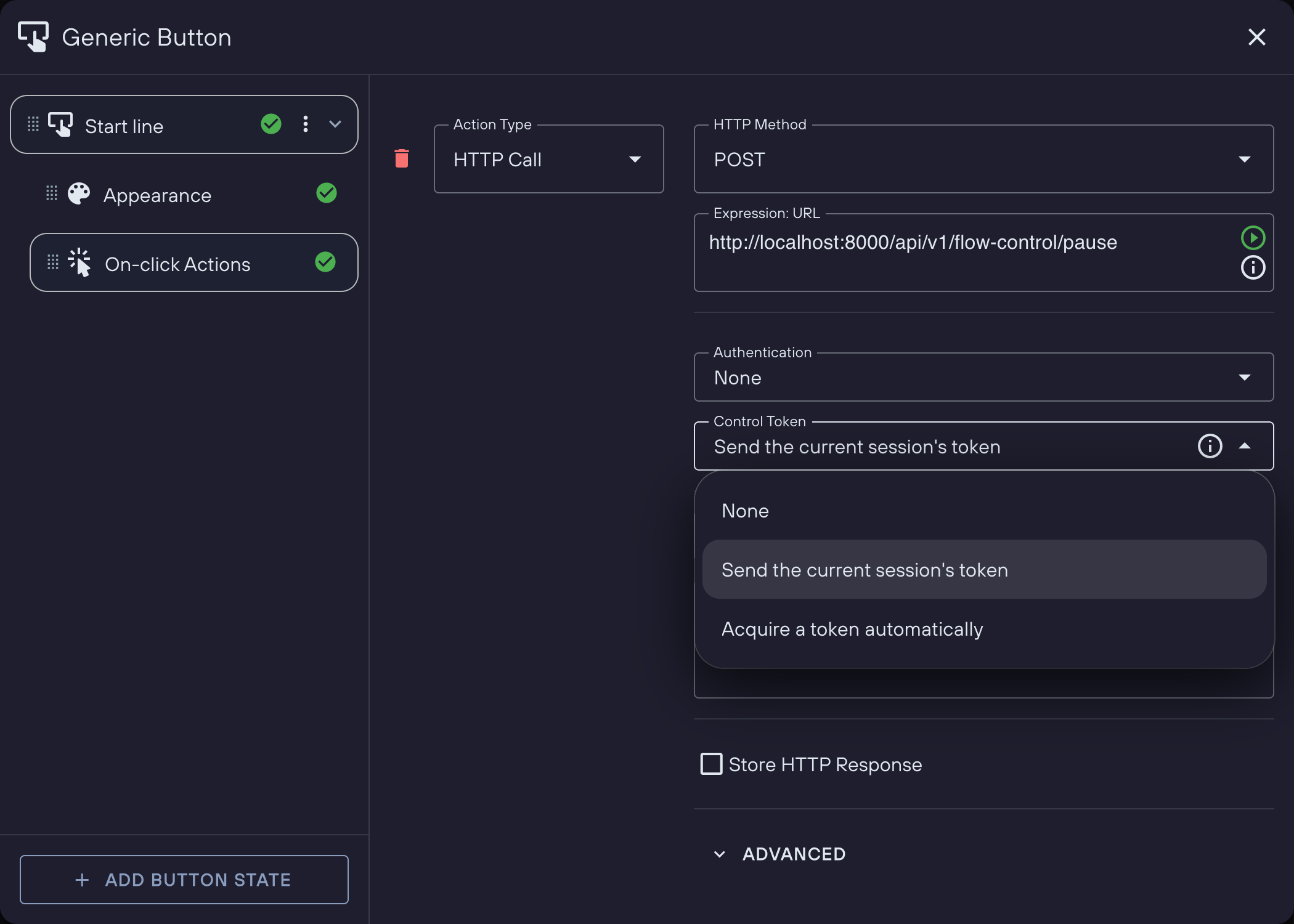
Control Token has one choice more than on the Node:
| Control Token | What the call sends |
|---|---|
| None (default) | No token. Enough for any server that is not a Robot, and for Robot API calls that only read. |
| Send the current session's token | The token of the browser session the button is pressed in, for a call to this Robot's own API. The session must hold control: in View-only mode the button opens the take-control dialog and the call is not sent. |
| Acquire a token automatically | For a call to another Robot: RobFlow first takes control of the Robot the URL addresses, as the HTTP Request Node does. Whoever held control there loses it. |
The token is taken when the button is pressed. It is never stored in the Dashboard.
An HTTP Call from a Dashboard runs with no Flow around it. There is no Node to branch on the result — if the outcome must change what the Robot does next, store the response in a Variable and let a Flow act on it.