Safe Home Position
A Home Position describes the desired joint angles of a Robot that must be set before starting a Flow.
In case that a Home Position is set, RobFlow will check whether the Robot is in the desired position before starting a Flow.
If the Robot is not at the Home Position, the Run and Debug buttons in the Flow Editor's run controls are replaced by a Move to Home button, which moves the Robot there at a reduced speed while you hold it.
Where to set it
In the Flow Editor, click Flow Config in the run controls at the bottom of the canvas and pick the third tab, Home Position. The switch that enables it is in the tab list next to the tab's name, not on the tab itself — until it is on, the tab only reads "Home Position is disabled":
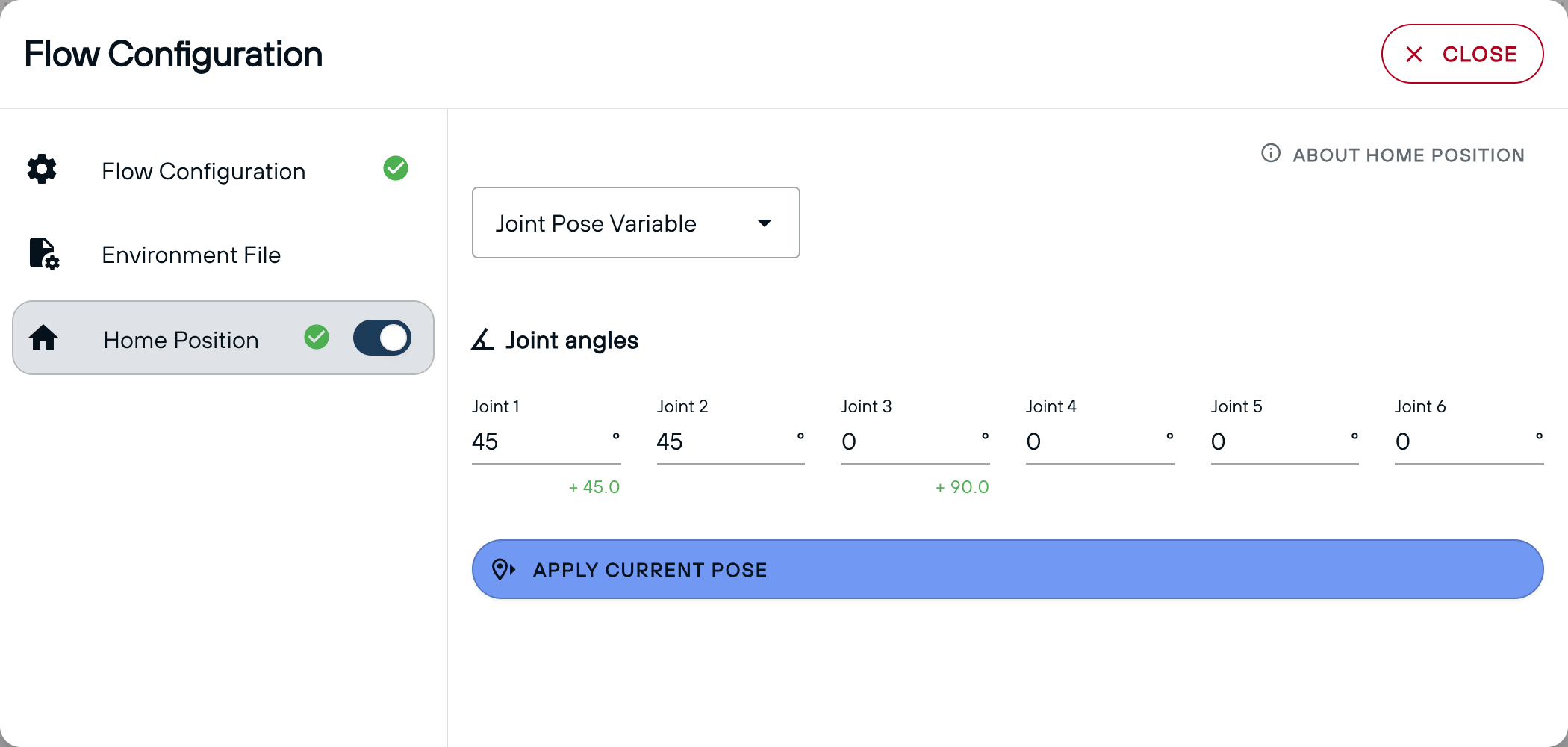
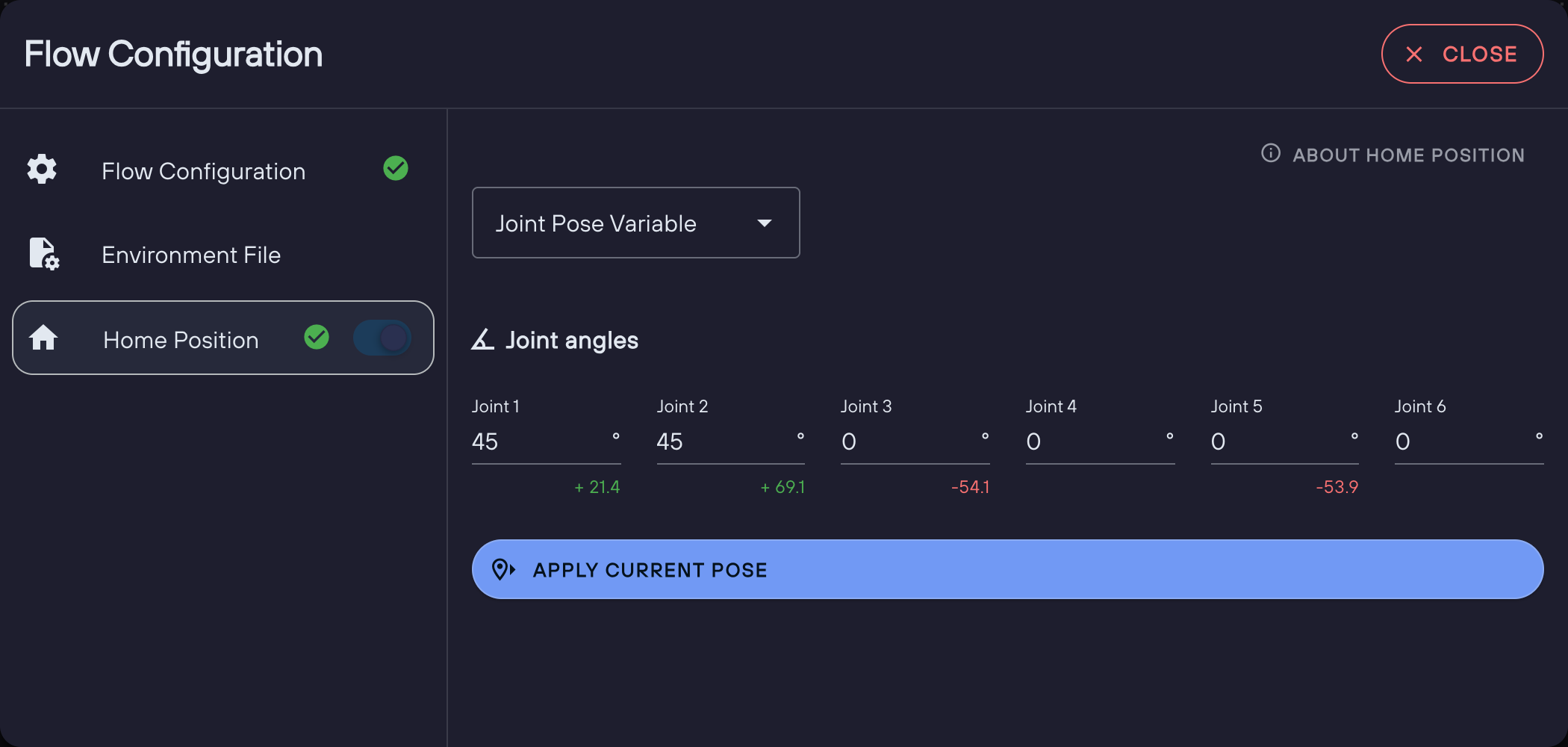
A Home Position is stored per Flow, so each Flow can insist on a different starting pose. Set one angle per joint by typing them, by selecting a Joint Pose Variable, or by jogging the Robot into place and pressing Apply current Pose.
The number under each field is how far that joint still has to travel — green for a positive rotation, red for a negative one, and nothing at all once the joint is there. When no field shows a number, the Robot is at the Home Position.
How close is close enough
RobFlow does not require an exact match. The Robot counts as being at its Home Position when every joint is within 2° of the stored angle. One joint outside that band is enough to block the Flow.
Moving to the Home Position
While the Robot is outside the tolerance, both the Run and the Debug button disappear and a Move to Home button takes their place.
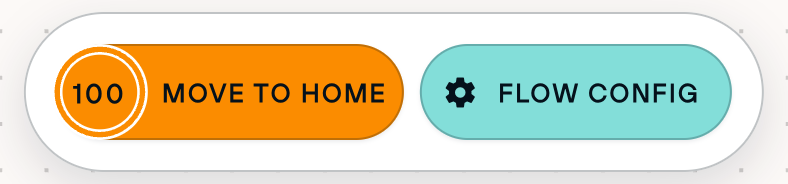
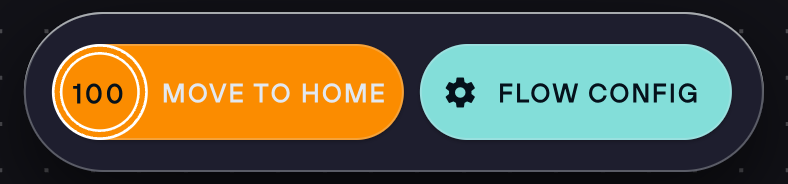
It is a hold button, not a click: the Robot moves only while it is held, and it stops the moment you release it or slide the pointer off the button. The motion is a point-to-point joint movement at 5 % speed. Like Run, the button shows the Global Speed dial; Global Speed is set in the Robot State drawer.
Once every joint is inside the tolerance, the button is replaced by the normal Run and Debug controls again.
Move to Home is in the run controls of the Flow Editor only. The Subflow Editor has none, and running a Subflow from there does not check any Home Position.
On a Dashboard, the Run & Pause Flows Widget shows neither Run nor Move to Home while the Robot is away from the Flow's Home Position.
To let an operator home the Robot from a Dashboard, use a Generic Button Widget whose first on-click action is Run Flow. While the Robot is away from that Flow's Home Position, the button's label gains (Move to Home), and holding it moves the Robot there at 5 % speed; releasing it stops.
Whichever way you start a Flow, make sure the previous run ends at the Home Position.
Related
- Flow Config — the tab itself, alongside the Flow's other settings.
- Robot Configuration Check — the other interlock that can stop a Flow before it starts.