RobCo Studio RobVision Update
Highlights
This update is all about RobVision in RobCo Studio: a self-service labeling tool that lets you fine-tune a model with real-world images, a new model generation underneath it, and a reworked Models tab to manage the versions you train.
- Labeling & Fine-Tuning: If a model does not perform well enough on the line, import real images, label them, and train a refined model version yourself, in roughly 30 minutes end to end.
- New model generation: One network now predicts detection, mask, pick-point and rotation. Rotation is a continuous angle, so the "Resolution Angle" setting is gone.
- Models tab: All model versions in one table. Stop a running training, deploy any successful version, and roll a version out to several Control Units at once.
Features & changes
Labeling & Fine-Tuning
A base model is trained from the CAD model or an image of the part, without ever seeing the real scene. Usually that is fine, but not always: at recent deployments the detection was not good enough because of lighting, occlusions, or parts sitting in unusual positions. Labeling real data from the deployment and fine-tuning the model fixed it. Until now that loop ran through the vision team. Now you can do it yourself while you are on site.
The new Labeling tab in the vision project is where this happens:
- Import images captured on the line from a RobFlow results export. Frames where the deployed model already detected something arrive prelabeled, so you review and correct instead of starting from scratch.
- Label the parts in the labeling editor. Hover over a part with AI Segmentation to preview the mask a click would produce, refine it with positive and negative clicks, or paint with brush, eraser and polygon. Set the class, the pick-point and, if the project uses it, the rotation angle per object. The image autosaves while you work; Mark as Labeled locks it when it is complete.
- Train a new model version from the labeled images with one wizard: select the ready images, name the run, validate the dataset, start. The run appears on the Models tab as a version refined with images, next to the base model.
- Deploy the refined version like any other model. If the results can still improve, import more images and repeat.
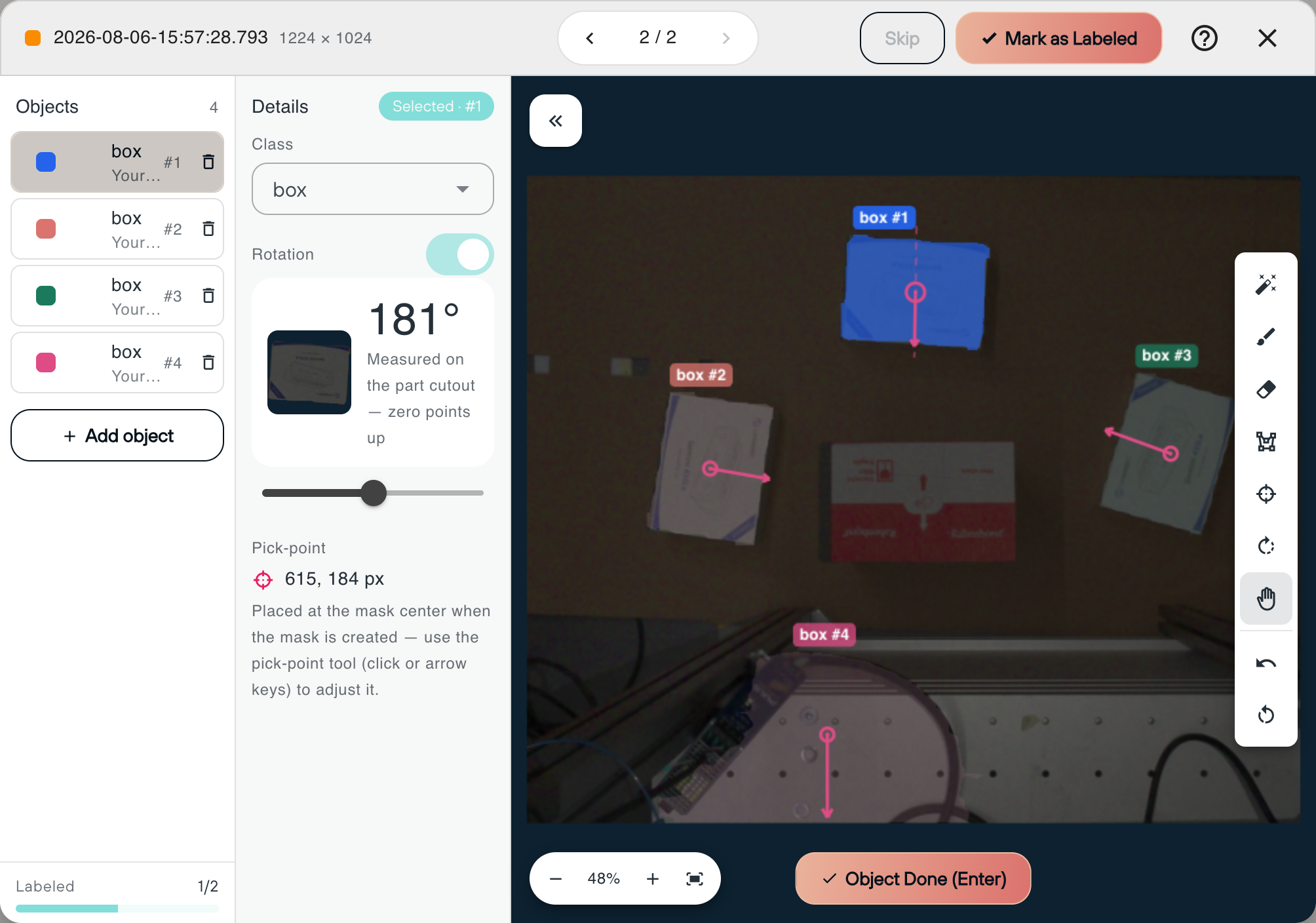
This is for fine-tuning only: the base model still comes from the CAD model or an image of the part, same as before. If your model already detects everything reliably, nothing changes for you. Only one project member can label at a time; the tab shows who is currently annotating.
The manual "Real World Data" upload on the Models tab was removed. Labeled images from the Labeling tab are the way to provide real-world data now.
The step-by-step guide with screenshots and keyboard shortcuts is in the documentation: Labeling & Fine-Tuning. The Help buttons across RobVision open the matching page directly; the labeling editor links straight to this guide.
New model generation
Trainings now produce a new generation of model. Instead of a detection model plus a separate rotation classifier, one network predicts detection, instance mask, pick-point and rotation together, and the rotation is predicted as a continuous angle instead of being sorted into fixed steps.
- No more "Resolution Angle". The setting is removed from project creation and the project settings. There is no classifier resolution to choose any more.
- "Part Symmetry" is a free input. Enter the angle after which the part repeats itself (any divisor of 360°, not only 360/180/90/45), or check Rotation not required for parts whose orientation does not matter. The advanced settings show it as Repeat angle.
- Requires RobFlow 8.3.0 on the Robot. Projects from the new generation run right away on RobFlow 8.3.0 with RobVision 1.2.0 on the device.
- Older Robots keep working. Every training first asks whether the model will run on a Robot with RobFlow 8.2.0 or earlier. If so, Train Deprecated Model trains the previous model generation, with its resolution-angle input. Each generation can be retrained once per set of labeled data, independently of the other.
Models tab
The Models tab shows a table of all model versions instead of only the latest training: base or refined, version number, live status, the Robots it is deployed on, and per-version actions.
- Stop a running training. A cancel is confirmed with a live status; a canceled run can be retrained right away.
- Deploy any successful version, not only the newest. A warning marks a rollback to an older version.
- Roll out to several Robots at once. The roll-out dialog selects a model version plus one or more Control Units. Units already running a version of this project are listed first with the version they run, failures are reported per unit and can be retried, and a search field filters long lists by serial number.
- Train New Model Version from the Models tab opens the same fine-tune wizard as the Labeling tab. Only one training can run per project at a time.
Miscellaneous
- Every vision project has its own page with Overview, Setup, Models, Labeling and Members tabs. The Overview shows the status at a glance and a guided workflow from part definition to deployment, and refreshes automatically while a training runs.
- Projects can be shared: add members by email on the Members tab. Members work on the same data, and the project list shows owned and shared projects alike.
- Archive instead of delete: "Delete project" is replaced by Archive Project. Archived projects stay readable for all members and can be unarchived; their names can be reused.
- The Help & FAQ dialog is replaced by Help buttons that open the documentation.